Taskbar Weather Shows the Wrong City
The little weather icon on the taskbar is handy only when it shows your city. When it shows a city miles away, Windows is usually using an old location, a VPN exit point, or a Widgets location you set once and forgot. This guide checks those sources in order. If the whole Widgets panel misbehaves, the guide on Widgets board opening blank covers that side.
TL;DR / Quick Fix
Quick fix: Check the city shown in Widgets. Change the weather location by hand. Then work through the remaining steps in order, checking one change at a time, and stop for a technician if you see damage, swelling, or a burning smell.
Follow these steps
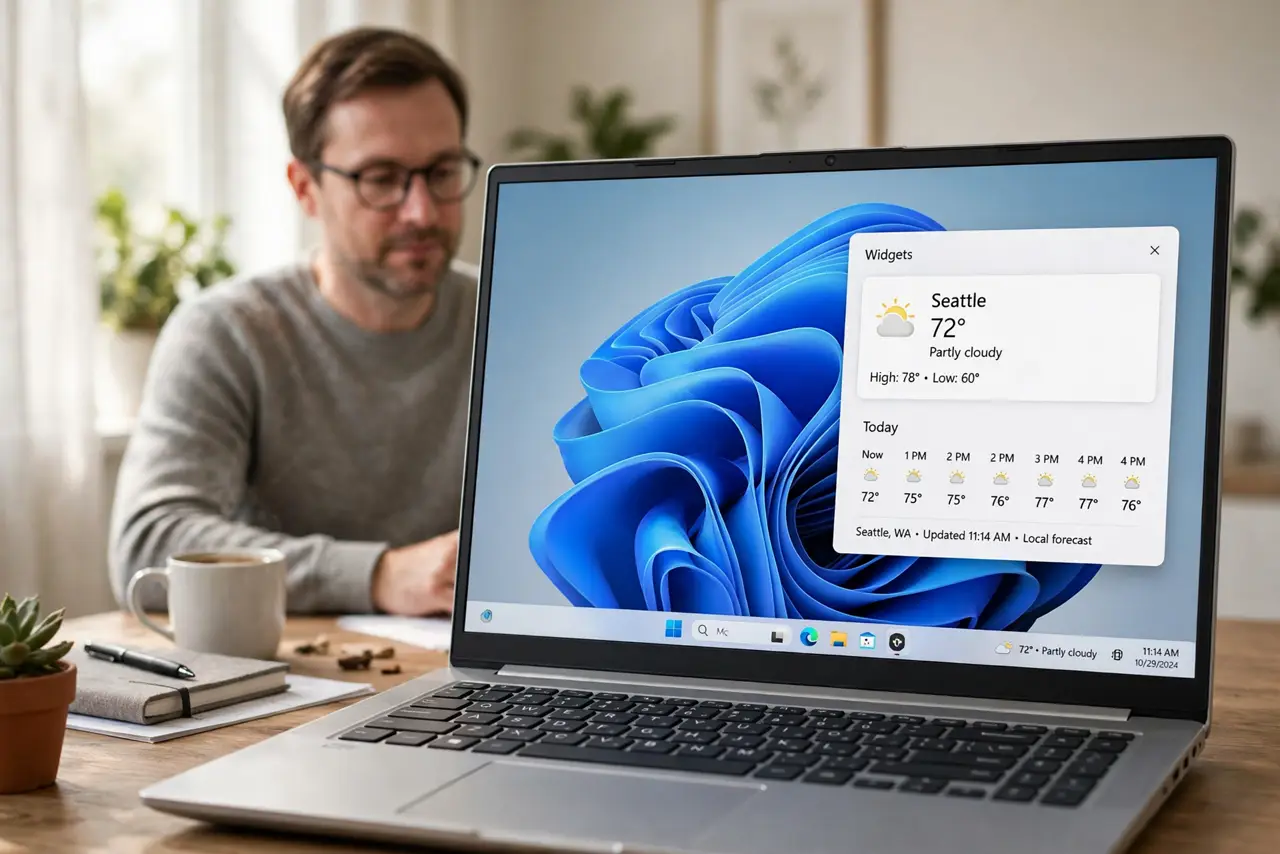
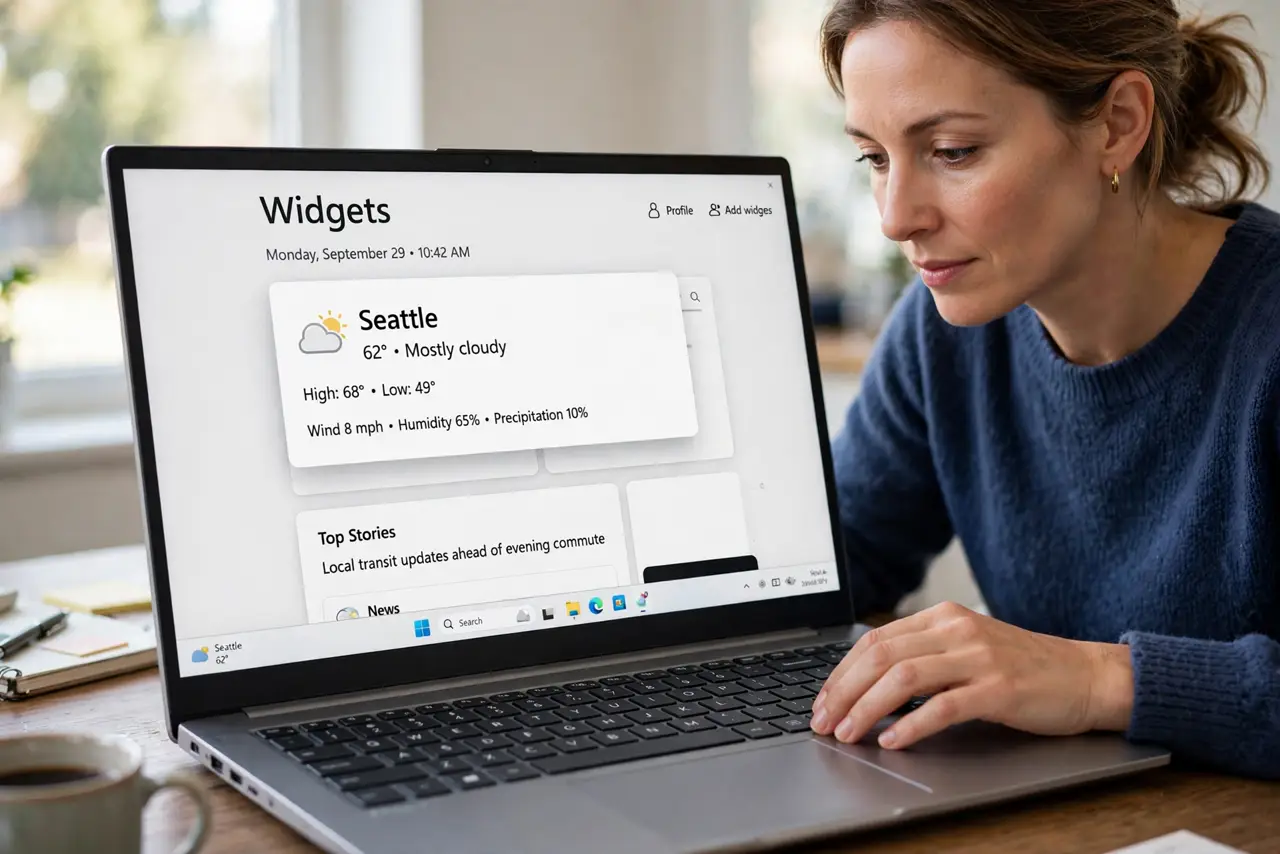
- Check the city shown in Widgets. Click the weather icon to open Widgets and look at the city name at the top of the weather card. That city is the one Windows is actually using, and it may differ from the small taskbar label.
- Change the weather location by hand. In the weather card, open its location setting and type your city, then pick the correct match from the list. A manual city overrides automatic location, which is the most reliable fix.
- Check whether a VPN is moving you. If you use a VPN, disconnect it briefly and reopen Widgets. A VPN can place your apparent location in another city or country, and Widgets will follow that location while it is on.
- Confirm Windows location permission. Open Settings, then Privacy and security, then Location, and confirm location services are on and Widgets is allowed. Without permission, Windows falls back to an approximate or stale location.
- Sign out of Widgets and back in. In Widgets, open the account menu, sign out, and sign back in with the same Microsoft account. A stale account location sometimes survives a city change until you sign in fresh.
- Restart and compare with a map app. Restart Windows, reopen Widgets, and compare the city with a maps app on the same network. If both now agree, the fix held, and if only Widgets is wrong, the manual city setting needs another look.
What NOT to do
- Do not change your system region to fix one city. Region affects formats and store content, while the weather card has its own location setting.
- Do not reinstall Windows over a wrong forecast. The city comes from one setting, and a reinstall is far out of proportion.
- Do not trust the taskbar icon alone. Always open the weather card, because the icon can lag behind the card city after a change.
- Do not share your exact home address in the weather setting. A city or nearby town is plenty for a forecast, and it protects your privacy.
Frequently asked questions
Why does the weather show a city I visited once?
Widgets can keep a location from a trip or a network change. Setting the city by hand replaces that stale location.
Does the weather need my precise location?
No. A city-level location is enough for a forecast, and it is also better for privacy than precise tracking.
Will turning off the taskbar widget remove weather?
You can hide the Widgets icon from taskbar settings, but the weather card inside Widgets keeps its own location.