Widgets Board Opens Blank on Windows
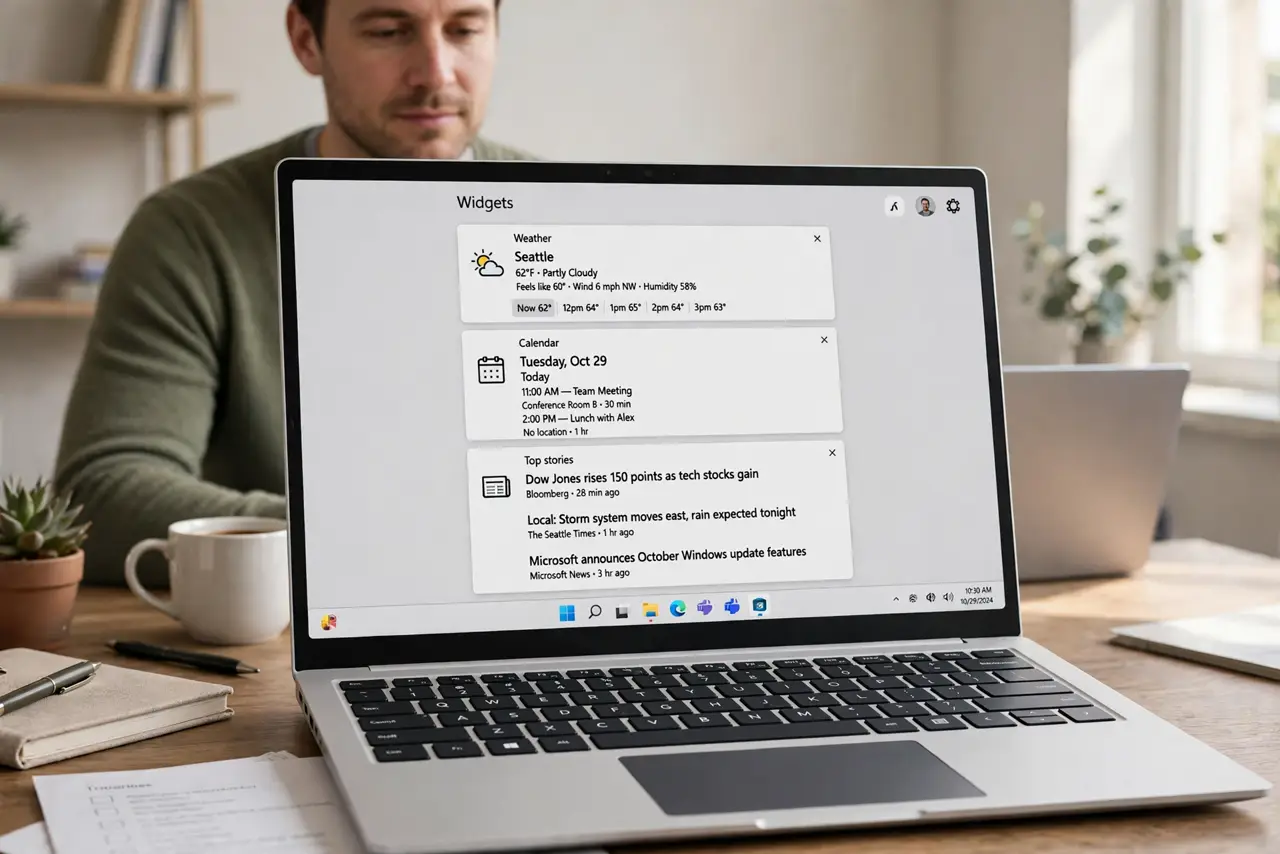
A blank Widgets board, with no weather, calendar, or news cards, usually means Widgets failed to sign in, lost its network, or its app data is stuck. The panel itself is rarely broken, so this guide checks sign-in and connection before anything drastic. If the board loads but shows stories you never wanted, see the guide on stopping unwanted Widgets news.
TL;DR / Quick Fix
Quick fix: Wait, then close and reopen Widgets. Check your internet connection. Then work through the remaining steps in order, checking one change at a time, and stop for a technician if you see damage, swelling, or a burning smell.
Follow these steps
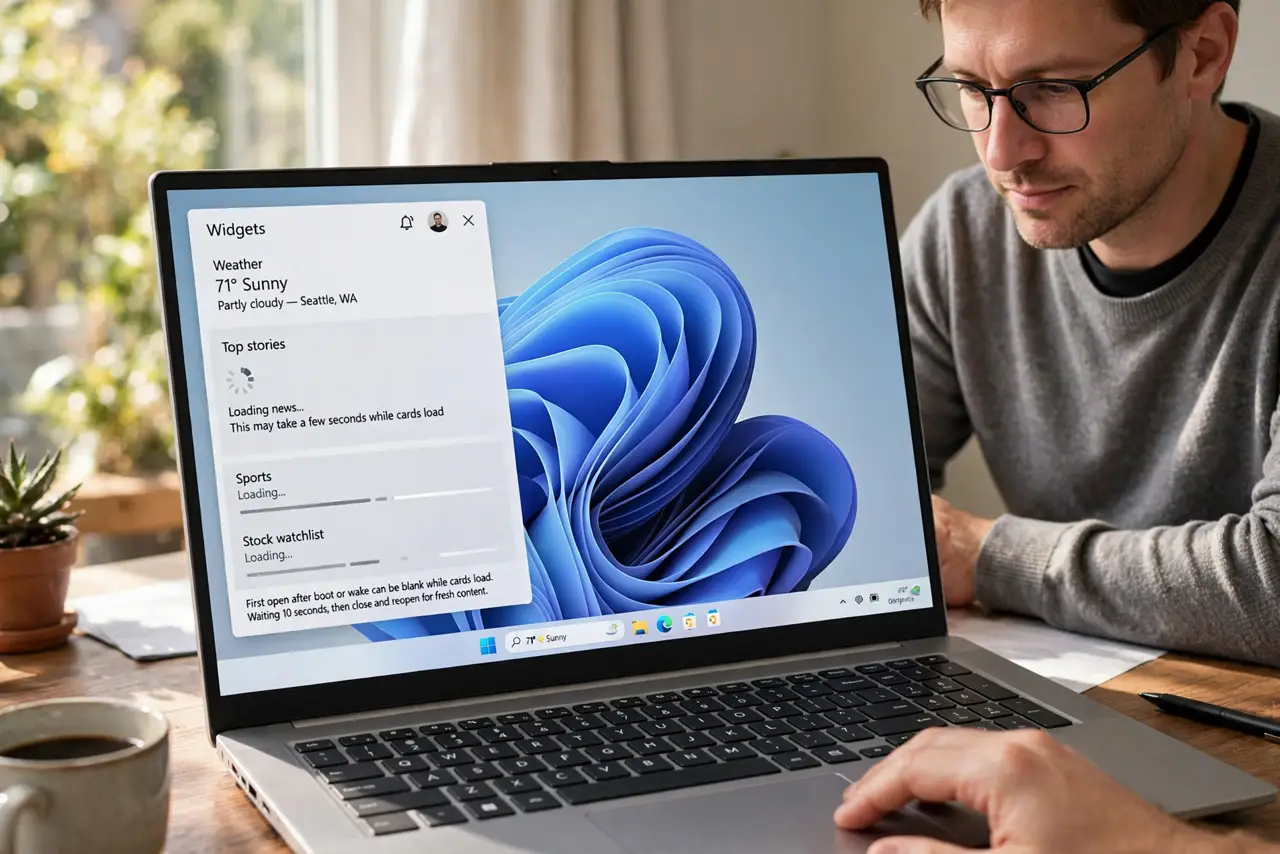
- Wait, then close and reopen Widgets. Click the Widgets icon to close the board, wait ten seconds, and open it again. A first open after boot or wake can be blank while cards load, and a second open often fills it.
- Check your internet connection. Open a browser and load any ordinary website. If the web is down, Widgets cannot fetch cards, and fixing the connection, not Widgets, is the real task.
- Confirm you are signed in to Widgets. Open Widgets, open the account menu, and confirm your Microsoft account is signed in. Widgets cards are tied to that sign-in, and a signed-out board stays empty even with a good connection.
- Check the Widgets app in Settings. Open Settings, then Apps, then Installed apps, and find Windows Web Experience Pack, which powers Widgets. If it shows an update pending, install it, then reopen Widgets.
- Repair the Widgets app data. In the same Installed apps page, open Advanced options for Windows Web Experience Pack and use Repair. Repair keeps your data while fixing stuck app files, so try it before any reset option.
- Restart Windows and open Widgets once. Restart, sign in, and open Widgets a single time, giving it a few seconds to load. If cards return, the repair worked, and if the board is still blank, note whether you are signed in for support.
What NOT to do
- Do not reset Widgets before trying Repair. Reset wipes app data, while Repair fixes the same stuck files without the loss.
- Do not install a third-party widgets app as a replacement. It will not fix the built-in board, and it adds its own sign-in and privacy questions.
- Do not turn off Widgets permanently over one blank open. A blank first load is common after boot, and a second open is a fair test.
- Do not edit system files to force cards to load. Widgets fetches cards from the web, so file edits cannot create content that never arrived.
Frequently asked questions
Why is Widgets blank only after I turn the PC on?
Cards need a network and a sign-in to load, and both can lag behind the desktop after boot. A second open usually fills the board.
Does Widgets need a Microsoft account?
Yes, for personalized cards. Without a sign-in, the board has no account to fetch cards for, so it stays empty.
Will Repair delete my Widgets layout?
No. Repair fixes app files and keeps your data, while Reset is the option that clears data, so use Repair first.