Drop Down Terminal Anywhere
You need a terminal for one quick command, so you minimize windows, hunt the taskbar, open Terminal, do the thing, and close it again. Twenty seconds of friction for a five-second command — dozens of times a day. Windows Terminal has a Quake-style dropdown mode: one hotkey slides a console down from the top of the screen over everything, and the same hotkey slides it away. It is the fastest terminal you will ever use.
TL;DR / Quick Fix
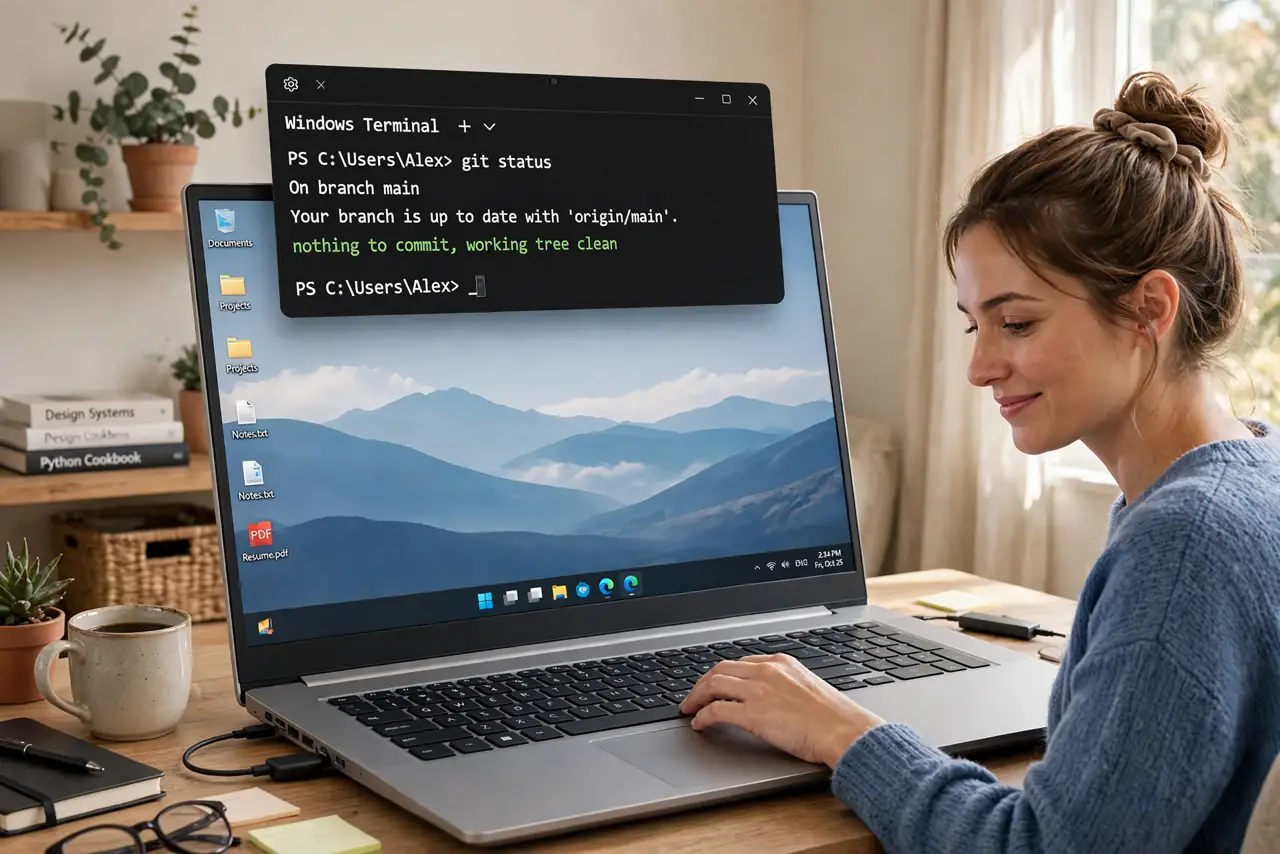
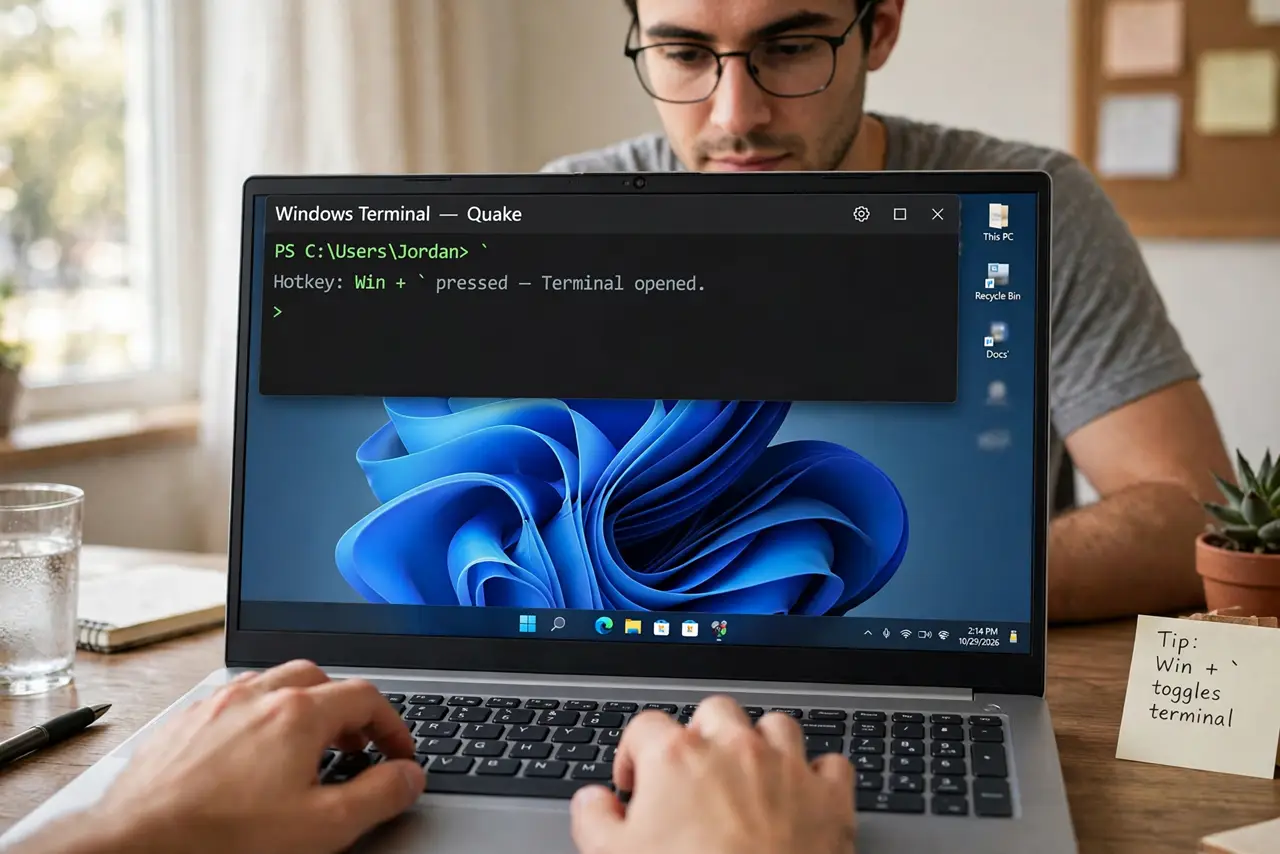
Quick fix: press Win + ` anywhere in Windows 11 to drop Terminal from the top of the screen — a Quake-style console one keystroke away. Press again to slide it away. If the hotkey does nothing, enable it in Terminal Settings → General, then pick your default profile.
Follow these steps
- Learn the hotkey. Press Win + ` (backtick, usually above Tab) anywhere — desktop, browser, game. The terminal slides down from the top; press the same keys and it slides away. Your command history and session persist between summons.
- Enable it if nothing happens. Open Windows Terminal → Settings → General and look for the dropdown / Quake mode hotkey option. Assign Win + ` if it is unset or conflicting — some keyboard layouts need a different combo.
- Pick your default profile. Set the dropdown to open your most-used shell — PowerShell, Command Prompt, or WSL. One shell, zero choosing, every time: the dropdown is for speed, not for browsing profiles.
- Use it for quick elevated commands. Need admin for one command? The dropdown plus sudo is the fastest possible elevated workflow — summon, sudo the command, dismiss, all without touching the mouse.
- Learn tabs and panes inside it. The dropdown is a full Terminal: Ctrl+Shift+T opens tabs, Alt+Shift+D splits panes. See tabs and panes for the combos — a dropdown with three panes replaces a lot of window juggling.
- Make it a habit for two days. Force yourself to use the hotkey instead of the taskbar for 48 hours. By day three your thumb reaches for it automatically — that is when the seconds-per-command savings start compounding.
What NOT to do
- Do not set the hotkey to something your fingers cannot reach. The whole point is instant access — Win + ` exists because it is one hand, no stretch.
- Do not run long builds in the dropdown and forget it. It is for quick commands; a two-hour compile deserves a proper window you will not accidentally dismiss.
- Do not dismiss it mid-command and assume the command died. Dismissing hides the session — the command keeps running, which surprises people the first time.
- Do not skip setting the starting directory. Point the dropdown at your projects folder so every summon lands where the work is.
Frequently asked questions
Can I change the hotkey?
Yes — in Terminal Settings you can reassign the dropdown hotkey to any combo that does not clash with your apps. Pick something your left hand can hit blind.
Does it work on Windows 10?
The dropdown mode is a Windows Terminal feature, so it works wherever the modern Terminal runs — but the whole experience is smoothest on Windows 11.
Will it steal focus from games?
It summons over fullscreen apps like any overlay hotkey. If that bothers you during gaming, pick a hotkey you will not hit accidentally.