Text Cursor Indicator Too Big? Shrink It
When the text cursor indicator grows huge, a thick colored bar follows every text field and distracts from your writing. The indicator is an accessibility aid, so the fix is to shrink it or turn it off, not to change your mouse or font size.

TL;DR / Quick Fix
Quick fix: open Settings, then Accessibility, then Text cursor, and drag the size slider down until the indicator is small and comfortable. If you do not need it at all, turn the text cursor indicator off on the same page.
Follow these steps
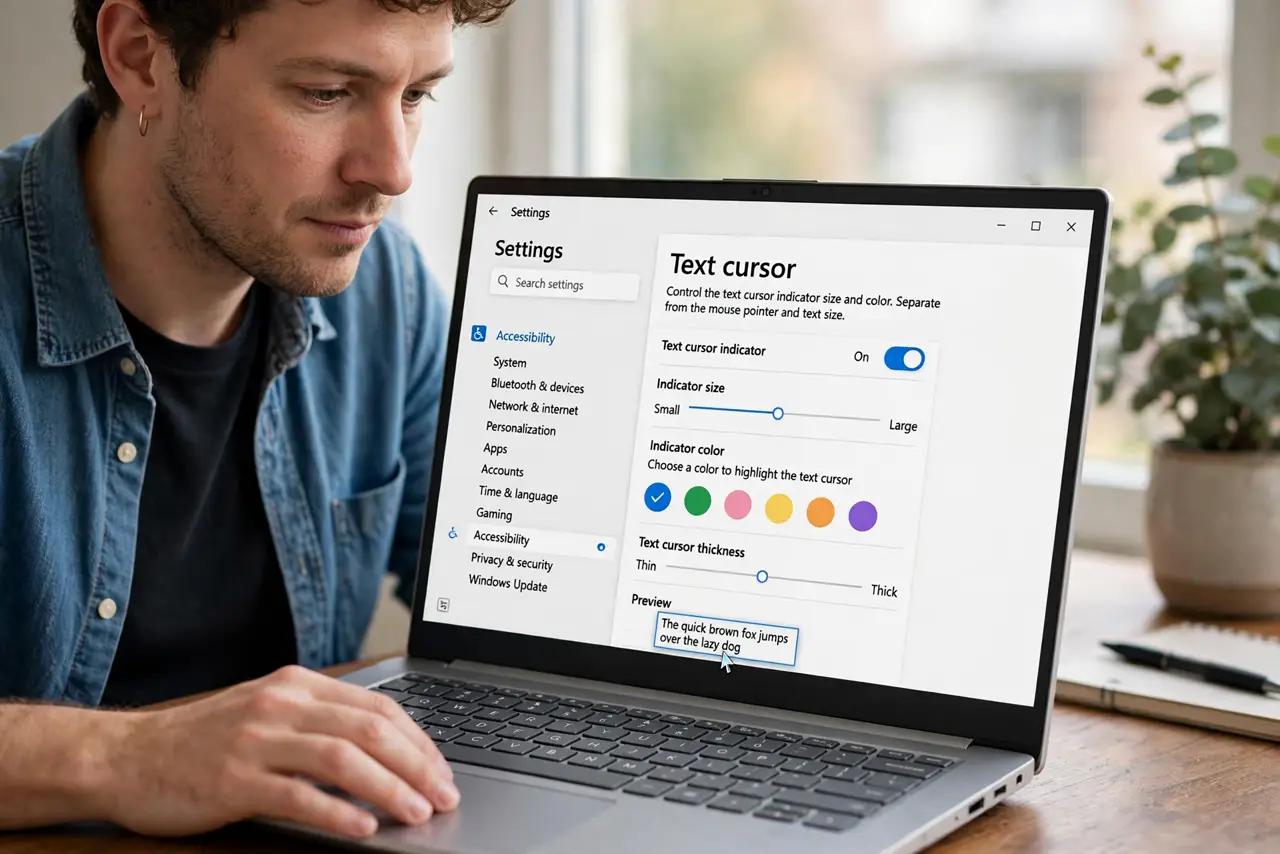
- Open Text cursor settings. Open Settings, then Accessibility, then Text cursor. This page controls the indicator size and color, separately from the mouse pointer and text size.
- Drag the size slider down. Move the size slider toward the left until the preview indicator looks small and comfortable. Test it in a document right away, because the preview alone can mislead.
- Pick a calmer color if needed. Choose a color that stands out gently against your documents, rather than a bright color that dominates the line. A softer color makes a small indicator even less distracting.
- Turn the indicator off if you do not need it. If the indicator still distracts you, turn the text cursor indicator switch off on the same page. Your normal blinking cursor stays, and only the extra indicator disappears.
- Check that text size stayed normal. Open a document and confirm your text size did not change. The indicator setting is separate, so your documents should look exactly as before.
- Restart an app if the change does not show. If one app still shows the huge indicator, close and reopen that app. Most apps pick up the new indicator size on their next launch.
What NOT to do
- Do not shrink your whole text size to fix the indicator. Text size and indicator size are separate settings, and shrinking text makes reading harder for no benefit.
- Do not change the mouse pointer size for this problem. The text cursor indicator is not the mouse pointer, and changing the pointer will not shrink it.
- Do not turn off all accessibility features to fix one indicator. Only the text cursor indicator switch needs changing, and other aids can stay as you set them.
- Do not reinstall an app because its cursor looks big. The indicator is a Windows setting, so it follows you across apps until you change it in Settings.
Frequently asked questions
What is the text cursor indicator?
It is an extra colored marker that shows where the text cursor sits, to help you find it in a document. It is separate from the normal blinking cursor.
Why did it suddenly get huge?
Usually the size slider was moved by accident, or an accessibility preset changed it. The Text cursor page is the direct place to shrink it back.
Will turning it off hide my cursor?
No. Turning off the indicator only removes the extra marker. The normal blinking text cursor stays visible in every text field.