Master Touchpad Gestures
Your Windows laptop's touchpad does far more than point and click — three-finger swipes switch apps, four-finger taps open search, and two-finger scroll is just the start. Most people use a fraction of it because the gestures are buried in settings. Here is the full map, plus how to customize them.
TL;DR / Quick Fix
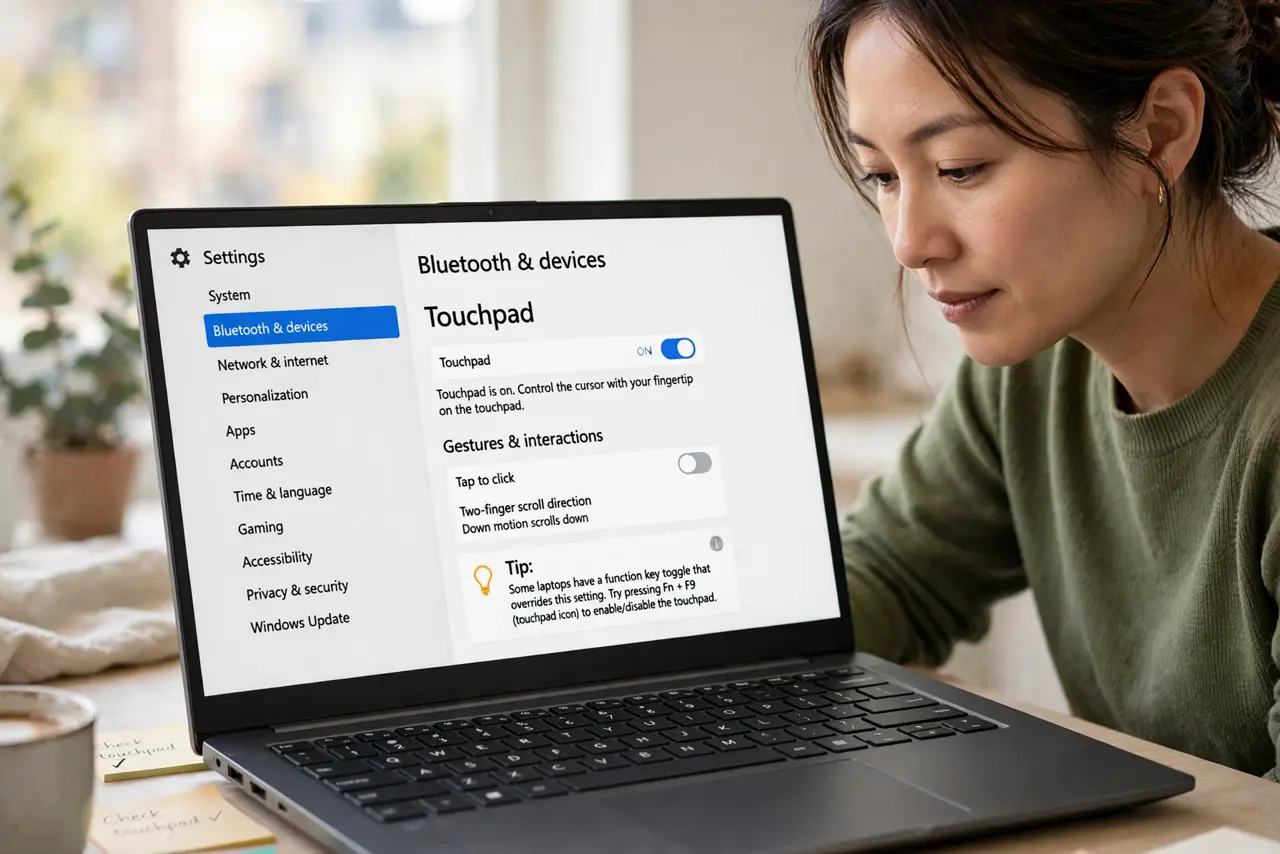
Quick fix: open Settings > Bluetooth & devices > Touchpad and make sure Touchpad is on. Scroll down to Gestures to see and customize three- and four-finger actions. If gestures are missing entirely, your laptop may lack a precision touchpad — check Device Manager.
Follow these steps
- Confirm the touchpad is enabled. Go to Settings > Bluetooth & devices > Touchpad and make sure the main toggle is on. Some laptops also have a function-key toggle (often Fn + a touchpad icon) that overrides this.
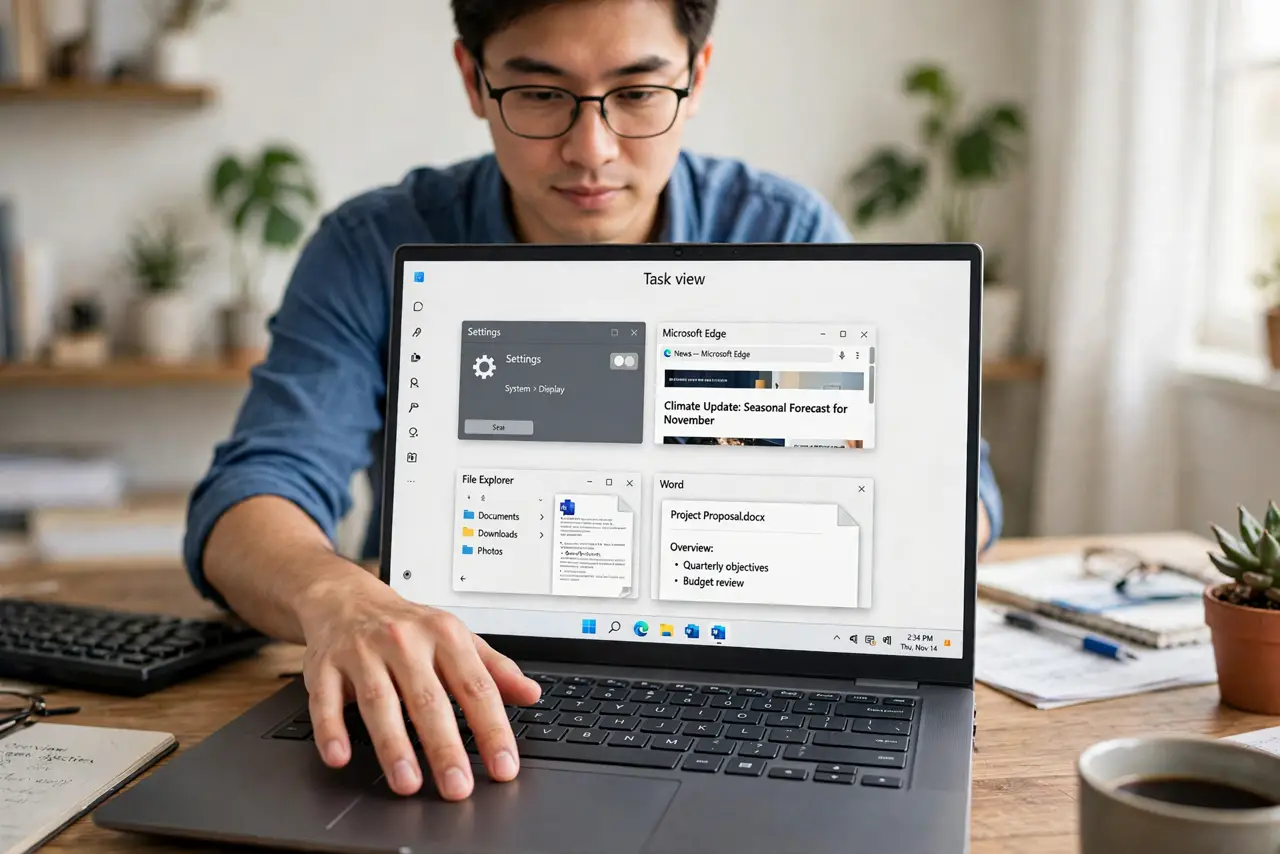
- Learn the core gestures. Two-finger scroll and pinch-zoom; three-finger swipe up for Task View, down for desktop, left/right to switch apps; three-finger tap for search. Four-finger gestures mirror these with alternate actions.
- Customize three-finger actions. In the Touchpad settings, expand Three-finger gestures and reassign taps and swipes — switch apps, snap windows, or launch voice typing. Set what your workflow actually uses.
- Customize four-finger actions. Same idea one finger up: four-finger gestures default to desktop and settings shortcuts. Reassign anything you trigger by accident — accidental four-finger swipes annoy fast.
- Tune sensitivity and taps. Adjust cursor speed and tap sensitivity in the same panel. Too-sensitive taps cause phantom clicks; too-slow cursors waste motion — see the gesture setup walkthrough for the full tour.
- Check for a precision touchpad. If gesture options are missing, your hardware may predate the standard — see how to check to confirm what your laptop supports.
What NOT to do
- Do not disable the touchpad out of frustration. Accidental gestures are fixed by customizing or desensitizing — not by killing the whole device.
- Do not assume gestures work identically everywhere. Some apps override or ignore system gestures; the OS-level ones are the reliable set.
- Do not crank sensitivity to maximum. Ultra-sensitive touchpads misread resting fingers as input — medium with tuned speed beats maxed sensitivity.
- Do not forget the function-key toggle. If the touchpad 'dies' suddenly, you probably hit Fn + the touchpad key — toggle it back before troubleshooting drivers.
Frequently asked questions
Why did my gestures suddenly stop working?
Usually a driver update or the function-key toggle. Check the toggle first, then the settings panel — see when gestures break.
Can I make a custom gesture?
Windows offers the preset set plus per-gesture reassignment — not fully freeform custom gestures. Third-party tools add more, with varying reliability.
Do gestures work with a mouse too?
No — these are touchpad-only. Precision mice have their own button customization in the Mouse settings.