TPM Not Detected After Update?
After a Windows or BIOS update, your PC claims no TPM exists — and Windows 11 really wants one. The chip didn't die; updates commonly flip the TPM switch off in firmware. Re-enabling it in BIOS takes two minutes, but read the BitLocker warning first if your drive is encrypted.
TL;DR / Quick Fix
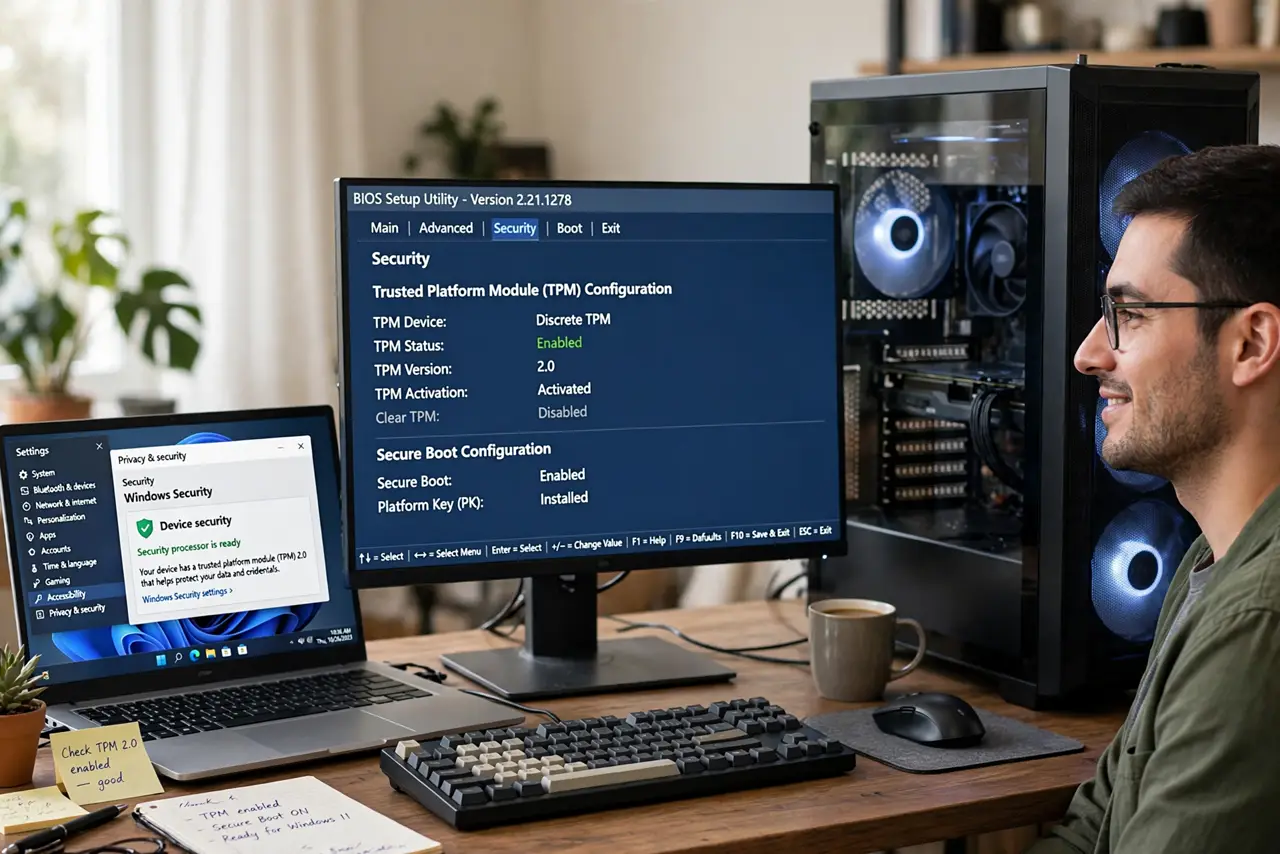
Quick fix: restart into BIOS or UEFI settings and look for the TPM switch — updates sometimes turn it off. Enable Intel PTT or AMD fTPM, save, and exit. In Windows, open tpm.msc to confirm it's detected. Never clear the TPM with BitLocker on unless you hold the recovery key.
Follow these steps
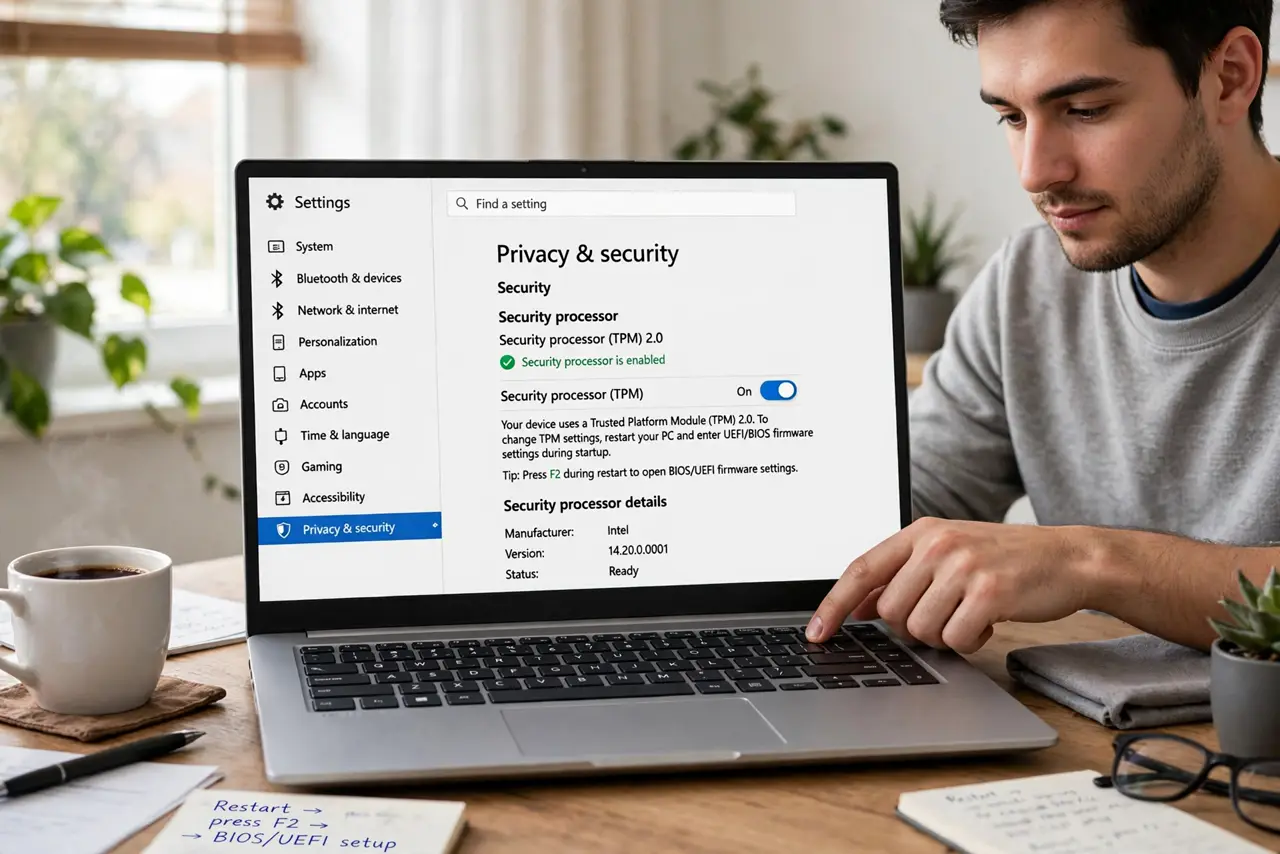
- Restart into BIOS or UEFI settings. Reboot and press the setup key (often Delete, F2, or F12) to enter firmware settings. The TPM toggle lives here, not in Windows — Windows can only report what firmware provides.
- Find the TPM switch. Look under Security or Advanced for TPM, Intel PTT (Platform Trust Technology), or AMD fTPM. Updates sometimes disable it — flipping it back on is the entire fix. Check the TPM status guide to know what you're looking for.
- Enable it, save, and exit. Set it to Enabled or Firmware TPM, then save changes and exit. The PC reboots with the TPM visible to Windows again.
- Confirm in Windows with tpm.msc. Press Windows+R, type tpm.msc, and check the status screen. It should now report the TPM is ready — that's your confirmation.
- Heed the BitLocker warning. If your drive uses BitLocker, have the recovery key handy before touching TPM settings — firmware changes can trigger a recovery prompt. Know where your recovery key lives first.
- Don't clear the TPM unless you mean it. Clearing resets the TPM's stored keys. That's fine on a fresh build, but on an encrypted drive without the recovery key it's catastrophic. Enable — don't clear.
What NOT to do
- Do not clear the TPM to 'fix' detection. Clearing wipes its keys — on a BitLocker drive without the recovery key, that's data loss, not a fix.
- Do not flash the BIOS as a first step. The TPM is usually just switched off — a two-minute toggle beats a risky firmware flash.
- Do not assume the TPM chip died. Hardware failure is the rarest cause; a flipped firmware switch after an update is the common one.
- Do not ignore the BitLocker recovery key. Any TPM or firmware change can trigger a recovery prompt — no key, no boot.
Frequently asked questions
What is a TPM, in plain terms?
A security chip (or firmware feature) that stores encryption keys and verifies boot integrity. Windows 11 requires it; that's why its absence blocks things.
Intel PTT vs AMD fTPM — which do I have?
Intel boards call it PTT, AMD boards call it fTPM. Both are firmware TPMs that satisfy Windows — enable whichever your board offers.
Will enabling TPM erase anything?
No — enabling just makes it visible. Only clearing or resetting the TPM wipes its stored keys, which is the dangerous operation.
What to read next
- Check TPM on Windows
- BitLocker Recovery Key