Two Audio Outputs at Once?
Windows plays sound through one output at a time — but you want the movie on the TV speakers while Discord stays in your headset, or music in two rooms at once. Windows can do both, through per-app routing or true duplication, once you know where the switches hide. This guide covers the built-in methods, no extra software required.
TL;DR / Quick Fix
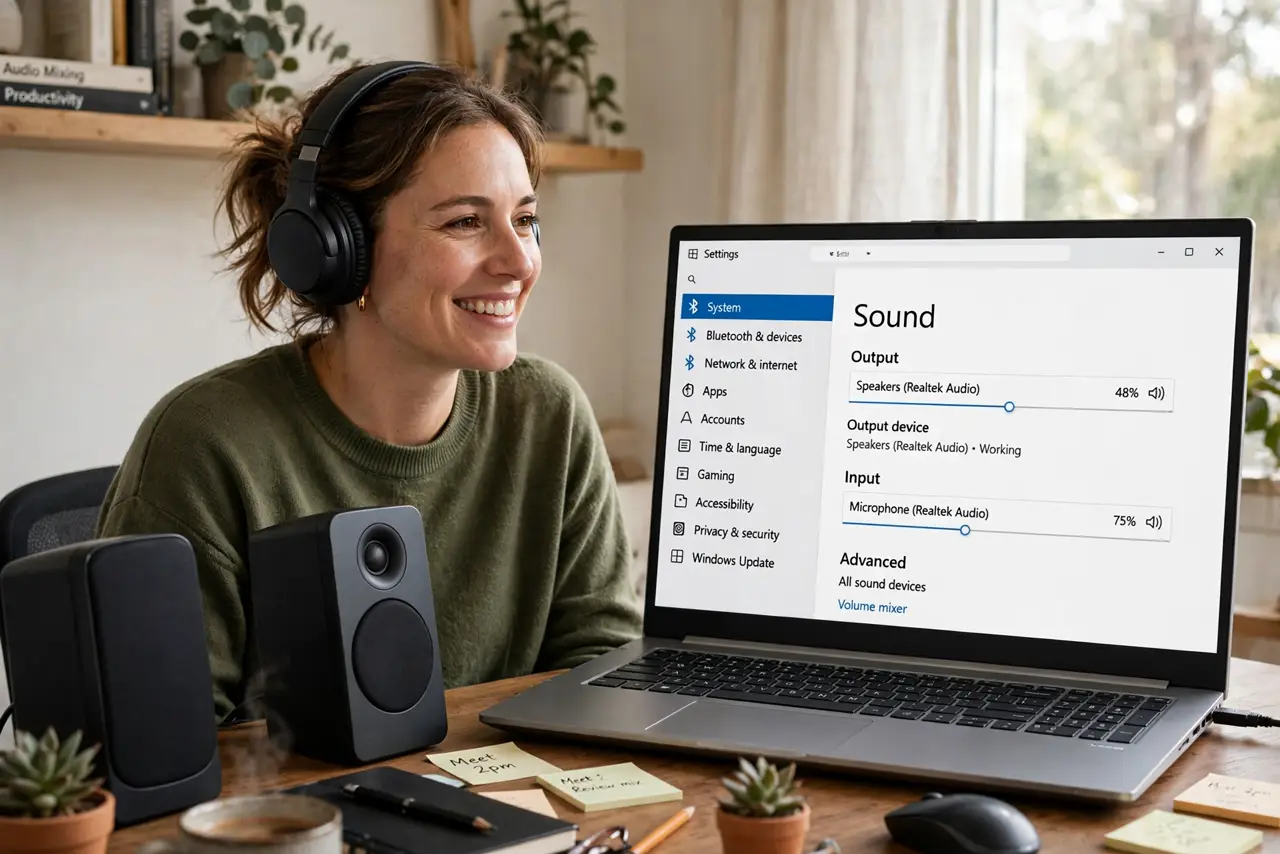
Quick fix: Windows plays to one output at a time by default, but you can route apps individually — Settings, System, Sound, Volume mixer, per-app output. For true duplication, enable Stereo Mix in Sound settings. App-level routing covers most real needs without extra software.
Follow these steps
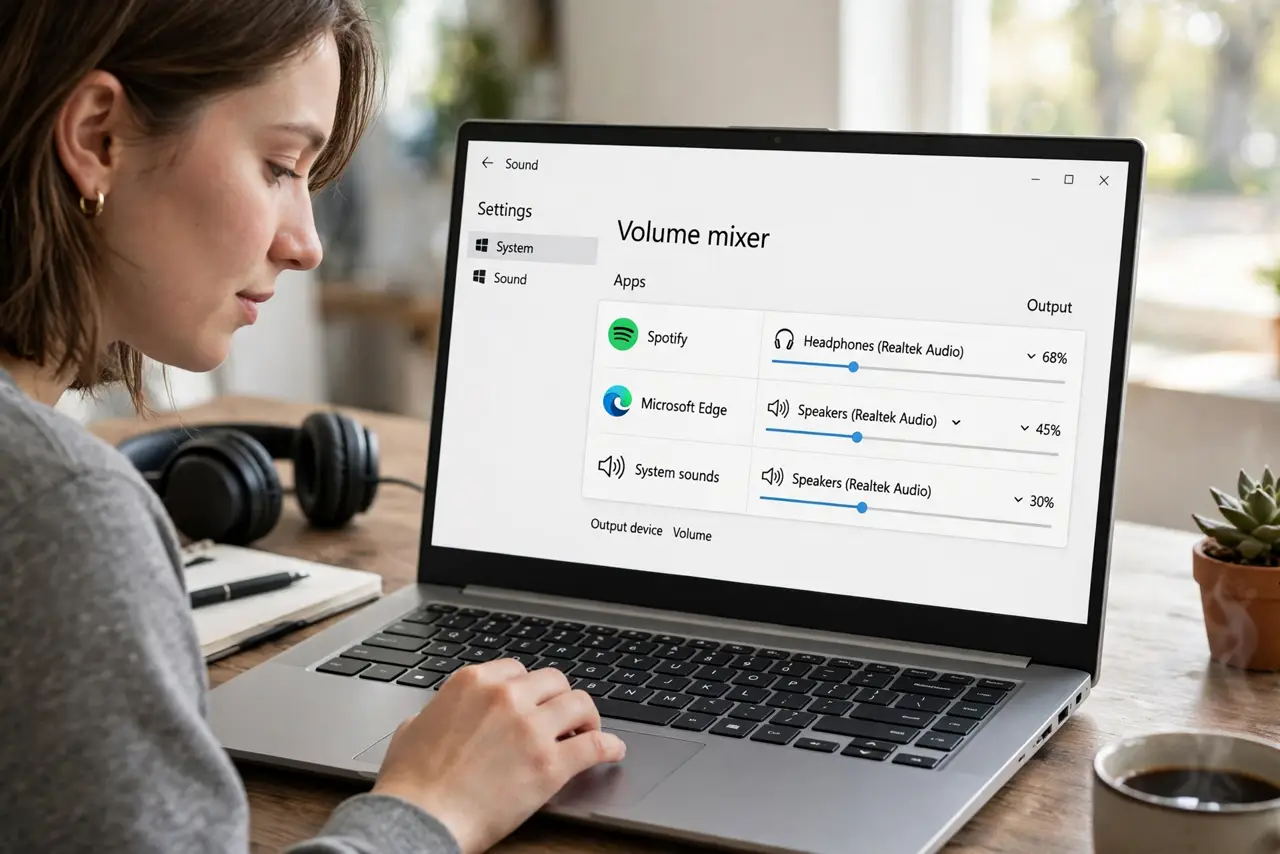
- Route apps individually. Open Settings, System, Sound, Volume mixer. Each app gets its own output device dropdown — send the game to speakers and the call to your headset. This covers most real needs and survives reboots.
- Set the right default device. Right-click the speaker icon, Sound settings, and choose your default output. New apps follow the default; only the ones you routed specially keep their assignments.
- Enable Stereo Mix for duplication. For the same audio on two outputs at once, open the classic Sound control panel, Recording tab, enable Stereo Mix, then set it to 'listen' on the second device. It is fiddly but built in.
- Use the app's own settings first. Many apps — Discord, Zoom, media players — let you pick their output device internally. In-app selection beats system routing when it exists.
- Consider a hardware splitter. For simple duplication to two headphone sets, a cheap Y-splitter cable just works — no settings, no latency, no software to break.
- Fix monitor-steals-audio first. If Windows keeps switching output to your monitor's speakers on its own, fix that behavior before building elaborate routing — otherwise your setup fights you daily.
What NOT to do
- Do not install random 'audio router' apps. Windows' built-in per-app routing and Stereo Mix cover nearly every case — third-party tools add latency and breakage.
- Do not expect perfect sync. Duplicated outputs through software can drift slightly out of sync — fine for background music, noticeable for video.
- Do not forget Bluetooth latency. Routing to a Bluetooth headset plus wired speakers means the Bluetooth side lags — fine for music, bad for gaming.
- Do not fight the default device. Set the default to what you use most, then route exceptions — the reverse means constant manual switching.
Frequently asked questions
Can I play Spotify on speakers and a game on headphones?
Yes — that is exactly what per-app output routing is for. Set Spotify to the speakers and the game to the headset in the Volume mixer.
Why does Stereo Mix not appear?
It is disabled by default and some drivers hide it entirely. Right-click in the Recording tab and show disabled devices; if it is still missing, your audio driver does not support it.
Does this work with Bluetooth devices?
Yes, Bluetooth headsets appear as output devices like any other. Expect the usual Bluetooth latency on that side.