Pause Windows Updates
Windows loves updating at the worst moment — mid-presentation, mid-deadline, mid-game. The pause button exists precisely for this: one setting freezes updates for up to five weeks while you finish what matters. Pausing is not neglecting; it is scheduling on your terms.

TL;DR / Quick Fix
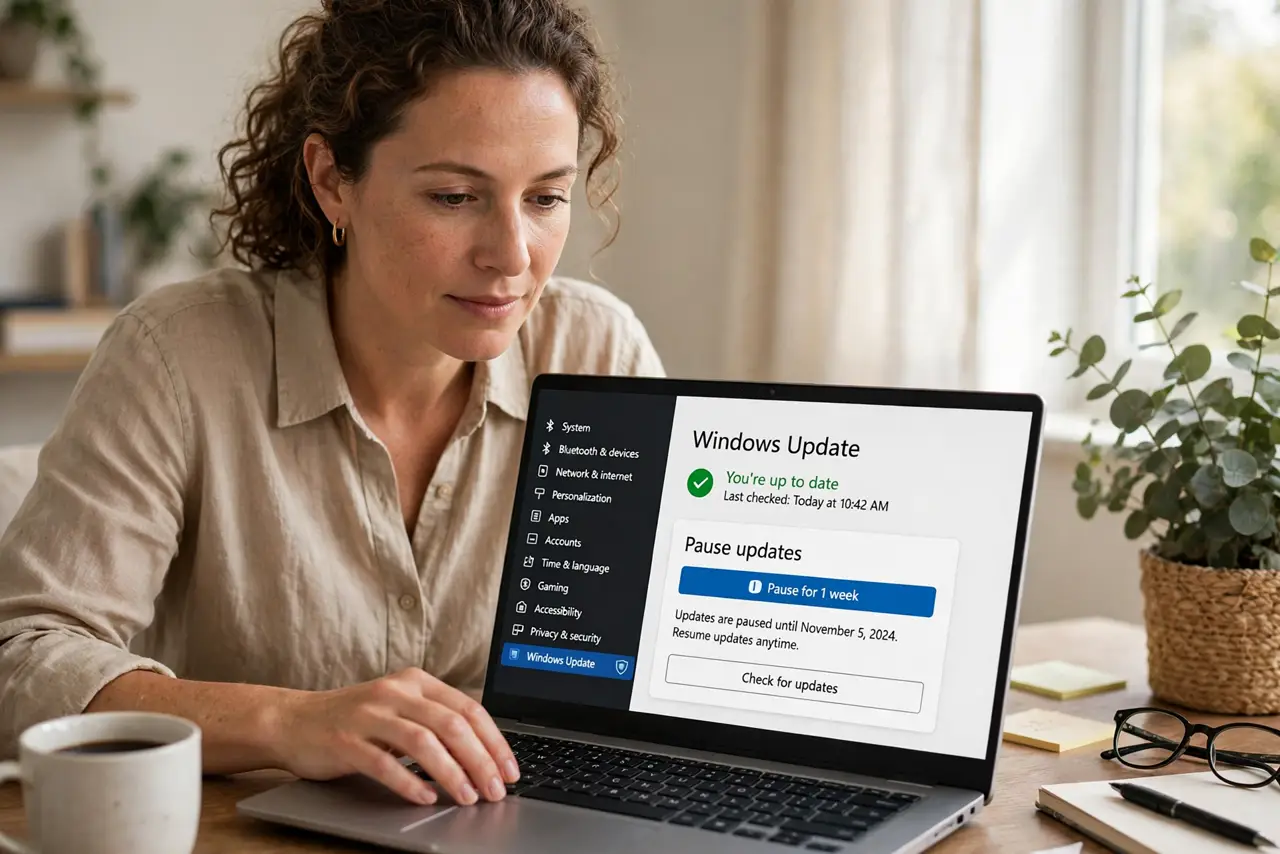
Quick fix: open Settings, Windows Update, and hit Pause for 1 week — extend it up to five weeks for big projects. Set active hours so restarts never ambush you. Unpause when the crunch ends; the updates will be waiting, and installing them then is the responsible finish.
Follow these steps
- Open Windows Update. Settings, then Windows Update. The pause control sits right on the main page — Microsoft finally made it obvious.
- Pause for a week. One click pauses for seven days. The pause limit explains the five-week maximum — plan long projects accordingly.
- Set active hours. Tell Windows your working hours so restarts never land mid-day. Active hours are the permanent version of pausing — set once, protected always.
- Pause before the big day. Presentation, deadline, travel — pause the night before, not the morning of. Updates download in the background; pausing stops the surprise restart.
- Unpause after. When the crunch ends, resume updates and install them. Pausing is scheduling, not skipping — the security patches still matter.
- Check what is pending. Before unpausing, glance at the pending list. Knowing what is coming beats another surprise — informed beats ambushed.
What NOT to do
- Do not pause forever. Five weeks is the max for a reason — security patches delayed too long become vulnerabilities.
- Do not disable updates with registry hacks. The pause button is the supported path; hacks break future updating.
- Do not ignore the unpause. Paused-and-forgotten is how machines fall a year behind — calendar the resume.
- Do not pause on someone elses PC without telling them. Their security is not yours to schedule.
Frequently asked questions
How long can I pause updates?
Up to five weeks on Windows 11 — one week per click, extendable. Then it insists on updating before pausing again.
Will pausing hurt my PC?
No, short-term. Long-term delays accumulate security debt — pause for projects, not as a lifestyle.
What are active hours?
The hours Windows avoids restarting in. Set them to your real schedule — the quieter guardian.