Apps Jump Between Virtual Desktops? Fix It
You set up Desktop 1 for work and Desktop 2 for personal stuff — then a chat app teleports to the wrong one, or everything shuffles after the PC sleeps. Apps jump desktops for two honest reasons: a per-app 'show on all desktops' setting, or the graphics driver re-detecting your monitors after sleep.
TL;DR / Quick Fix
Apps land on the wrong desktop when an app is set to show on all desktops — right-click its taskbar icon and make sure 'Show this window on all desktops' is off. If windows shuffle after sleep, the graphics driver is re-detecting displays; update it and the layout stays put.
Follow these steps
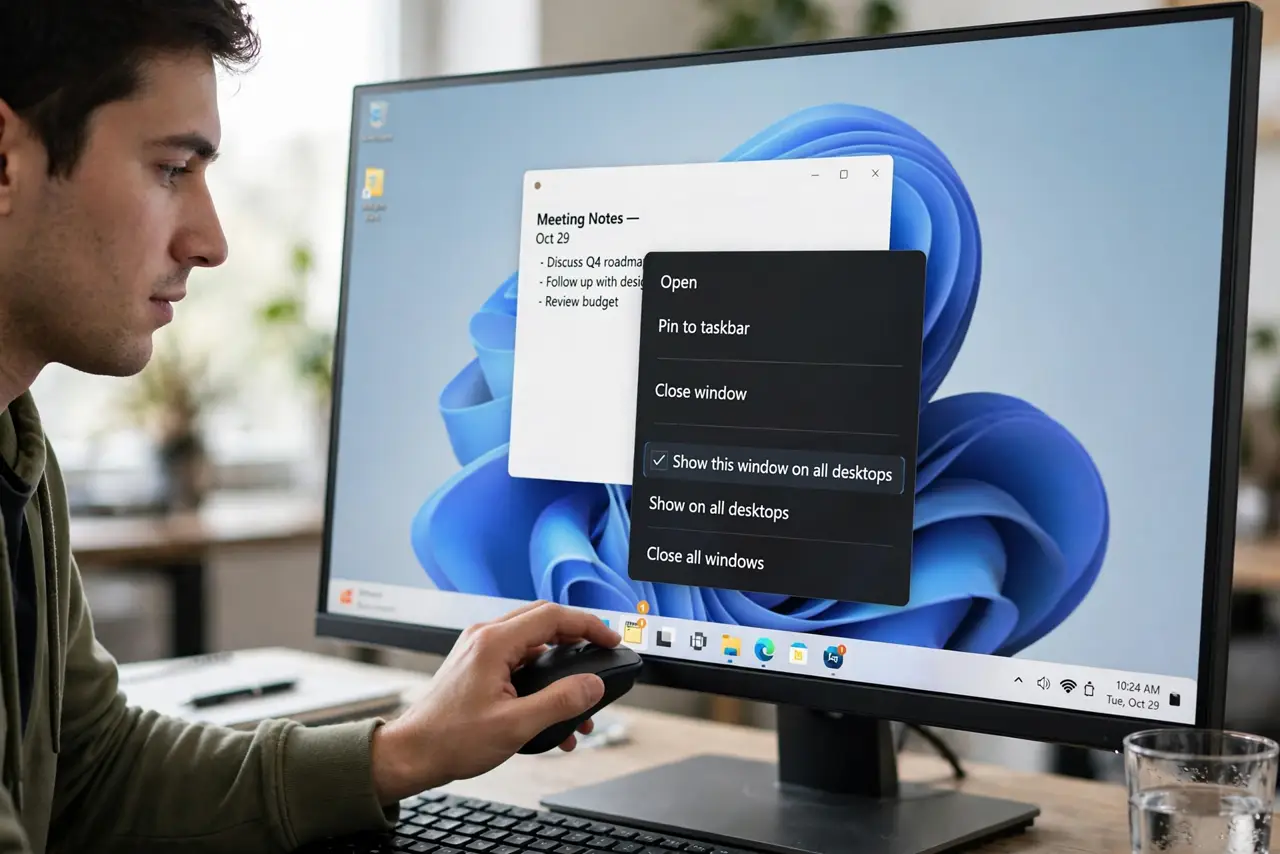
- Check the per-app desktop setting. Right-click the jumping app's taskbar icon. If 'Show this window on all desktops' is checked, uncheck it — the app then stays where you put it.
- Move windows deliberately with shortcuts. Win + Ctrl + Left/Right switches desktops; Win + Shift + Left/Right moves the active window to the next monitor. Precise beats dragging.
- Update the graphics driver. Post-sleep shuffling usually means the driver re-detects displays on wake. Get the latest driver from the PC or card maker and the layout holds.
- Stop the monitor from 'disconnecting' in sleep. Some monitors drop the signal in deep sleep, which Windows reads as unplugged. A less aggressive monitor sleep setting reduces phantom re-detection.
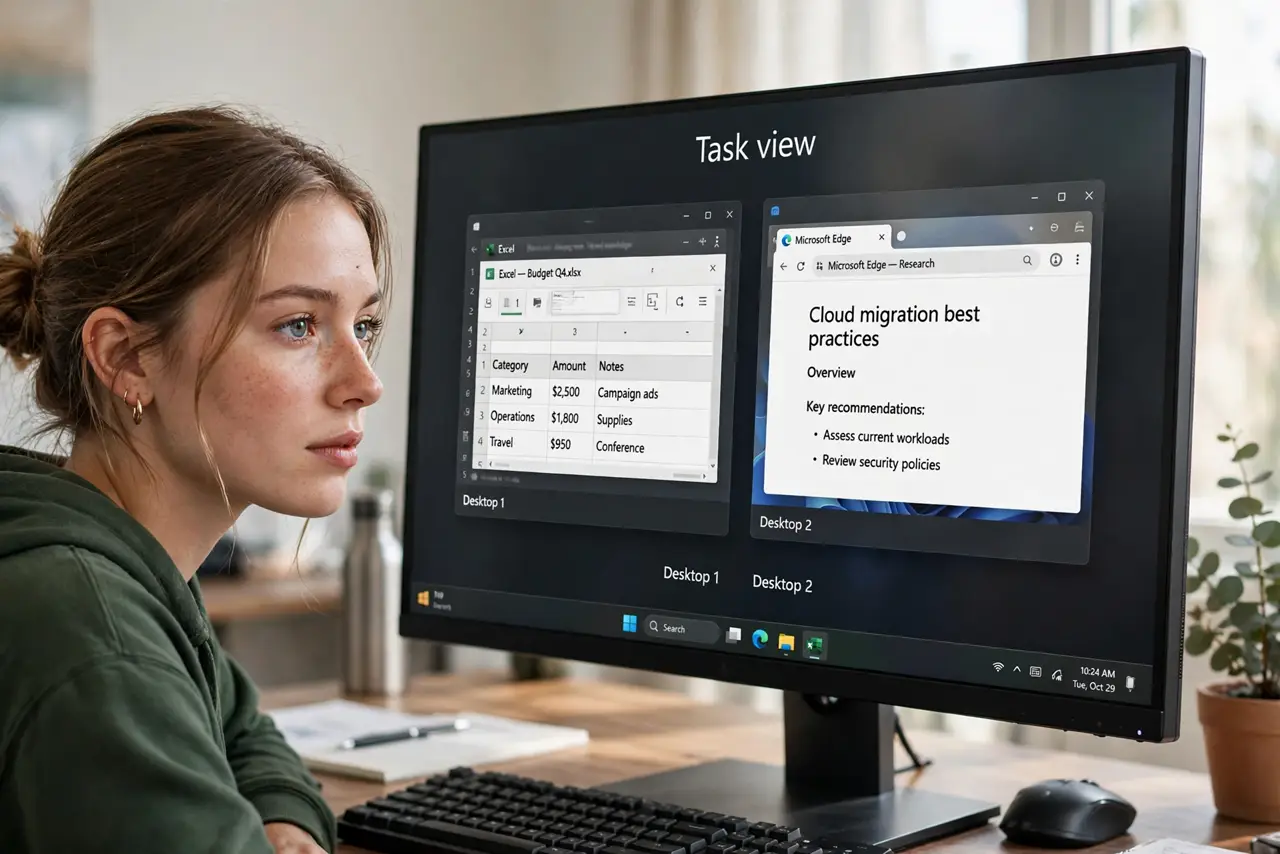
- Name your desktops to spot jumps faster. In Task View (Win + Tab), right-click a desktop thumbnail to name it. Named desktops make a jumped window obvious immediately — see the names resetting note if names vanish.
- Rebuild the layout once, calmly. After fixing the cause, drag each window home once. With the cause gone, the layout survives sleep and reboots.
What NOT to do
- Do not disable virtual desktops over one jumping app. The per-app setting is the culprit far more often than the feature.
- Do not reinstall the graphics driver blindly. Update it from the maker's site; random 'driver updater' tools cause more harm.
- Do not confuse desktops with monitors. Virtual desktops are workspaces on the same screen — a window can't jump to a monitor that way.
- Do not use third-party desktop managers to fix this. They fight Windows' own Task View and create new jumping.
Frequently asked questions
Why do all my windows pile onto one desktop after sleep?
The graphics driver re-detected your displays on wake and Windows consolidated everything. Updating the driver is the real fix.
Can I pin an app so it follows me to every desktop?
Yes — right-click its taskbar icon and choose 'Show windows from this app on all desktops'. Useful for music players and chat.
Do virtual desktops use extra RAM?
Negligible. They are organizational views, not separate sessions — the same apps run either way.