Virtual Desktops? Plain Basics
Your taskbar is a crowded mess — work spreadsheets, personal tabs, chat windows, all fighting for space. Virtual desktops give you multiple separate desktops to switch between: one for deep work, one for communication, one for personal stuff. It is like having several monitors you flip through with a keyboard shortcut. Here is the plain-English way to use them.
TL;DR / Quick Fix
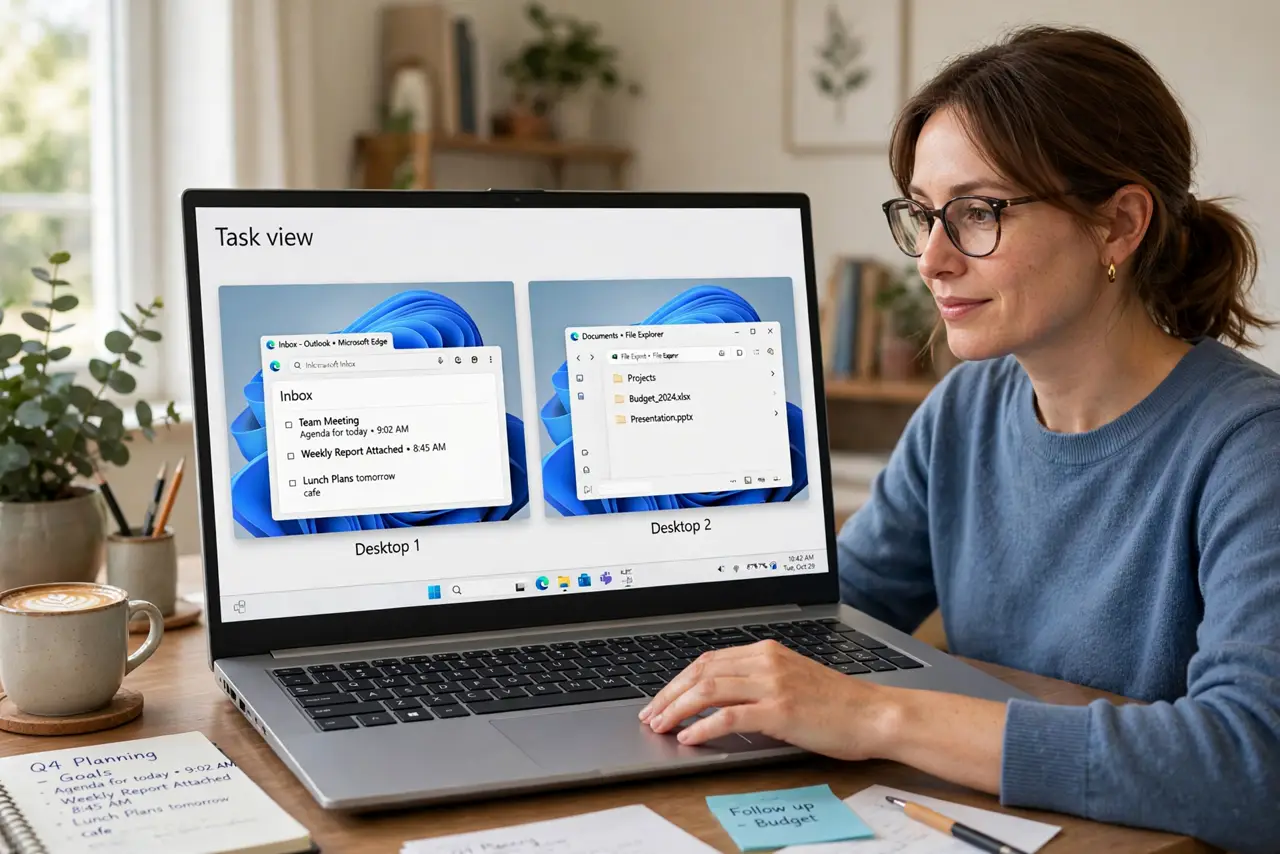
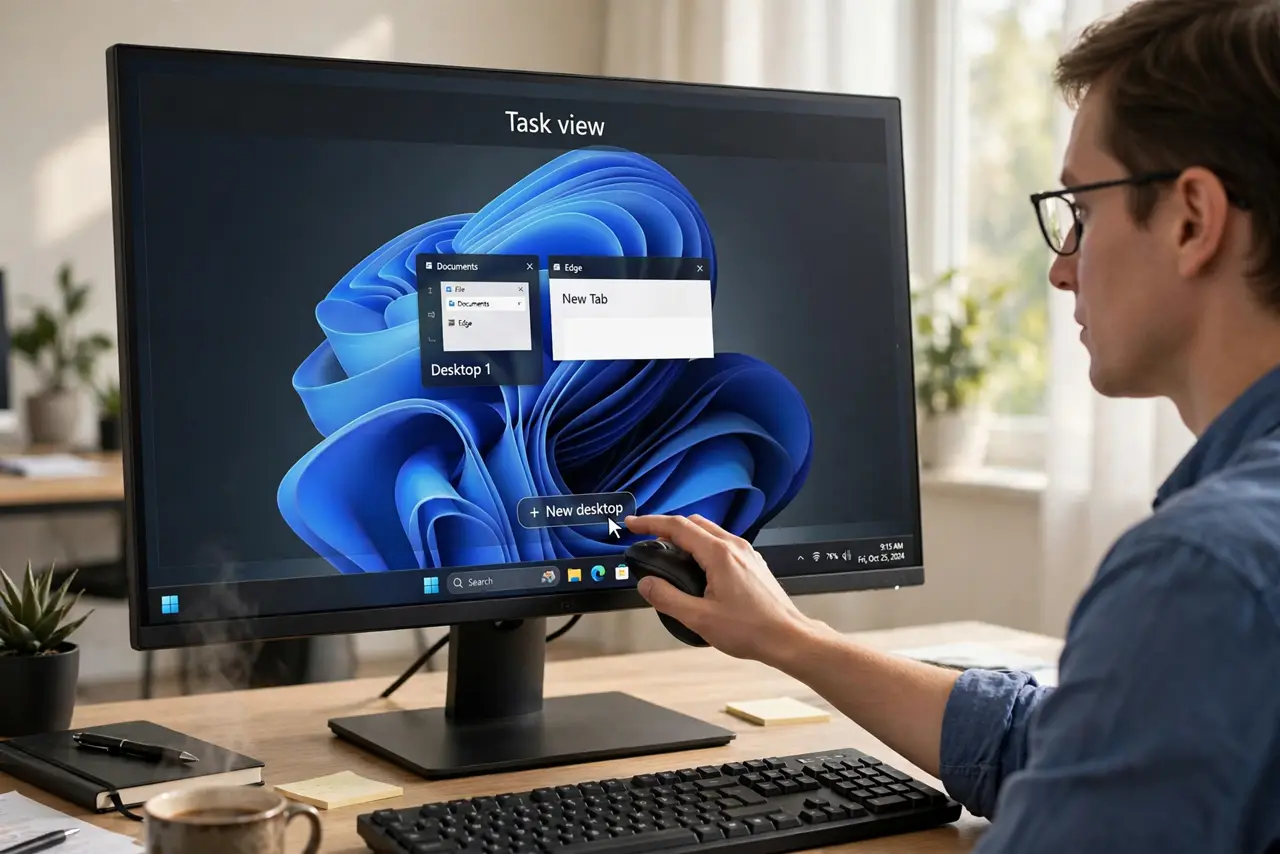
Quick fix: press Win+Tab, then click New desktop to create a separate workspace. Switch with Ctrl+Win+Left/Right arrows. Put work on one desktop, chat and personal on others. Right-click a window to move it between desktops. It declutters your taskbar without closing anything.
Follow these steps
- Create your first extra desktop. Press Win+Tab to open Task View, then click 'New desktop' at the top. You now have Desktop 1 and Desktop 2. Creating them is free and instant — make as many as your workflow needs.
- Switch between desktops. Ctrl+Win+Left/Right arrow flips between desktops instantly. This becomes muscle memory fast and is the whole point — one keystroke swaps your entire context. No minimizing, no hunting.
- Move windows between desktops. In Task View (Win+Tab), drag any window onto another desktop's thumbnail. Or right-click a window → Move to → pick the desktop. Sort your open chaos: work apps on Desktop 1, communication on Desktop 2.
- Give each desktop a job. The system works when desktops have roles: deep work, meetings and chat, personal browsing. Without roles they become just more clutter. Two or three purposeful desktops beat six random ones.
- Set per-desktop wallpapers. Right-click a desktop thumbnail in Task View → Choose background. Different wallpapers make it instantly obvious which desktop you are on. A small touch that prevents a lot of confusion.
- Combine with Snap Layouts. Each virtual desktop supports its own snap layouts — tile research on one desktop, tile chat on another. Virtual desktops organize across screens; snap organizes within them.
What NOT to do
- Do not create six desktops 'just in case.' Unused desktops are clutter you have to flip through — two or three with clear jobs is the sweet spot.
- Do not expect apps to remember their desktop after reboot. Windows reopens apps but may pile them on one desktop — re-sorting is a 30-second morning ritual.
- Do not put the same distracting app on your work desktop. The separation only works if you respect it — chat stays on the chat desktop.
- Do not forget the keyboard shortcuts. Clicking through Task View every time is slow; Ctrl+Win+arrows is what makes this fast.
Frequently asked questions
Do virtual desktops use extra resources?
Negligibly — they are just window groupings, not separate systems. Ten desktops with the same apps open cost essentially the same as one.
Can I name my desktops?
Yes — in Task View, click the desktop's name (or right-click → Rename). 'Work,' 'Calls,' 'Personal' beats Desktop 1, 2, 3.
What's the difference from minimizing?
Minimized windows still crowd one taskbar; virtual desktops give each context its own clean taskbar and Alt+Tab scope. It is organization, not hiding.