Task View? The Plain Basics
You have twelve windows open and Alt+Tab isn't cutting it anymore. Task View — the Win+Tab screen — shows every open window at once, plus your virtual desktops and a row of recent activity. It is mission control for a busy Windows session. Here is how to use it without feeling overwhelmed.
TL;DR / Quick Fix
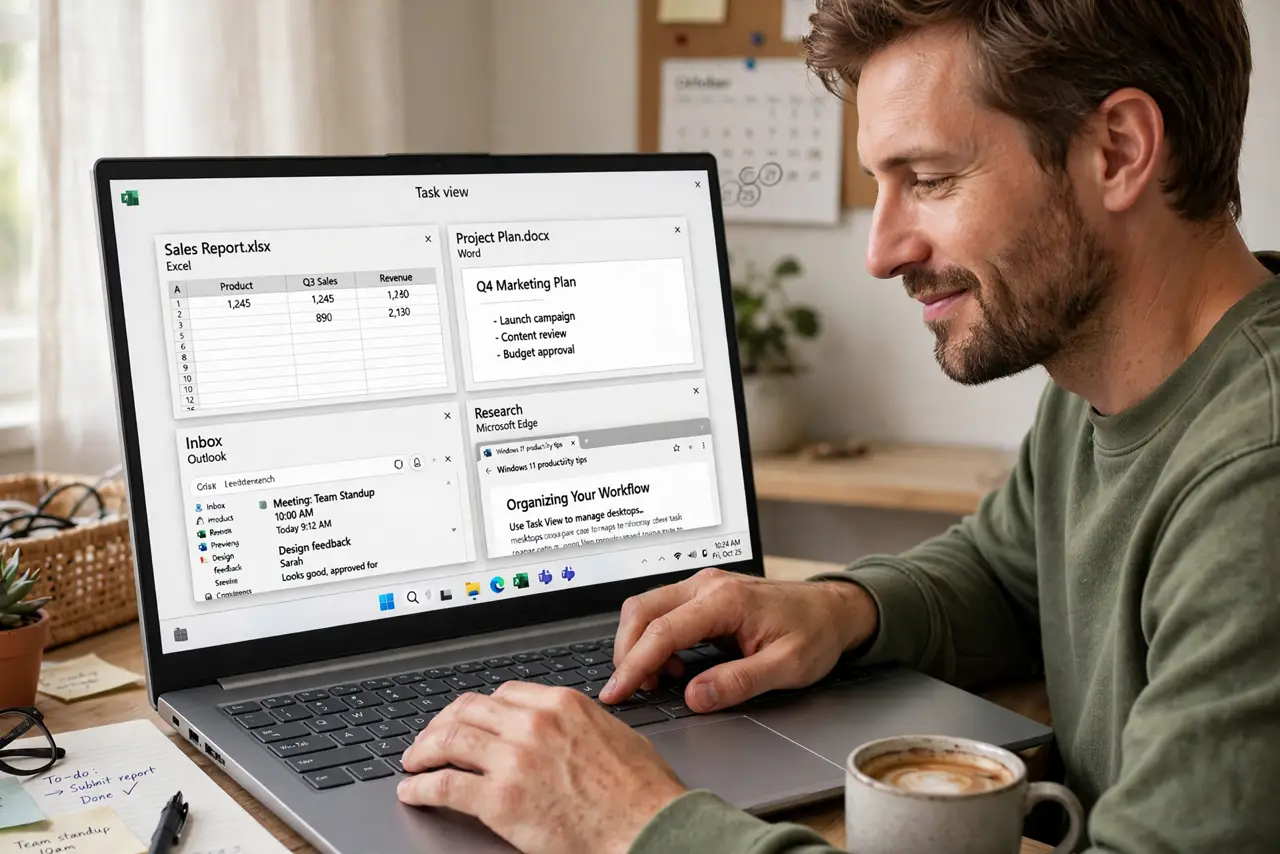
Quick fix: press Win+Tab to open Task View and see all open windows at once — click any to jump to it. Create virtual desktops from the top bar, drag windows between them, and close clutter with the X on each thumbnail. It's the fastest way to find a window.
Follow these steps
- Open Task View. Press Win+Tab — every open window shrinks into an organized grid. Click any window to jump straight to it. This beats Alt+Tabbing through a dozen windows one by one.
- Close windows from the grid. Hover any thumbnail and click its X to close that window without opening it first. Clearing five forgotten browser windows takes seconds here. If Task View shows stale or ghost windows, that guide covers the fix.
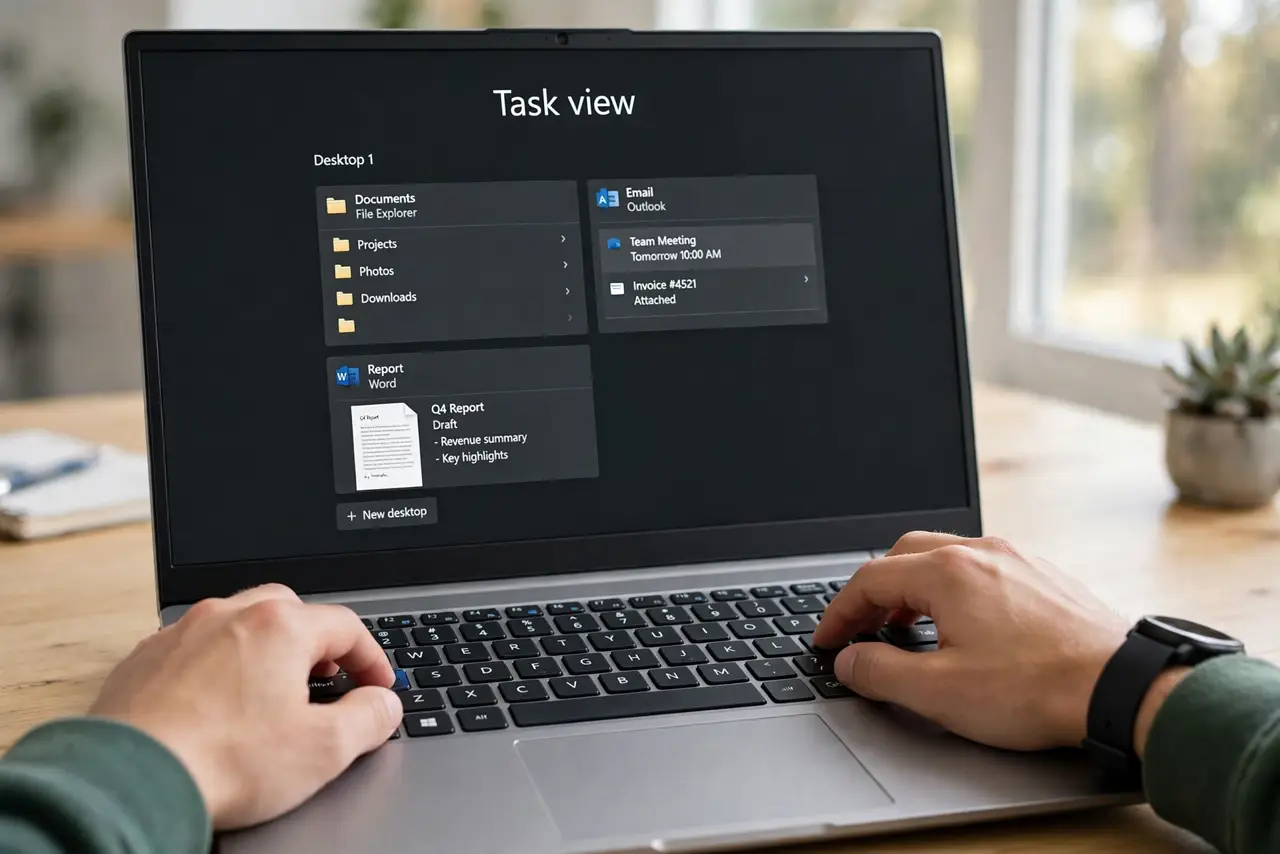
- Create virtual desktops. Click 'New desktop' at the top to add a fresh workspace. Drag windows onto desktop thumbnails to sort them — work here, chat there. See the virtual desktops guide for the full workflow.
- Switch desktops fast. Ctrl+Win+Left/Right arrows flip between desktops without opening Task View. Once your windows are sorted, you may rarely need the full grid — the shortcut becomes the daily driver.
- Use search inside Task View. Start typing with Task View open to filter windows by title. Hunting a 'budget spreadsheet' among twenty windows becomes instant. Faster than visually scanning the grid.
- Clean up regularly. A weekly two-minute Task View purge — closing what you forgot — keeps the grid useful. Task View rewards tidiness; a hundred thumbnails helps nobody.
What NOT to do
- Do not confuse Task View with Task Manager. Task View (Win+Tab) manages windows; Task Manager (Ctrl+Shift+Esc) manages processes — different tools.
- Do not leave dozens of windows open 'because Task View organizes them.' Organization has limits — close what you're done with.
- Do not ignore the X on thumbnails. It's the fastest bulk-close in Windows — use it.
- Do not expect Task View to remember layouts after reboot. It organizes the current session; snap groups and virtual desktops need re-sorting after restarts.
Frequently asked questions
What's the difference between Task View and Alt+Tab?
Alt+Tab cycles one window at a time; Task View shows everything at once with mouse selection, plus virtual desktop management. Alt+Tab for two windows, Task View for twelve.
Can I remove the Task View button from the taskbar?
Yes — right-click the taskbar → Taskbar settings → toggle Task View off. Win+Tab still works; only the button disappears.
Does Task View show windows from all desktops?
By default Alt+Tab and the taskbar can be set per-desktop or global; Task View itself shows the current desktop's windows with other desktops as thumbnails up top.