Voice Access Mishears Your Commands? Fix It
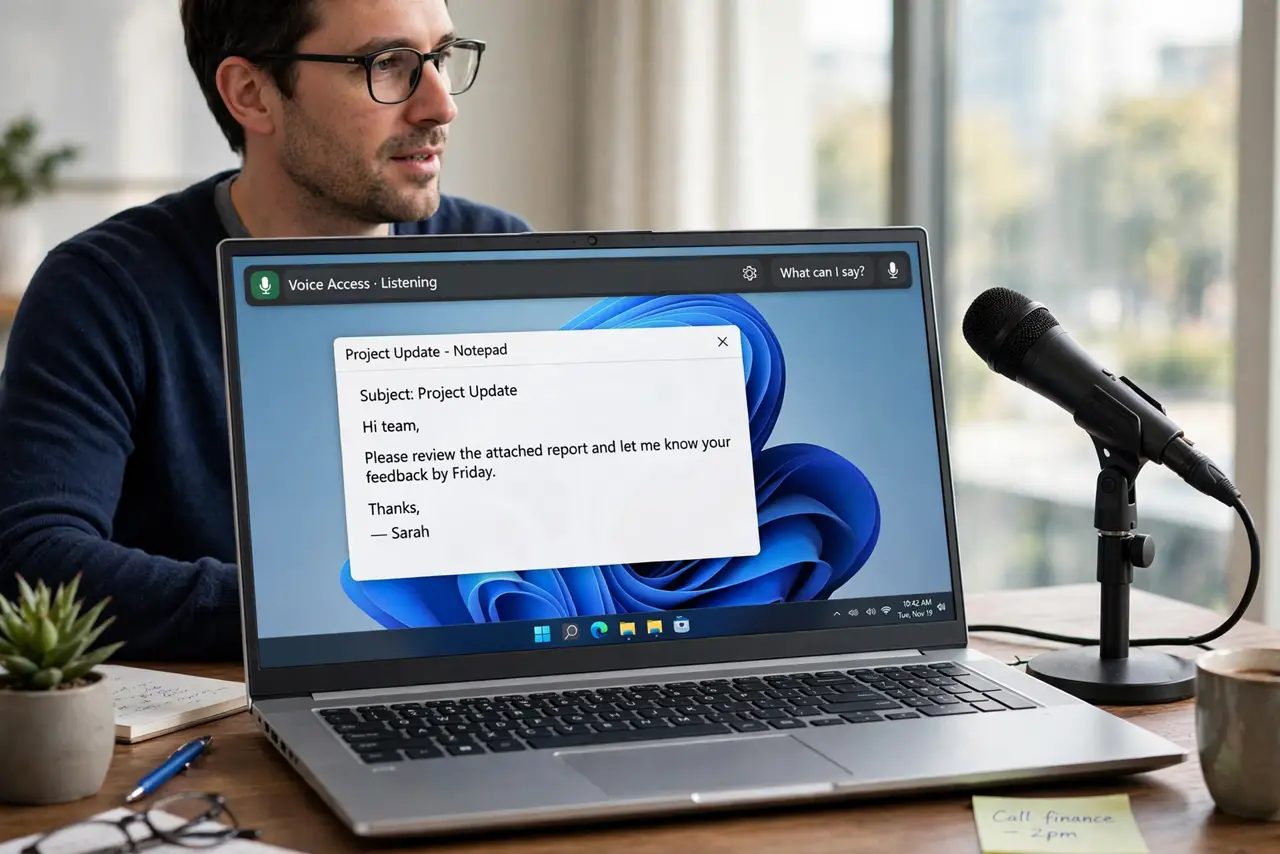
When Voice Access mishears your commands, the computer types the wrong words or opens the wrong thing, and voice control feels unusable. The cause is usually microphone position, background noise, or unclear command phrasing, all of which you can improve without new hardware.
TL;DR / Quick Fix
Quick fix: move the microphone closer, reduce background noise, and speak commands slowly and distinctly, one command at a time. Then check the microphone input level in Sound settings, and restart Voice Access so it starts fresh, and test a simple command again.
Follow these steps
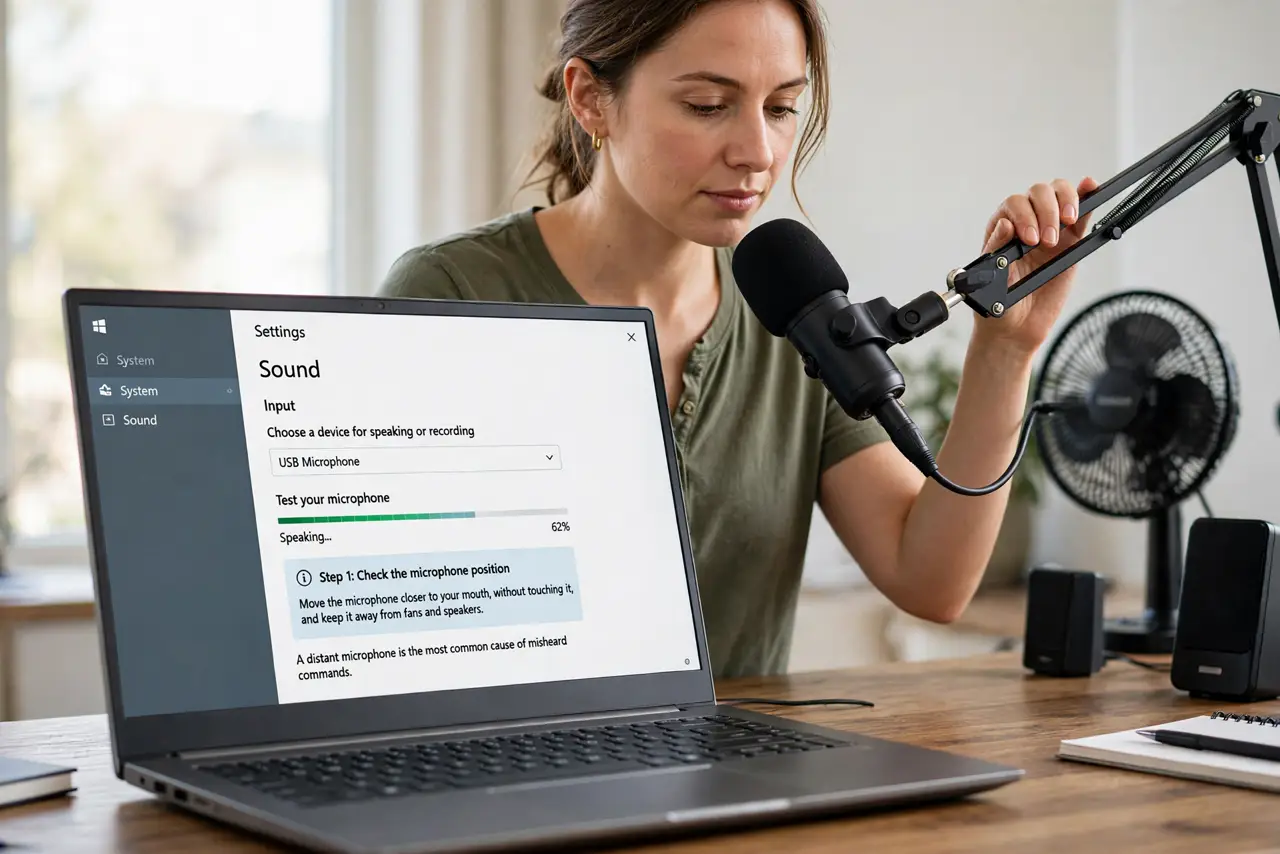
- Check the microphone position. Move the microphone closer to your mouth, without touching it, and keep it away from fans and speakers. A distant microphone is the most common cause of misheard commands.
- Check the input level. Open Settings, then System, then Sound, and check the microphone input level while you speak normally. The level should move clearly, without staying at the top or barely moving.
- Reduce background noise. Turn off a nearby television or fan, and close a noisy window if you can. Voice Access must separate your voice from every other sound in the room.
- Speak one command at a time. Say a single command, pause, and wait for the result before the next one. Running commands together makes the system guess where one command ends and the next begins.
- Use the exact command wording. Use the command phrases Voice Access shows in its help, rather than paraphrasing. The system recognizes its own command list far better than free-form wording.
- Restart Voice Access and test again. Turn Voice Access off and back on, then try a simple command, such as opening an app. If simple commands work but complex ones fail, phrasing, not the microphone, is the remaining problem.
What NOT to do
- Do not shout at the microphone to be heard. Shouting distorts your voice and makes recognition worse, while a closer microphone and normal volume work better.
- Do not buy a new microphone before you check position and level. A good microphone placed far away performs worse than a basic one placed correctly.
- Do not speak long sentences and expect Voice Access to sort them out. Short, exact commands are what the system is built to recognize.
- Do not turn Voice Access off permanently after one bad session. A noisy room or a wrong microphone setting can ruin a session that a quiet retest would fix.
Frequently asked questions
Why does Voice Access hear me but do the wrong thing?
It heard sounds, but matched them to a different command. Exact command wording and one command at a time usually fix that mismatch.
Does an accent stop Voice Access from working?
No, but clear, steady pacing helps more than speed. Speak at a natural pace, pause between commands, and check the microphone level.
What if only some commands fail?
Those commands may need exact wording. Open the Voice Access help, find the command, and say it exactly as written, then test again.