The Volume Mixer? Basics
Your music is blasting but your video call is whisper-quiet — or one app is silent while everything else works. The Volume Mixer is Windows' per-app volume panel: it lets you set each application's loudness independently instead of one master slider for everything. Most people never find it, then suffer one loud app for years. Here is where it lives.
TL;DR / Quick Fix
Quick fix: the Volume Mixer sets volume per app — right-click the speaker icon in the taskbar and open it. If one app is silent, its individual slider is probably down or muted. This fixes 'one app has no sound' in seconds.
Follow these steps
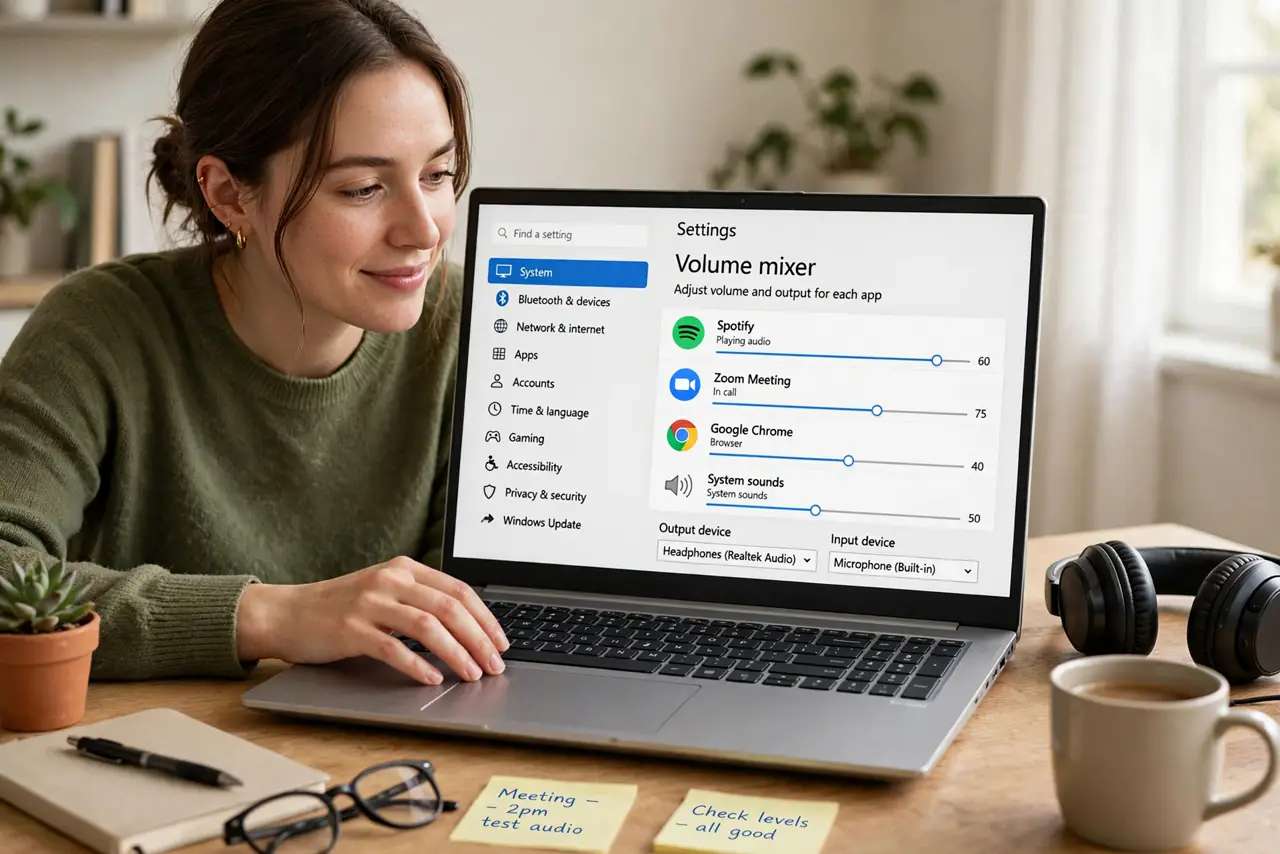
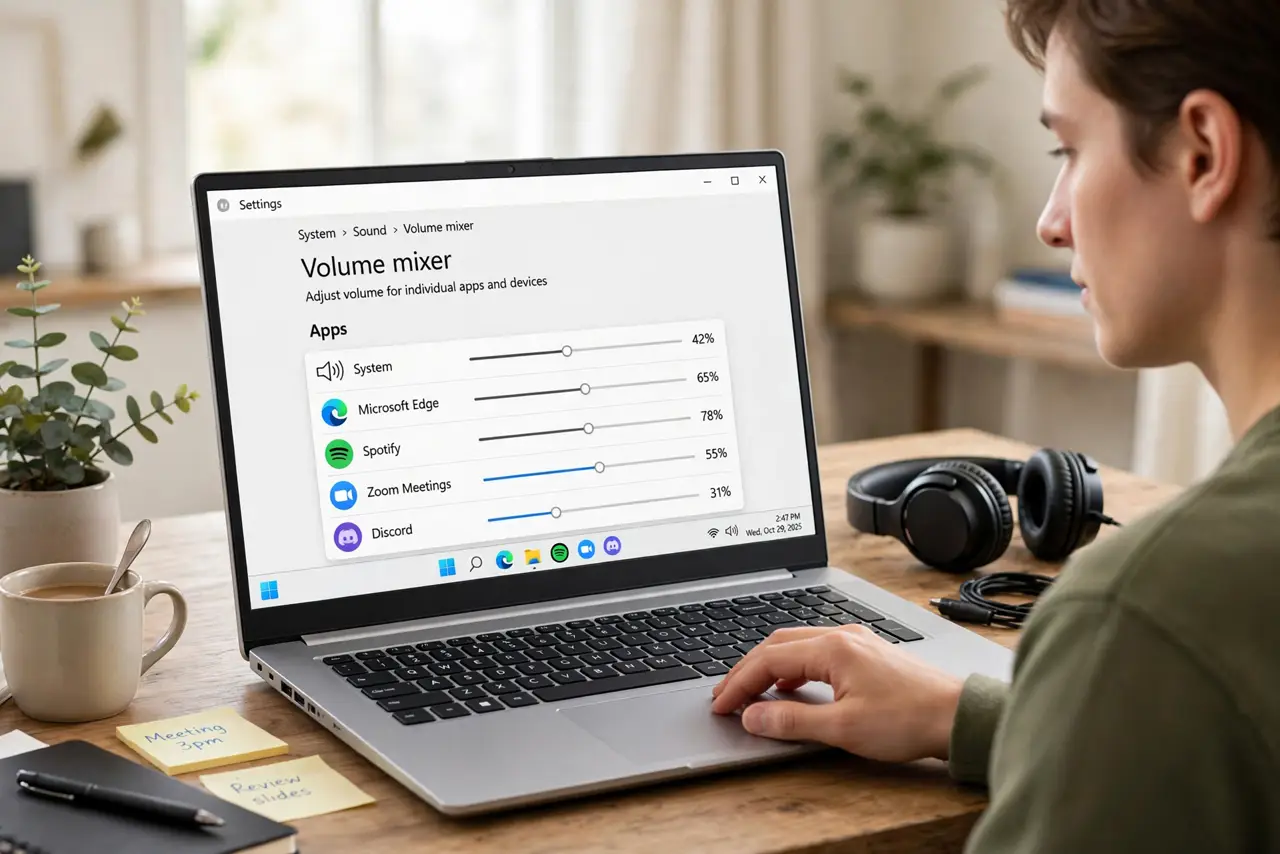
- Open the Volume Mixer. Right-click the speaker icon in the taskbar and choose Open volume mixer (or search 'volume mixer' in Start). You will see a slider for the system plus one for every app currently making sound.
- Fix the silent app. Find the app in the mixer — its slider is probably at zero or muted. Raise it and unmute. This is the cause of most 'YouTube works but Zoom is silent' mysteries.
- Set your defaults sensibly. Lower the apps that startle you (looking at you, notification sounds) and raise the ones you strain to hear. Windows remembers per-app levels, so set it once.
- Check the output device. The mixer has an output selector at the top. If sound comes from the laptop speakers instead of your headphones, the wrong device is selected — switch it here.
- Restart the audio app. If an app does not appear in the mixer, it is not currently holding an audio session. Play something in the app, then reopen the mixer — it should appear.
- Reset when everything is weird. If levels look right but sound is wrong, the classic fix chain applies: restart the app, then check the mixer again. For deeper audio trouble, the full sound settings have a reset option.
What NOT to do
- Do not crank the master to 100 to fix one quiet app. Raise the app's own slider — maxing the master just makes the next notification deafening.
- Do not ignore the output device selector. Half of 'no sound' cases are Windows playing to the wrong device, not a volume problem.
- Do not mute the system slider to silence one app. Mute the app's slider instead, or you will miss the next important sound.
- Do not reinstall audio drivers for a per-app issue. If other apps sound fine, the driver is fine — the mixer is where the answer lives.
Frequently asked questions
Why is one app silent while others work?
Its individual slider in the Volume Mixer is down or muted. Windows remembers per-app volumes, so a slider you dragged months ago stays dragged.
The app is not listed in the mixer. Why?
It is not playing audio right now. Start playback in the app first, then open the mixer — apps only appear while holding an audio session.
Can I set different outputs per app?
Yes — newer Windows versions let you route apps to different devices in the advanced sound settings. Game audio to speakers, call audio to headset, for example.