Turn Off Widgets
The Widgets panel slides out with news, weather, and stocks you never asked for — and it nibbles RAM, CPU, and attention in the background. If you never open it on purpose, turning it off reclaims the taskbar space and the resources. Two toggles, and it is gone.
TL;DR / Quick Fix
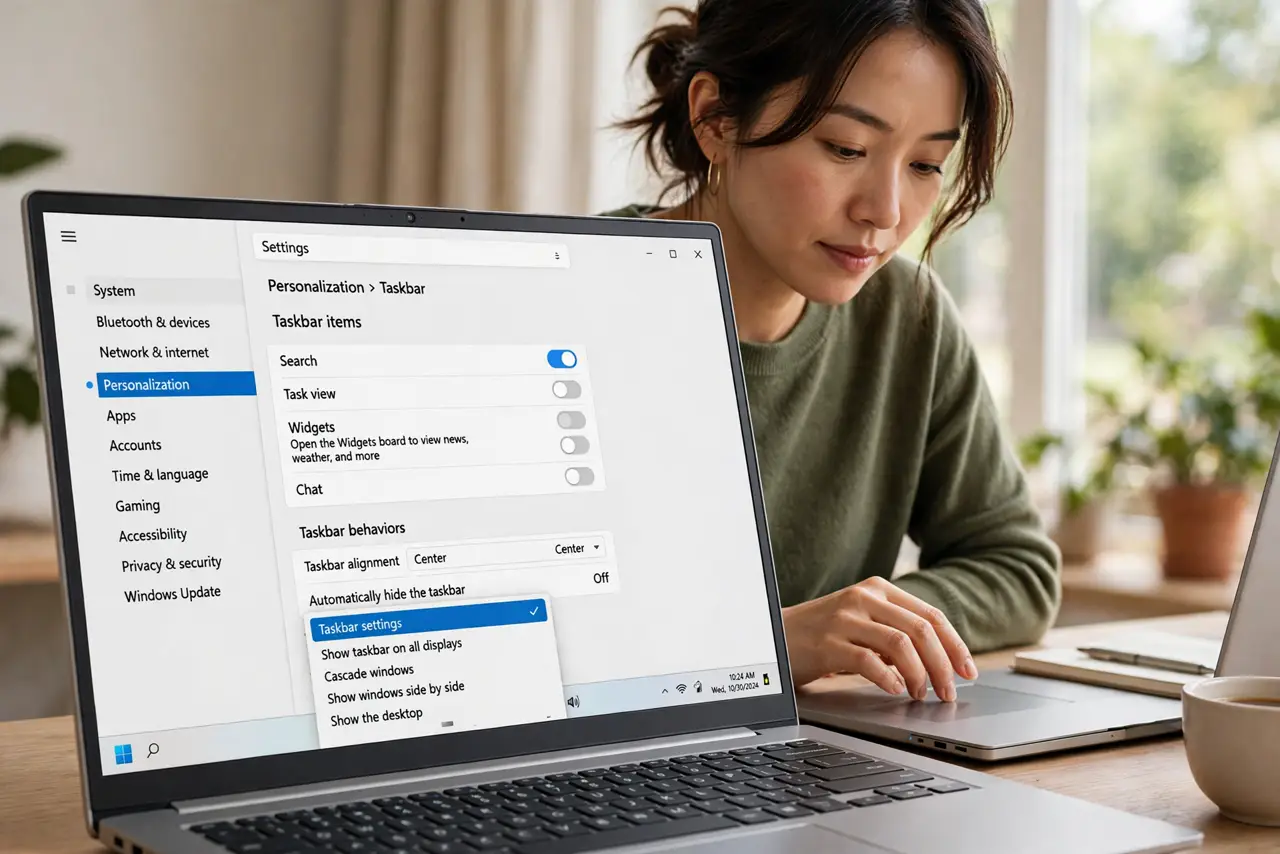
Quick fix: right-click the taskbar, open Taskbar settings, and turn Widgets off — the taskbar button vanishes immediately. To stop the background processes too, disable Widgets in Settings. You lose nothing you used; the news was never the reason you opened your PC.
Follow these steps
- Turn off the taskbar button. Right-click the taskbar, choose Taskbar settings, and toggle Widgets off. The button disappears instantly — the panel can still open via keyboard shortcut, which is fine.
- Disable the background feed. In Settings, the Widgets preferences let you turn off the news feed itself. This stops the background updating that nibbles resources while you work.
- Check Task Manager after. Open Task Manager and confirm the Widgets processes are quiet. If they still run, ending them once plus the settings above keeps them down.
- Reclaim the attention too. Widgets are engineered interruptions — headlines engineered to pull you in. Removing them is a focus upgrade disguised as a performance tweak.
- Know what you keep. The weather and calendar live elsewhere — taskbar, lock screen, your phone. Nothing essential lived in the Widgets panel.
- Re-enable anytime. It is a toggle, not a removal. If you miss the glanceable news, the same switch brings it back in seconds.
What NOT to do
- Do not uninstall Widgets with sketchy scripts. The Settings toggle does the job safely — debloat scripts break things.
- Do not expect huge speed gains. Widgets sip resources; the win is real but modest — attention is the bigger prize.
- Do not confuse Widgets with Gadgets. Desktop Gadgets died years ago for security reasons; Widgets are the modern, sandboxed version.
- Do not disable it per-user and wonder about other accounts. The toggle is per user — set it on each account.
Frequently asked questions
Do Widgets slow down Windows?
Slightly — background feeds use some RAM and CPU. The bigger cost is attention, not performance.
Can I remove Widgets completely?
Not cleanly through Settings — but the toggle stops the button and the feed, which is effectively the same.
Will this break the weather on my lock screen?
No — lock screen weather is separate. Only the taskbar panel and its feed go quiet.