Windows Forgets a Wi-Fi Network Every Week? Fix It
When Windows forgets a Wi-Fi network every week, you end up retyping the password and losing auto-connect. The cause is often a saved profile that is damaged, a setting that clears networks, or a network that changed its name slightly. Rebuilding the profile cleanly usually ends the cycle.
TL;DR / Quick Fix
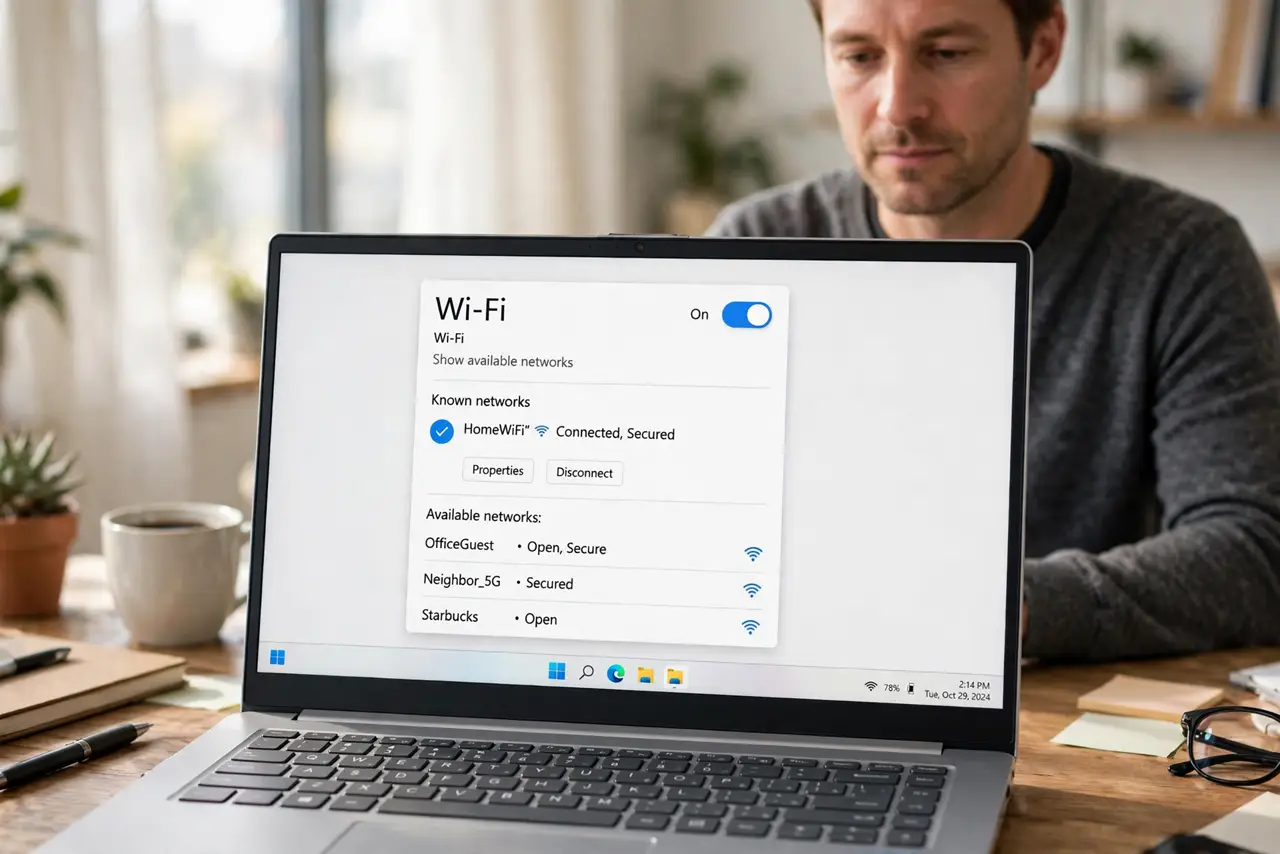
Quick fix: forget the network once, restart, then reconnect and tick Connect automatically. If Windows still forgets it within days, check that no cleanup tool clears saved networks, and confirm the router name has not changed recently or by accident.
Follow these steps
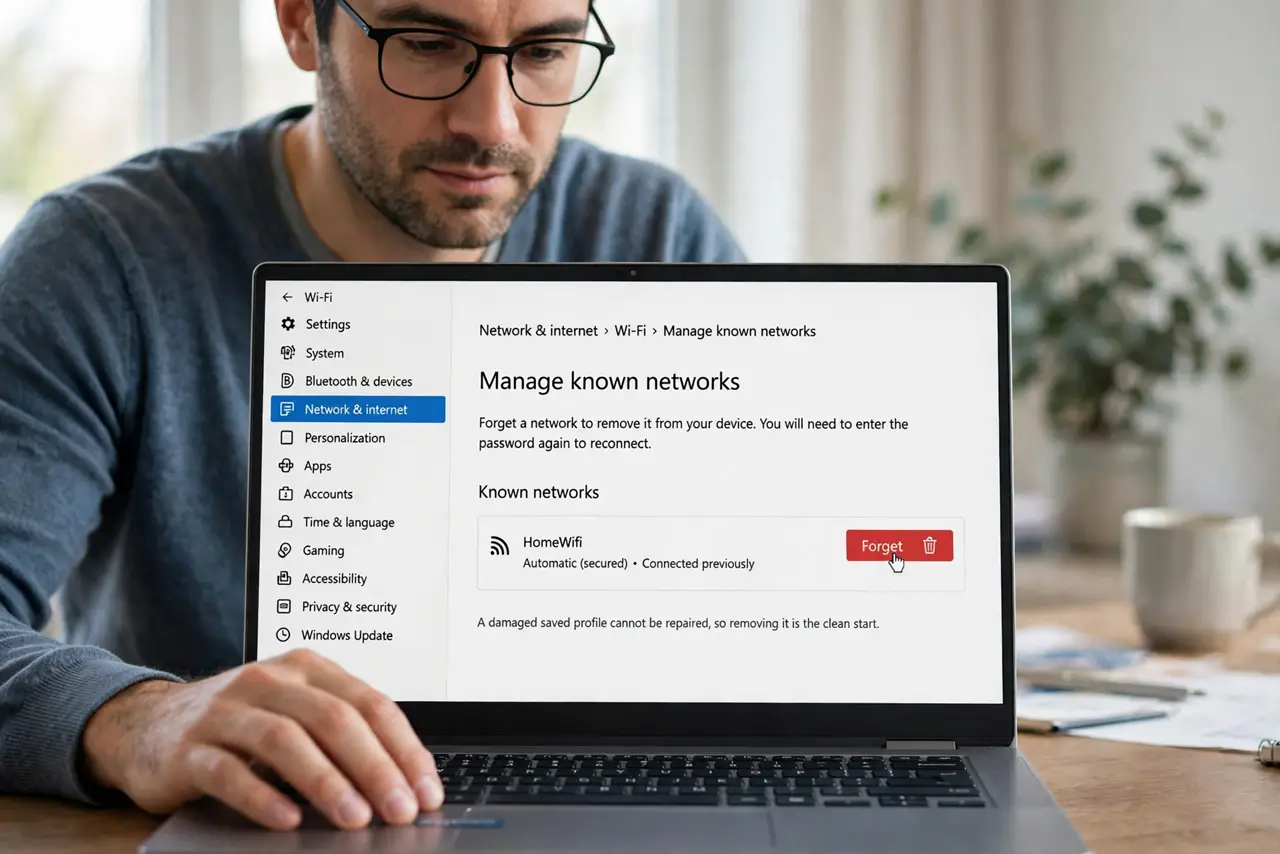
- Forget the network once, cleanly. Open Settings, then Network and internet, then Wi-Fi, then Manage known networks, and forget the network. A damaged saved profile cannot be repaired, so removing it is the clean start.
- Restart the computer. Restart before you reconnect. A restart clears a stuck network state that can recreate the same damaged profile if you reconnect at once.
- Reconnect and tick Connect automatically. Connect to the network, enter the password, and make sure Connect automatically is ticked. Without that tick, Windows treats the network as a one-time connection.
- Check that the router name is stable. Ask whoever manages the router whether its name changed recently. If the name changed, Windows sees a new network, and the old profile will never reconnect on its own.
- Check cleanup tools. If you run a cleanup or privacy tool, check whether it clears saved Wi-Fi networks on a schedule. Turn off that option, because it will keep deleting the profile you just rebuilt.
- Test over several days. Connect each day and note whether the network reconnects on its own. If it holds for a full week, the rebuilt profile fixed it. If it fails again, the router settings are the next check.
What NOT to do
- Do not retype the password every day and accept it. Repeated manual connections hide a profile problem that one clean forget and reconnect usually fixes.
- Do not share the Wi-Fi password with a random tool that promises to save networks. Windows already saves the profile, and extra tools add risk for no benefit.
- Do not reset the router before you rebuild the profile. A router reset affects every device in the home, while the problem may be limited to one Windows profile.
- Do not turn off Wi-Fi entirely to avoid the annoyance. That stops the forgetting, but it also stops every wireless connection you actually need.
Frequently asked questions
Why does Windows forget only one network?
That network saved profile is likely damaged, or its router name changed. Other networks keep their profiles, which is why only one keeps disappearing.
Is forgetting a network the same as losing the password?
Almost. Forgetting removes the saved profile, including the password, so you must enter it again when you reconnect.
What if the network disappears from the list entirely?
Check that the router is on and broadcasting, and move closer to it. A network out of range will not appear, which looks like forgetting but is not.