Install Apps with One Command
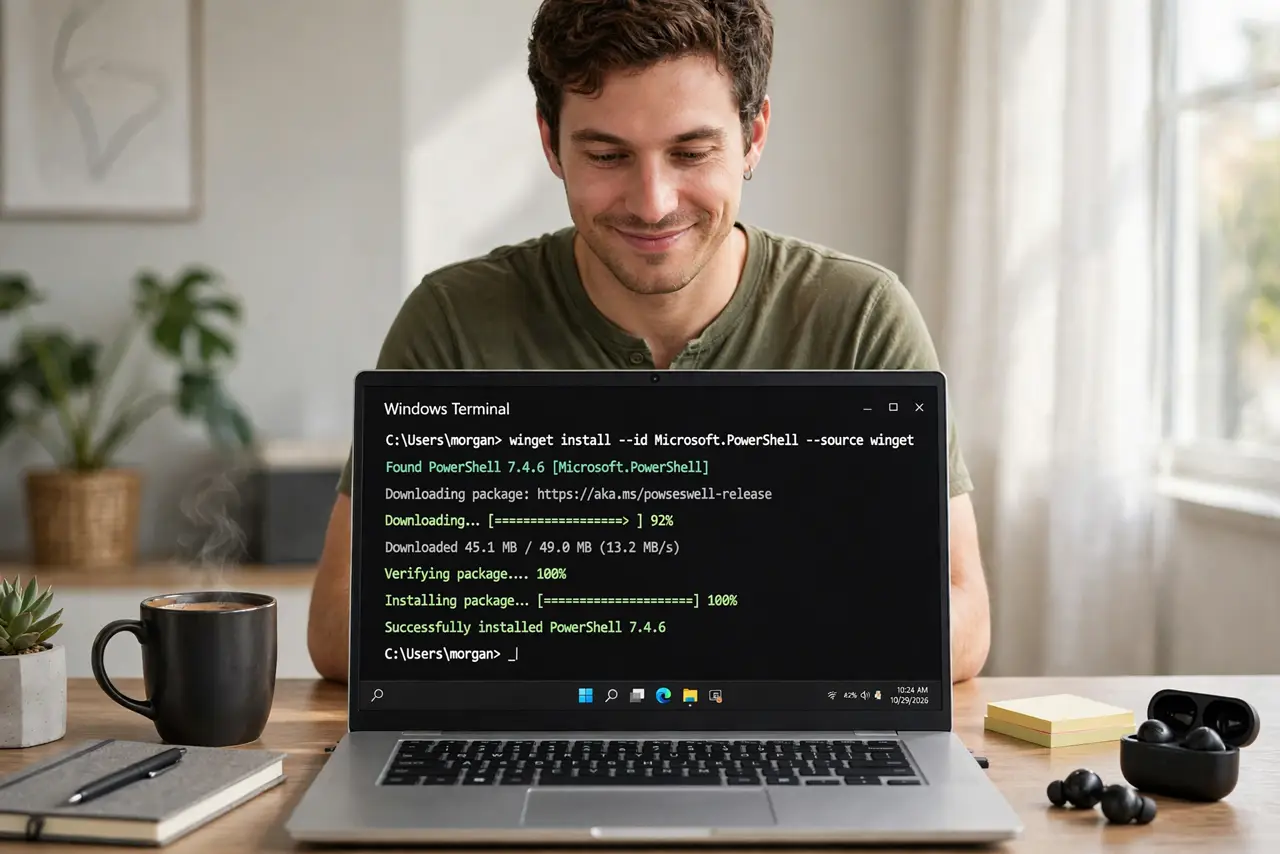
New PC, empty desktop, and a long afternoon ahead: hunt down each download page, dodge the bundled toolbars, click through installers one by one. There is a better way. Winget — Windows Package Manager — installs apps from a single command in Terminal, pulling from Microsoft's repository: one line per app, no browser, no bundleware. Setting up a new PC becomes a list of commands you can save and rerun forever.
TL;DR / Quick Fix
Quick fix: winget installs apps from the command line — open Terminal and type winget install followed by the app name, and Windows fetches it from Microsoft's repository. It beats hunting download pages and unchecking bundled toolbars. Run winget upgrade --all monthly to update everything at once.
Follow these steps
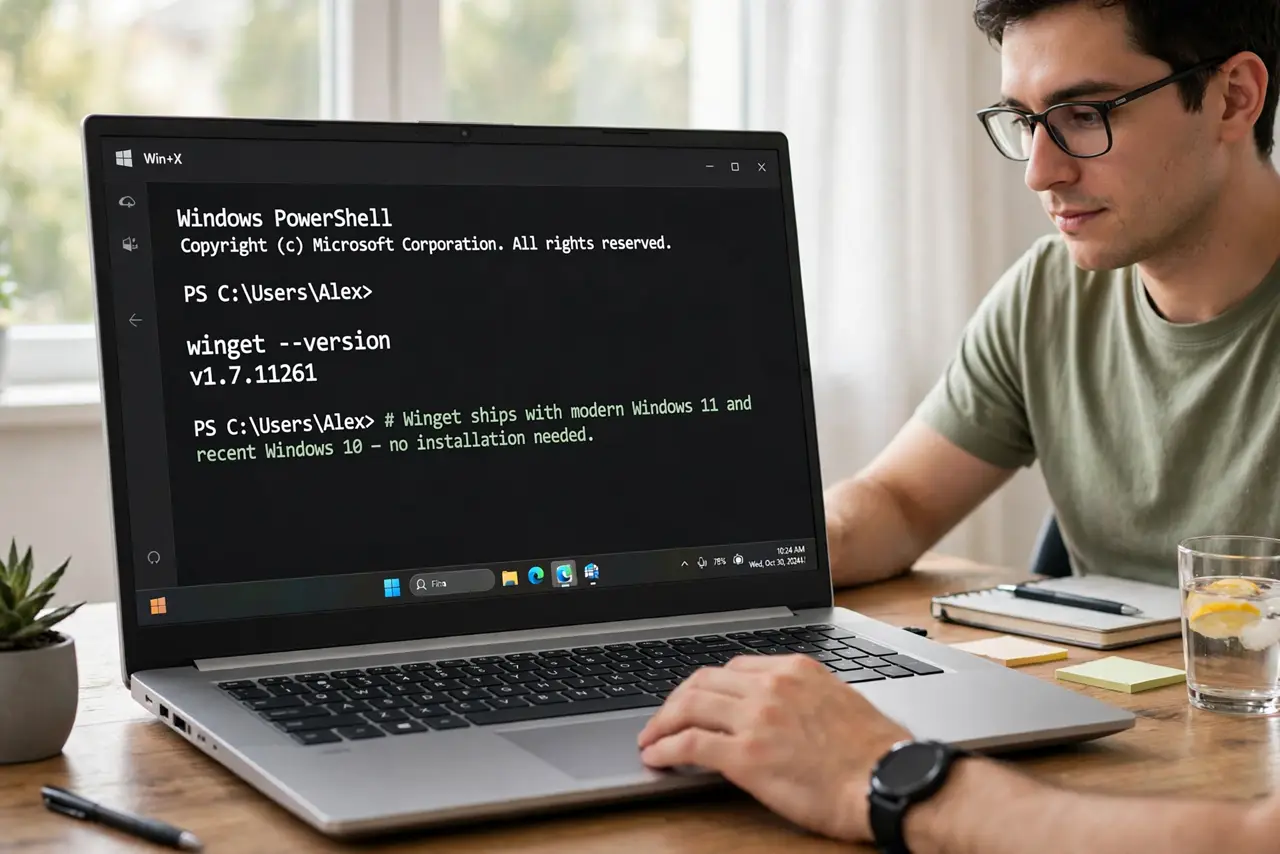
- Open Terminal. Right-click Start and choose Terminal (or press Win+X). Winget ships with modern Windows 11 and recent Windows 10 — no installation needed. If winget is missing, update the App Installer from the Microsoft Store.
- Search for the app first. Type winget search followed by the app name to find its exact package ID — for example, winget search firefox. Using the ID avoids installing the wrong similarly-named package.
- Install with one command. Type winget install followed by the name or ID and press Enter. Winget downloads from the official source and runs the installer silently — no toolbar checkboxes, no bundled offers, no next-next-next.
- Chain your setup list. Installing five apps? Run five commands, or save them in a text file and paste the block. Your whole new-PC setup becomes a repeatable script — next time, it takes minutes, not an afternoon. Pair new machines with a Dev Drive for the full fast-setup combo.
- Update everything monthly. Run winget upgrade --all to update every winget-managed app at once. One command replaces opening a dozen updaters — see updating all at once for the details and the apps it cannot reach.
- Know its limits. Winget covers mainstream apps well but not everything — niche tools and some licensed software still need manual installs. Check the search results before assuming; missing apps are the exception, not the rule.
What NOT to do
- Do not install packages with names you did not verify. Typosquatting exists — winget search first, confirm the publisher, then install.
- Do not run winget as administrator for everything. Most apps install per-user fine; elevating blindly is a habit worth breaking.
- Do not skip the search step for common names. VLC, Zoom, and similar have lookalikes — the exact package ID is your safety check.
- Do not assume it updated your Store apps. Winget manages its own set; Microsoft Store apps update through the Store — run both updaters.
Frequently asked questions
Is winget safe?
It pulls from Microsoft's curated repository and official vendor sources — far safer than random download sites. Verify package IDs and you avoid the main risk, typosquatting.
Can I reinstall everything on a new PC automatically?
Yes — export your list with winget export and import it on the new machine. Your setup becomes a file you keep.
Does winget remove bundled toolbars?
It installs silently with defaults that skip the bundled offers — that is half the point versus manual downloading.