Update All Apps With One Command
Every app wants to update itself on its own schedule, each with its own updater nagging you. Winget — Windows' built-in package manager — can update nearly all your desktop apps with a single command. Here is the safe way to run it, and what it does not cover.
TL;DR / Quick Fix
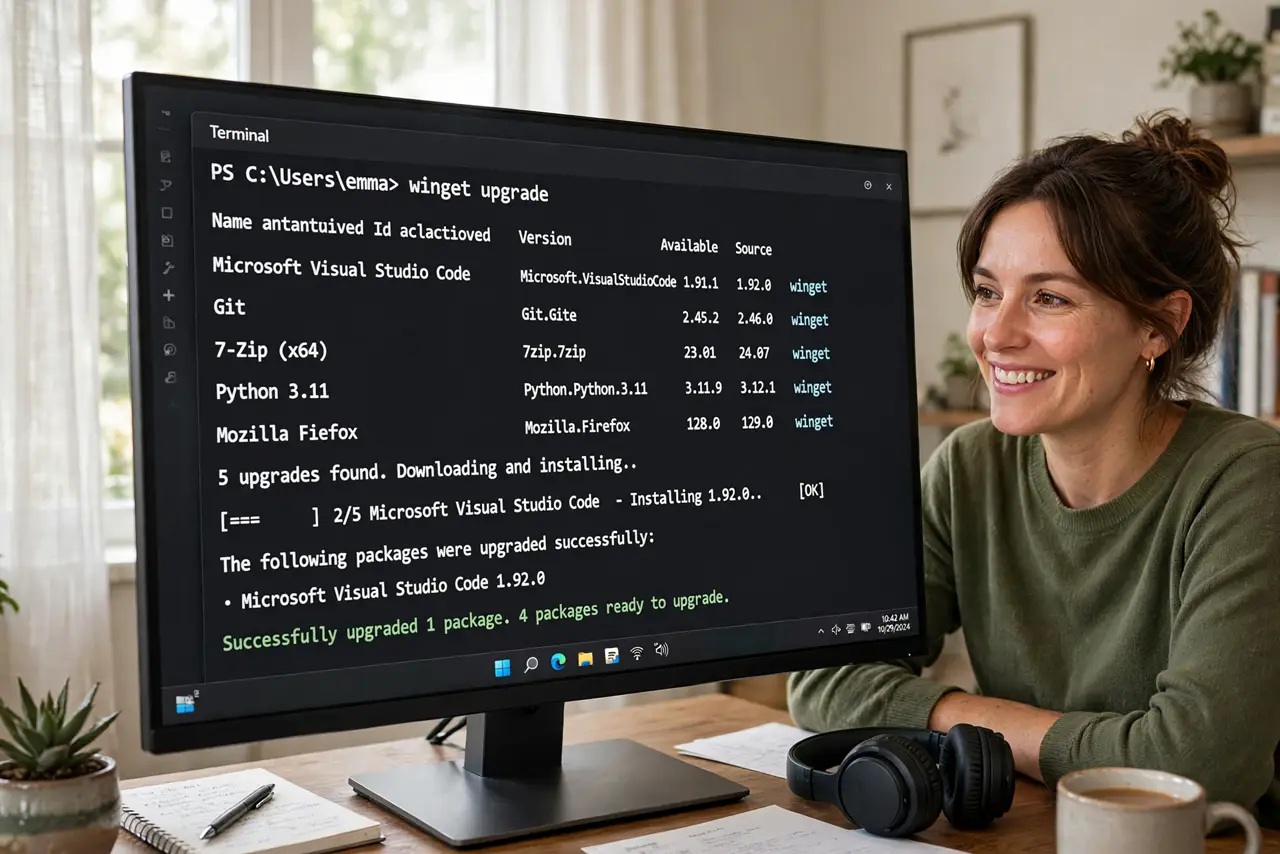
Quick fix: open Terminal and run winget upgrade --all to update every app Winget manages in one pass. Review the list first with winget upgrade. Accept each prompt or add --silent to skip them. Store apps still update through the Microsoft Store.
Follow these steps
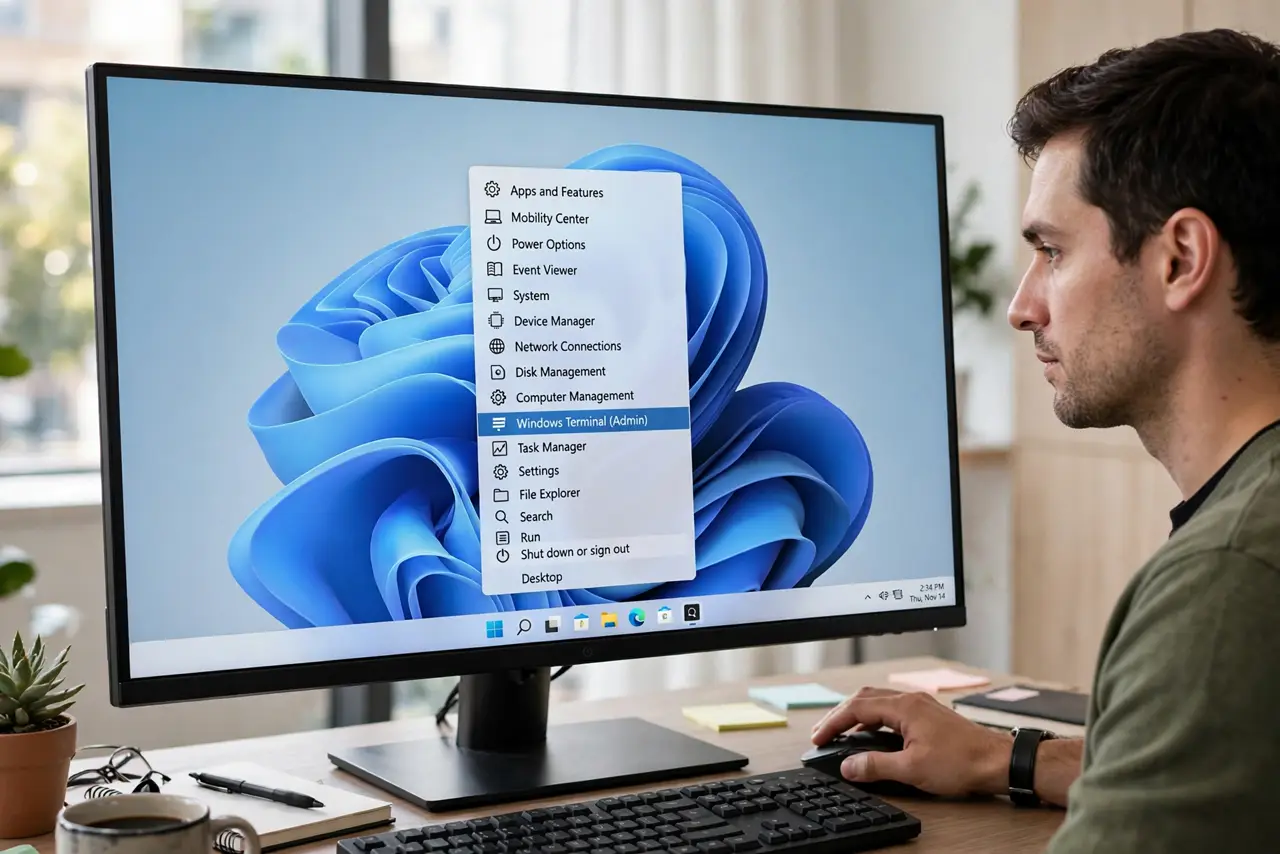
- Open Terminal. Right-click Start and open Terminal. Winget ships with current Windows 10 and 11 — no install needed.
- Preview what is outdated. Run winget upgrade with no arguments. It lists every app it can update, with current and available versions, so there are no surprises.
- Run the bulk update. Run winget upgrade --all. Winget downloads and installs each update in turn; some apps show their own installer prompts.
- Handle the prompts. Add --silent to skip most installer dialogs, but only for apps you trust. Watching the first run teaches you what normal looks like.
- Know what Winget skips. Microsoft Store apps update through the Store, and portable apps it never installed are invisible to it. Winget covers traditionally installed desktop software.
- Re-run after a reboot. Some updates require a restart before the next ones proceed. If the list stalls, reboot and run the command once more.
What NOT to do
- Do not run bulk updates right before a deadline. Updates occasionally change behavior — pick a calm moment, not five minutes before a presentation.
- Do not use --force unless an update genuinely fails. Forcing reinstalls over problems instead of diagnosing them.
- Do not expect Winget to update Store apps. Those live in the Microsoft Store's update queue, a separate system.
- Do not interrupt an installer mid-run. Closing the Terminal during an update can leave an app half-installed.
Frequently asked questions
Is Winget safe to use?
Yes — it is Microsoft's own tool, and it pulls the vendors' official installers. The risk profile is the same as updating each app by hand, minus the tedium.
Why is one of my apps not listed?
Winget only tracks apps it knows about — typically ones installed from its catalog or with standard installers. Portable and Store apps are outside its view.
Can I update just one app?
Yes: winget upgrade followed by the app's name or id updates only that app. The --all flag is just the convenient bulk form.