Change the Default Shell in Terminal
Windows Terminal opens PowerShell every time, but you live in Command Prompt — or in Ubuntu now that you installed WSL. The default shell is one dropdown in Settings, and changing it also teaches you where per-shell settings live. Two minutes, no commands to memorize.
TL;DR / Quick Fix
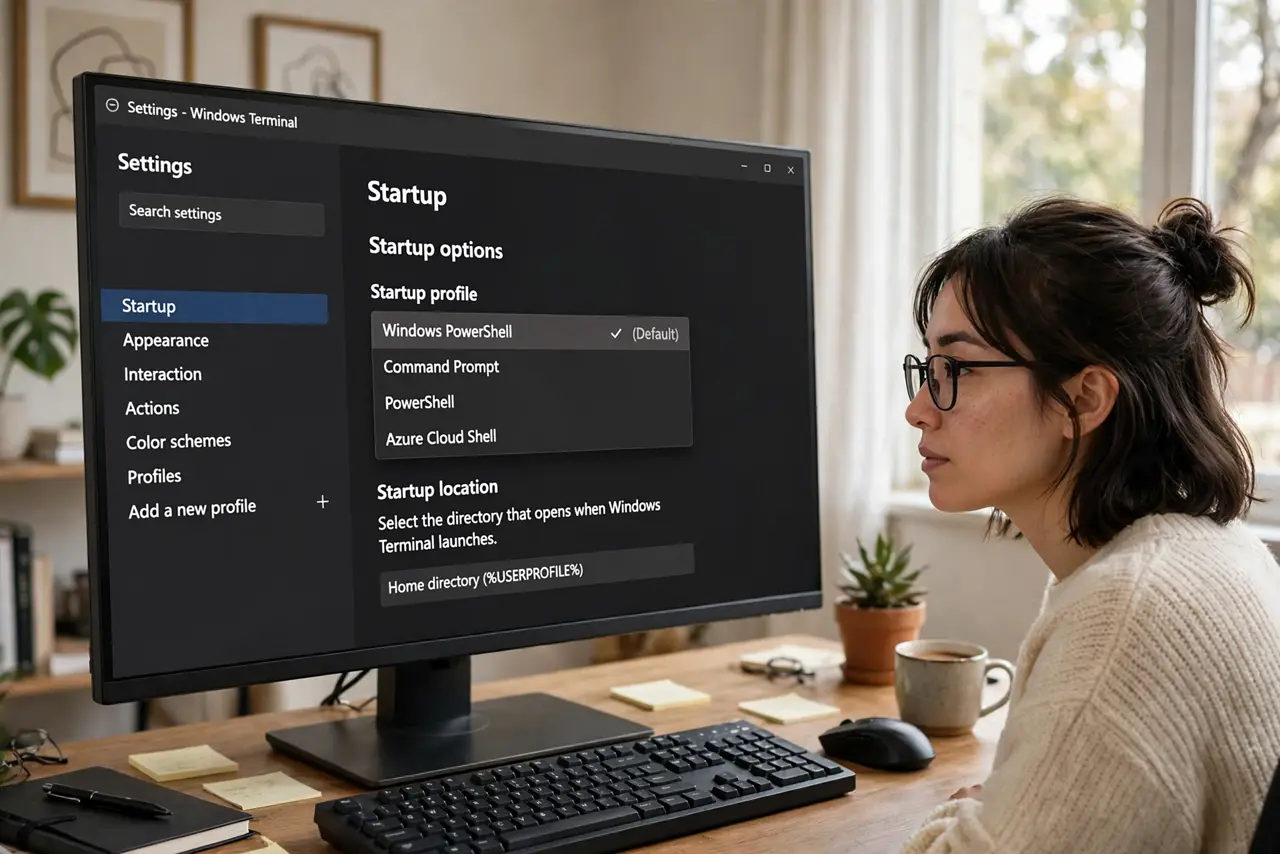
Quick fix: open Windows Terminal, press Ctrl+, for Settings, and under Startup pick your shell in the Default profile dropdown. WSL distros, Command Prompt, and PowerShell all appear there. The change applies to every new tab. Set the starting directory per profile too.
Follow these steps
- Open Terminal settings. Launch Windows Terminal and press Ctrl+, (comma). This opens the graphical settings — you do not need to edit the JSON file for this task.
- Pick the default profile. Under Startup, find Default profile and choose your shell from the dropdown. Command Prompt, PowerShell, and each WSL distro appear as separate entries.
- Understand the two different defaults. Default profile picks the shell for new tabs. Default terminal application (same page) picks which app opens when something requests a terminal — set both to Windows Terminal for consistency.
- Set a starting directory per profile. Click a profile on the left, then set its Starting directory — your projects folder for WSL, for example. New tabs land exactly where you work.
- Compare the shells before committing. Unsure which shell you actually want? Read PowerShell vs Command Prompt first — the right default depends on what you type daily.
- Test with a fresh tab. Press Ctrl+Shift+T. If the shell you chose opens, you are done; the setting sticks across restarts.
What NOT to do
- Do not uninstall Windows PowerShell to simplify the list. Parts of Windows and many installers depend on it.
- Do not hand-edit settings.json for this. The dropdown does the same job, and a typo in JSON breaks the whole Terminal.
- Do not confuse the default profile with the default terminal app. Changing one does not change the other.
- Do not expect the old standalone consoles to follow. This setting only affects Windows Terminal.
Frequently asked questions
What is the difference between the default profile and the default terminal app?
The profile is which shell opens inside Terminal tabs; the terminal app is which program Windows launches for console windows. Set both to keep behavior consistent.
I installed Ubuntu but it is not in the list — why?
The WSL distro probably has not finished its first-run setup. Launch Ubuntu once from the Start menu, then reopen Terminal settings.
Can I have different fonts per shell?
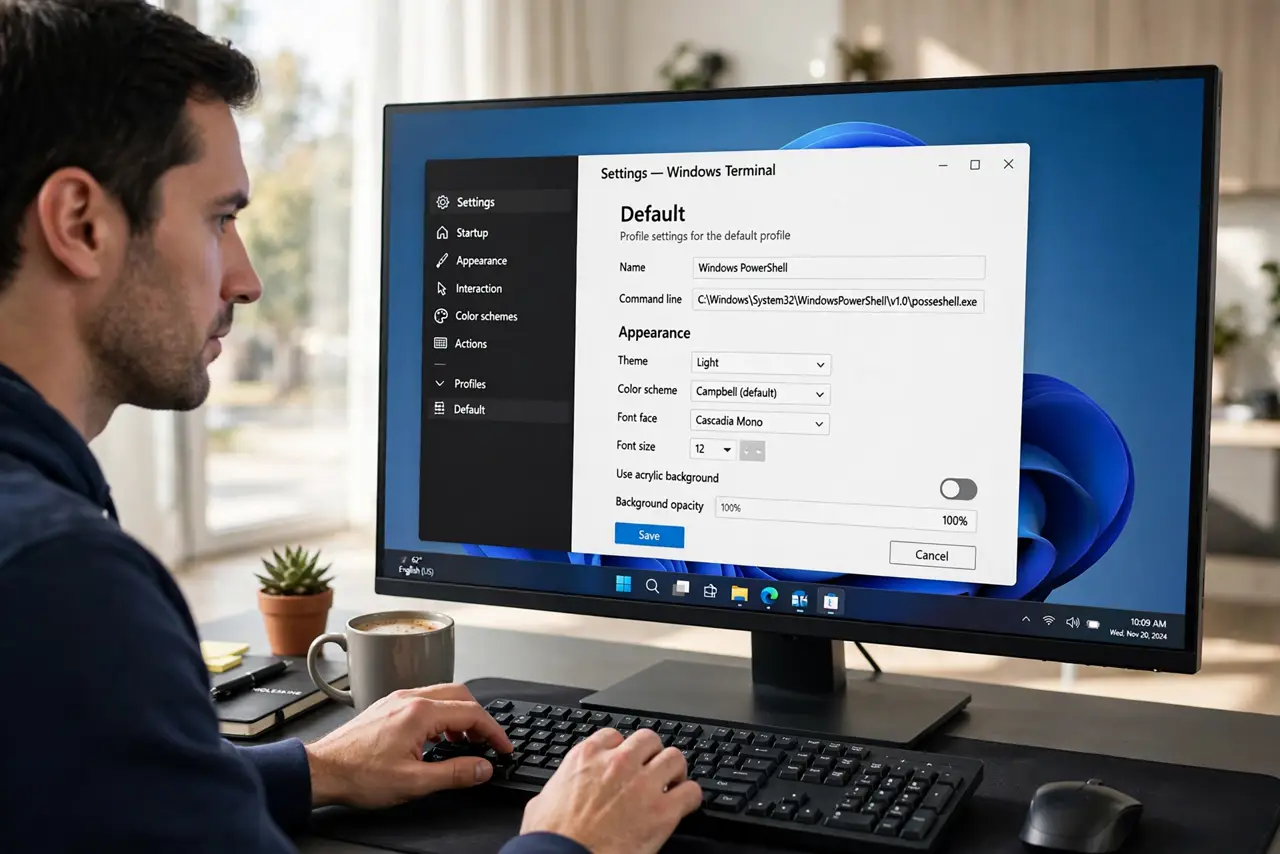
Yes. Each profile has its own Appearance settings — font, size, and color scheme are per-shell, which is handy for telling them apart at a glance.