'Extract All' Missing From Zip Menu? Fix It
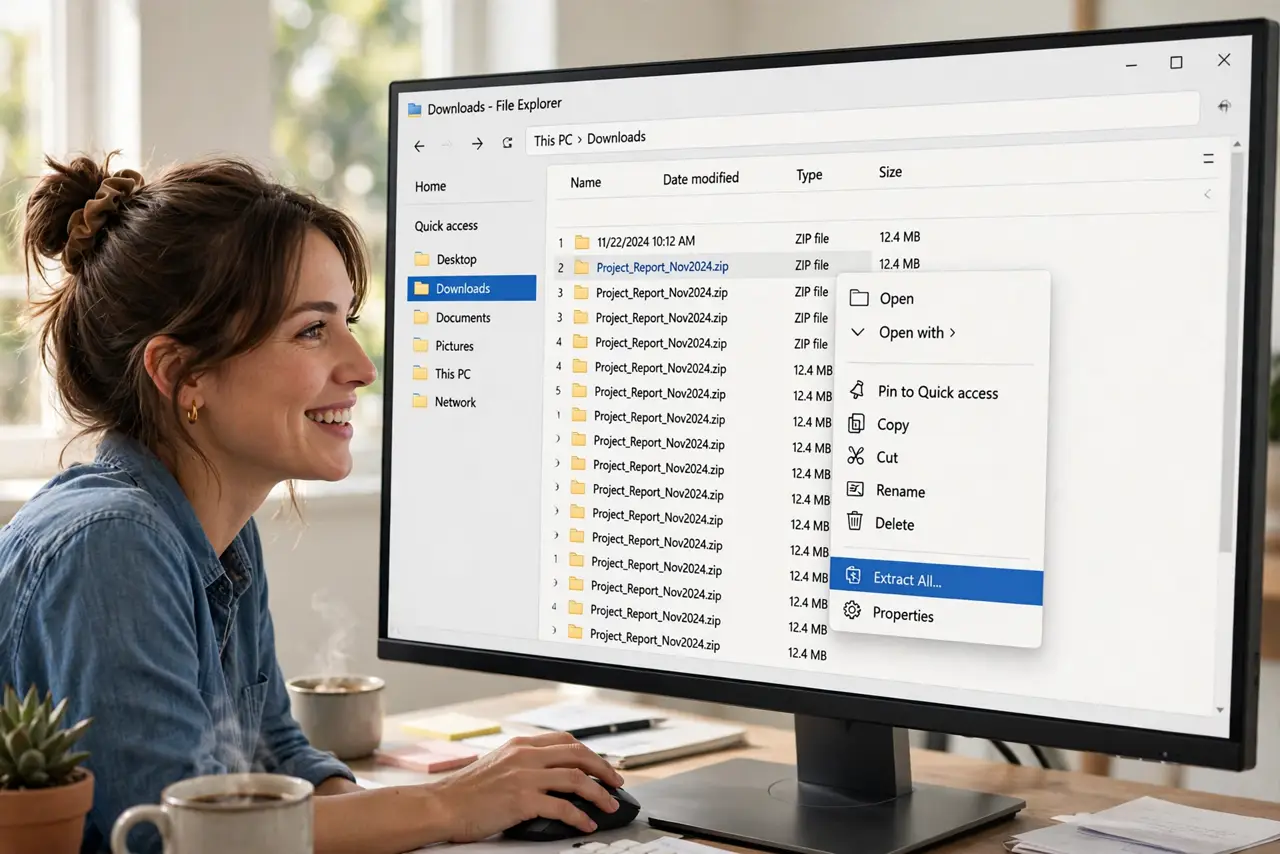
You right-click a downloaded zip expecting 'Extract All' — and it isn't there. Usually you right-clicked a file inside the zip instead of the zip itself, or the file isn't really a zip at all. On Windows 11, the new compact menu can also bury it one level down.
TL;DR / Quick Fix
Right-click the zip file — not a file inside it — and 'Extract All' appears. If it is still missing, the file may not be a zip: confirm it ends in .zip, not .rar or .7z. On Windows 11, check under 'Show more options' if the new menu hides it.
Follow these steps
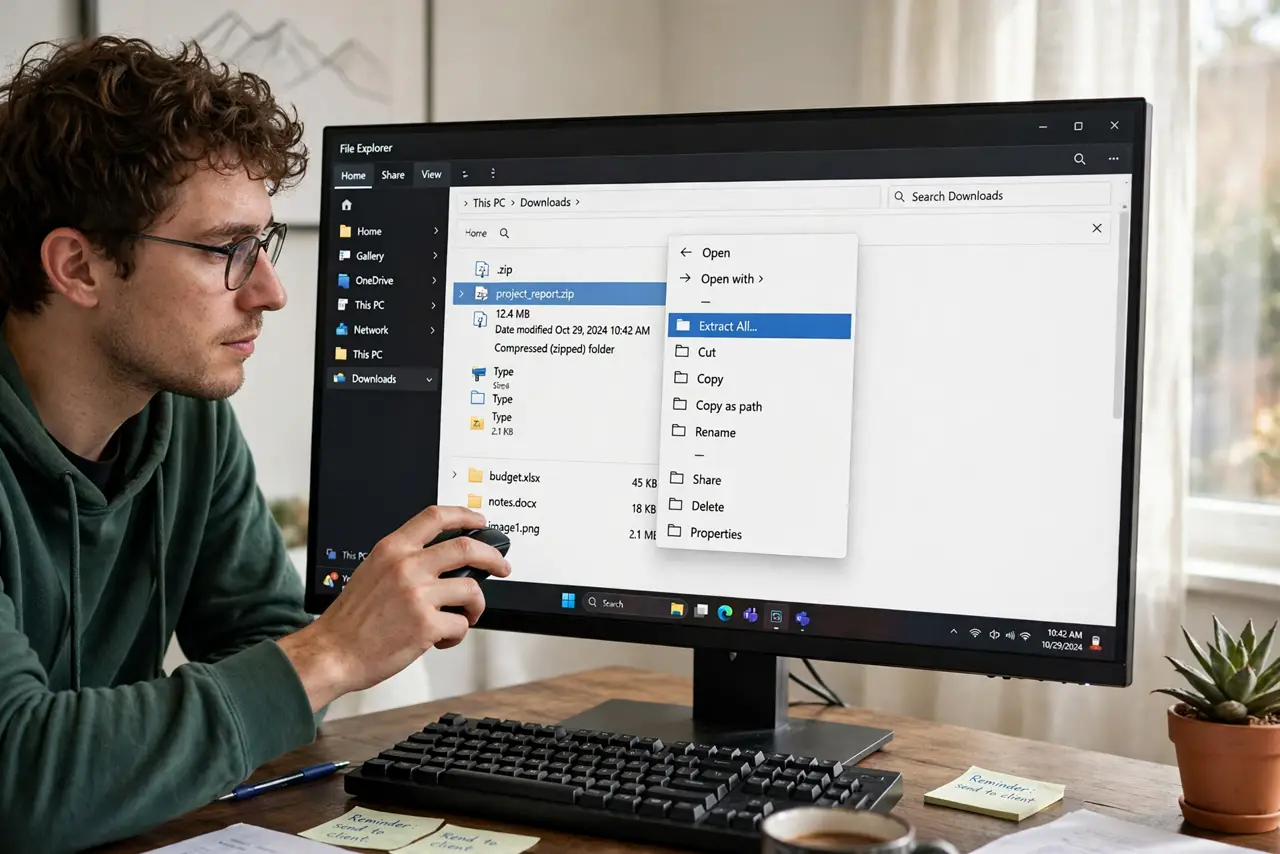
- Right-click the zip file itself. Click once on the .zip file in File Explorer, then right-click it. 'Extract All' belongs to the archive, not to files inside it.
- Check under 'Show more options'. On Windows 11, the compact menu may hide it. Click 'Show more options' at the bottom for the full classic menu with Extract All.
- Confirm the extension is really .zip. Enable file extensions and look: .rar, .7z, and .tar.gz need other tools. Windows only offers Extract All for genuine .zip files.
- Don't double-click into it first. Opening the zip shows its contents in Explorer — right-clicking there gives file options, not archive options. Back out and right-click the zip.
- Use the ribbon alternative. With the zip selected, the Explorer command bar offers an Extract all button — same wizard, different door.
- Reassociate zips if another app stole them. If a third-party archiver took over, right-click > Open with > Choose another app > Windows Explorer restores the built-in handling.
What NOT to do
- Do not rename a .rar to .zip hoping it works. The formats differ inside — renaming just produces a 'corrupt' error.
- Do not download a shady 'zip fixer' for this. The option is built in; third-party fixers are unnecessary and often bundled with junk.
- Do not extract to a cluttered desktop. Point the wizard at a proper folder — extracted files multiply fast.
- Do not assume every archive opens natively. Windows handles .zip; .rar and .7z need a dedicated archiver.
Frequently asked questions
Why is Extract All greyed out instead of missing?
The zip may be open in another program or locked by a download in progress. Close other programs and finish the download, then retry.
Can Windows open RAR files?
Not natively — Windows 11 added .rar reading in newer builds, but extraction of exotic formats still belongs to dedicated tools.
Where do extracted files go by default?
The wizard suggests a folder beside the zip with the same name. Accept it, or browse to a folder you actually want.