Print Envelopes in Word
Handwriting addresses on fifty envelopes is a wrist injury waiting to happen — and hand-addressed mail looks less professional. Word's Mailings tab prints envelopes and label sheets with proper sizing, so your printer does the tedious part. This guide sets up both in minutes.
TL;DR / Quick Fix
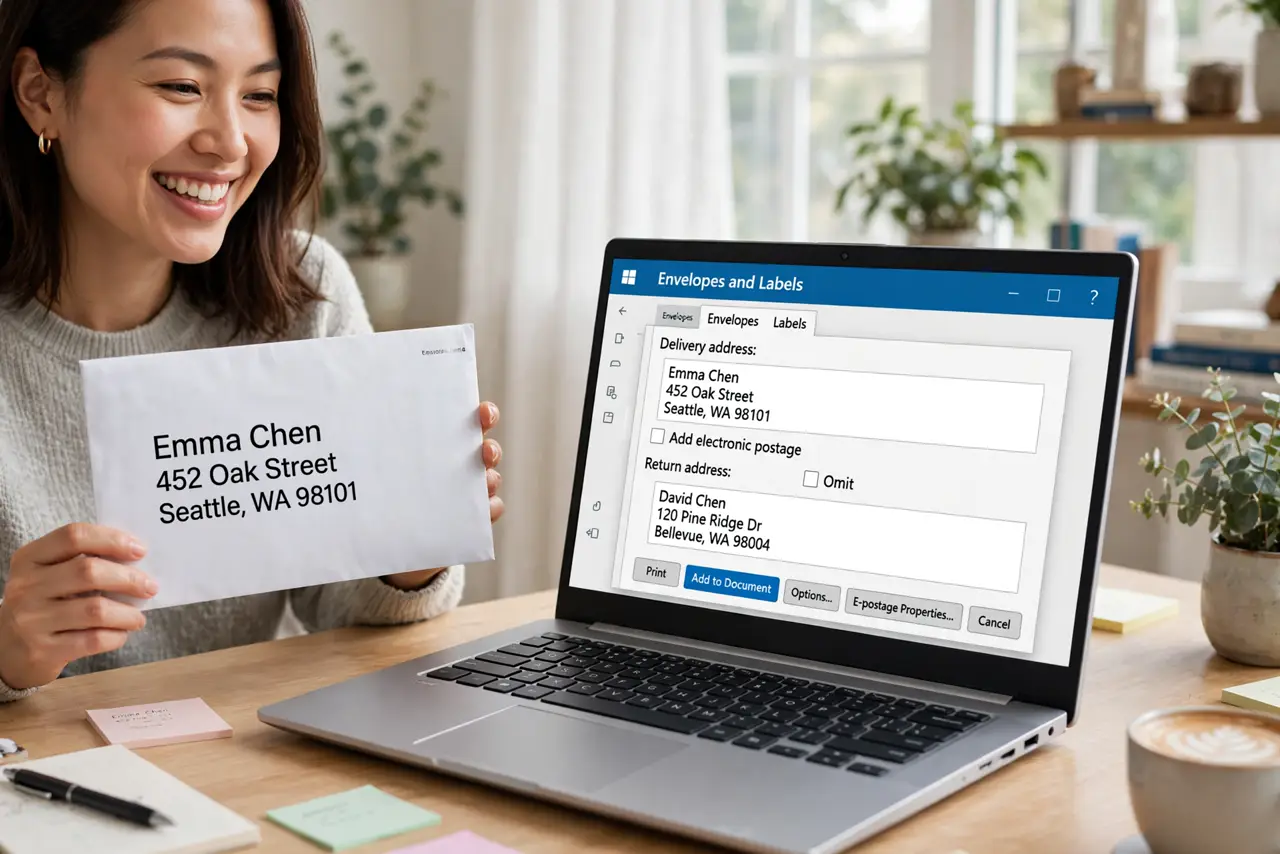
Quick fix: in Word, go to Mailings, Envelopes, type the addresses, and print — Word sizes and positions everything for standard envelopes. For labels, choose Labels, pick your sheet brand, and fill the grid. Print one test page on plain paper before using real stock.
Follow these steps
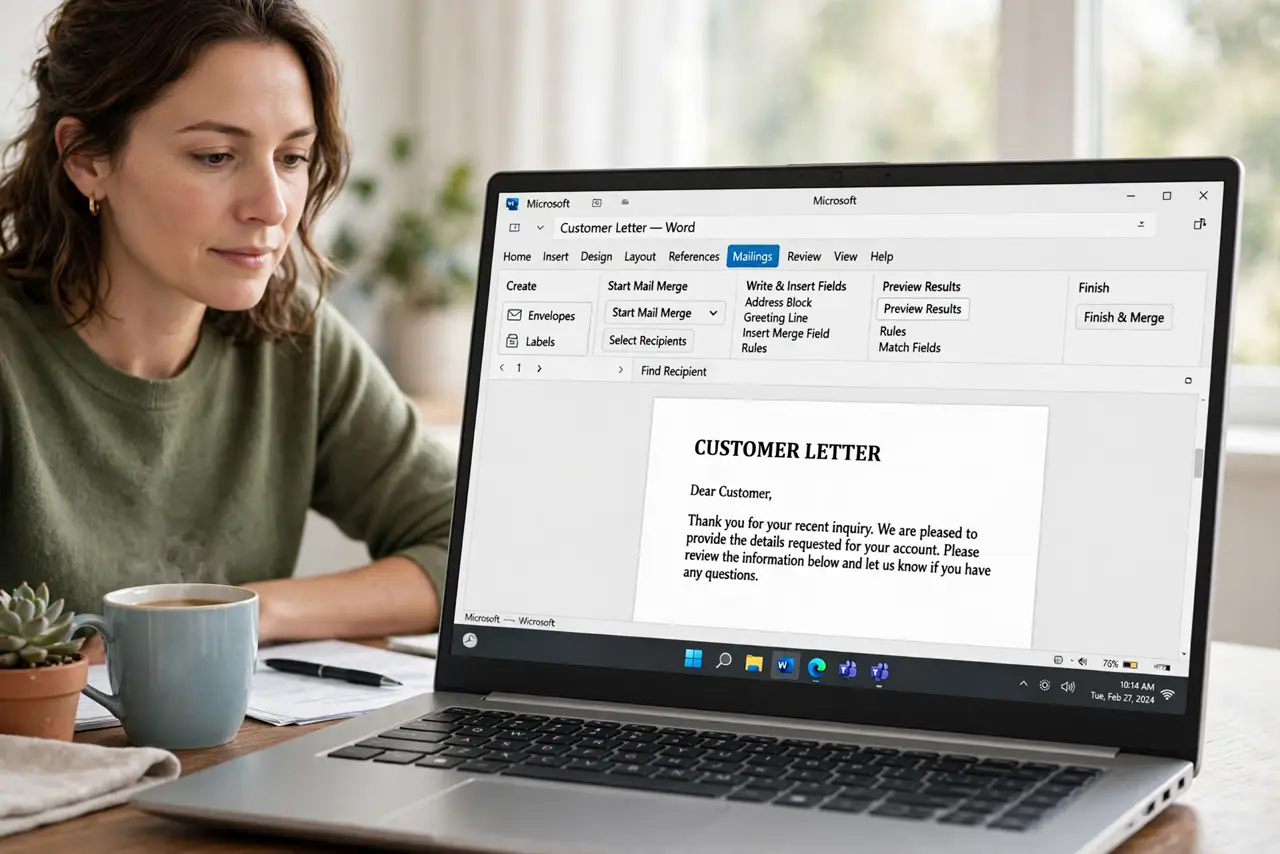
- Open the Mailings tab. In Word, click Mailings in the ribbon. Envelopes and Labels live here — the whole feature is two buttons, not a maze.
- Enter the delivery and return addresses. Type or paste both addresses into the Envelopes dialog. Word remembers the return address for next time.
- Set the envelope size. Pick your envelope size from the options — #10 business is the common default. Wrong size means misaligned printing, so match the actual envelope.
- Print a test on plain paper. Print once on regular paper, hold it against an envelope. Alignment confirmed before you waste real stock — the golden rule of envelope printing.
- Switch to Labels for sheets. Choose Labels, pick your label brand and product number. Word lays out the grid to match the sheet exactly.
- Fill the grid and print. Type into the label grid or merge from a list for many addresses. One test sheet first — then the full run, and check page numbering if your document mixes labels with letter pages.
What NOT to do
- Do not skip the test print. Envelopes are expensive; one plain-paper test saves a ruined stack.
- Do not guess the envelope size. Measure or read the box — #10, A7, and DL all feed differently.
- Do not run envelopes through a laser printer's wrong tray. Use the manual feed or envelope tray, or jams follow.
- Do not handwrite when printing is available. Printed addresses scan better and look professional — the printer earns its keep.
Frequently asked questions
Why is the address printing in the wrong spot?
Envelope size mismatch — the dialog's size must match the physical envelope. Re-check the setting.
Can I print a whole address list on labels?
Yes — use Mail Merge with your contacts list. One setup prints the entire sheet stack.
My printer has no envelope setting — now what?
Use manual feed and the closest size. Feed one envelope at a time to avoid jams.