Word Stuck on Double Spacing? Fix It
Your document insists on double spacing and the line-spacing button seems to do nothing. The real setting usually lives in the paragraph style, which overrides the button. This guide shows how to find the true setting and fix it for good.
TL;DR / Quick Fix
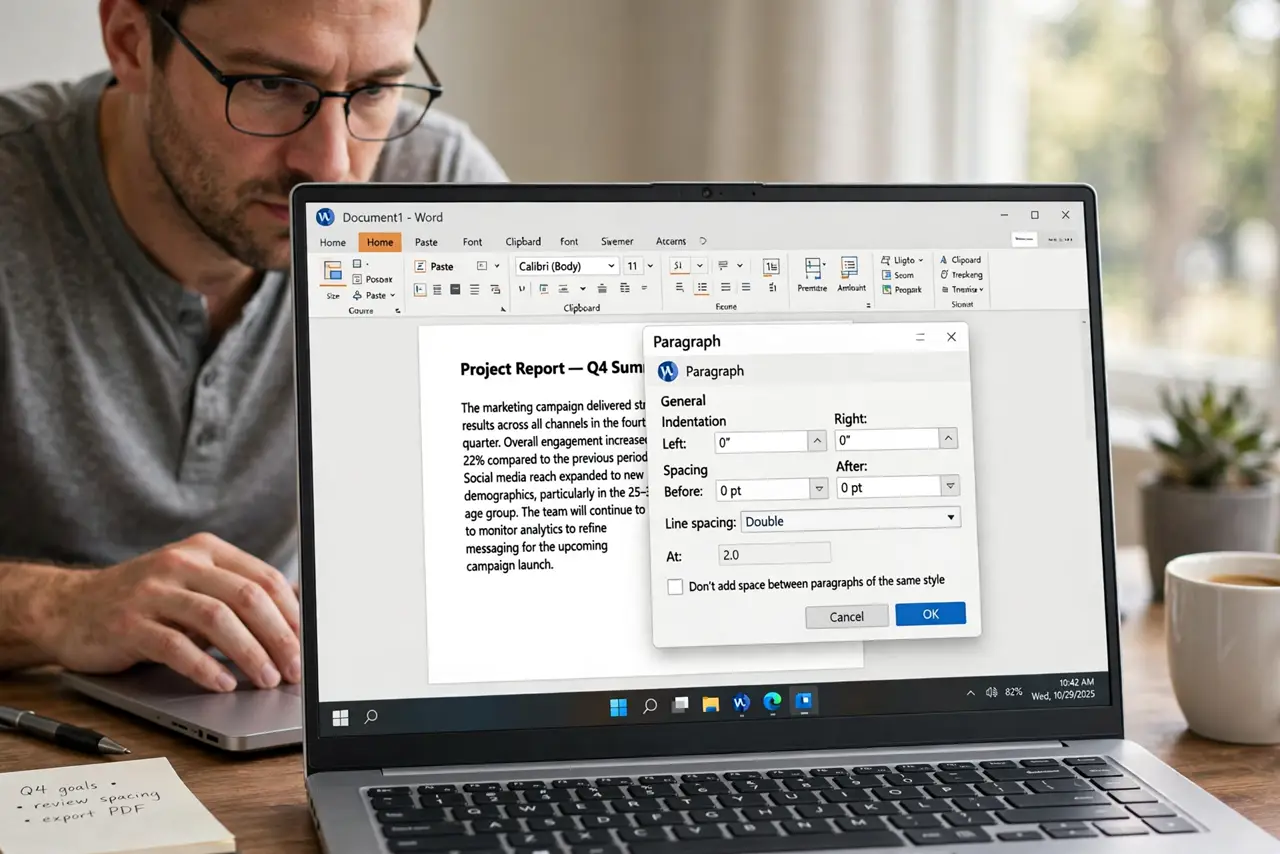
Select the text, open the Paragraph dialog, and set line spacing to Single or 1.15. If it snaps back, modify the Normal style itself, since the style overrides manual changes. Save the style change to the template so new documents behave.
Follow these steps
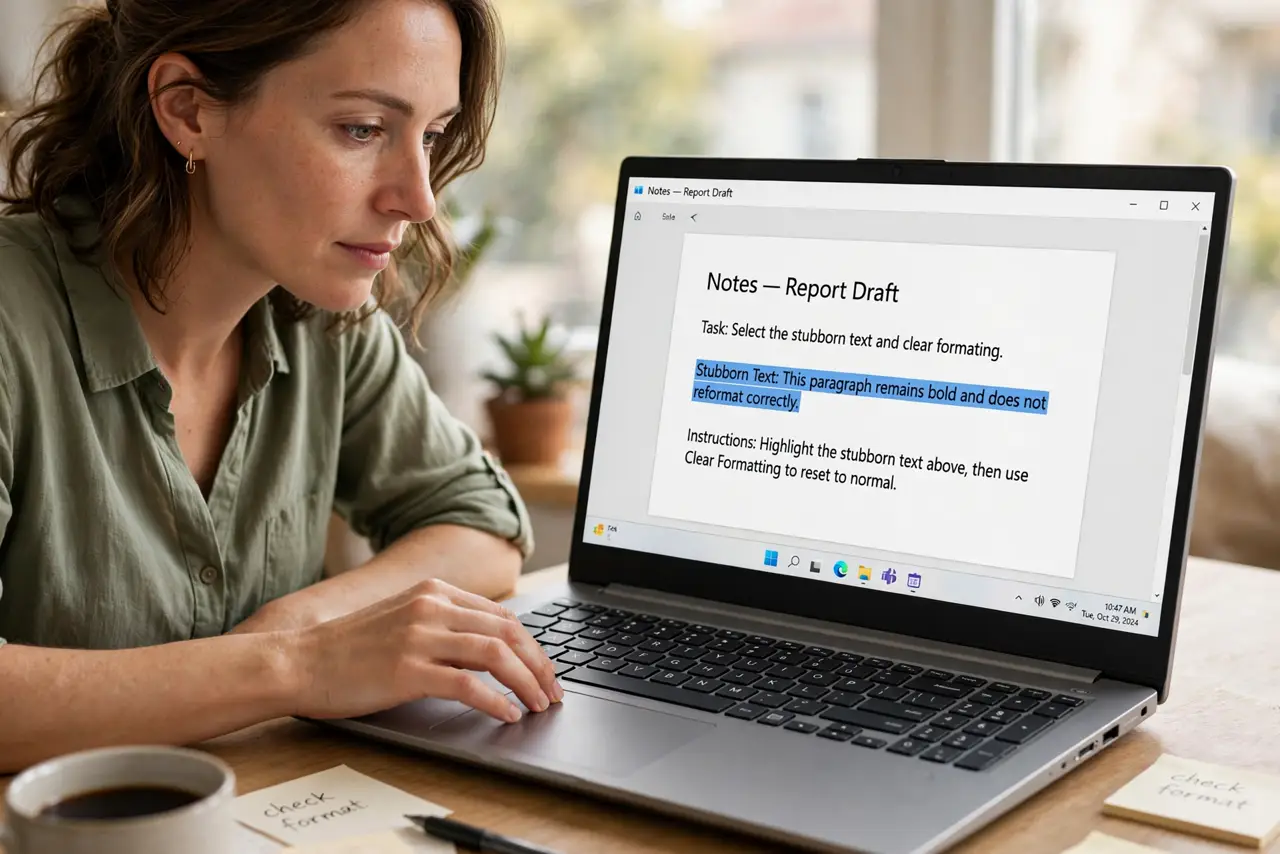
- Select the stubborn text. Select the paragraphs that refuse to change. If the whole document misbehaves, press Ctrl+A to select everything.
- Open the Paragraph dialog. On the Home tab, click the tiny arrow in the Paragraph group's corner. This dialog shows the real spacing values, unlike the quick button.
- Set the line spacing value. Choose Single or Multiple at 1.15 in the Line spacing dropdown. These are the normal, readable settings most documents want.
- Zero the space before and after. In the same dialog, set Spacing Before and After to 0 pt. Hidden extra space here is why paragraphs look double-spaced even at Single.
- Modify the style if it snaps back. If the text reverts, right-click the Normal style, choose Modify, and set the spacing there — the same style that holds your default font. The style always beats manual formatting.
- Save it to the template. In the Modify Style dialog, check New documents based on this template. Future documents inherit the fix instead of the problem.
What NOT to do
- Do not fight it with extra Enter presses. Empty paragraphs fake spacing and break the layout the moment text shifts.
- Do not use the ribbon button alone. It changes the selection, but the underlying style can override it silently.
- Do not set spacing with manual line breaks. One style change then reflows the whole document unpredictably.
- Do not ignore Space Before and After. Those two values cause half of all stuck-spacing complaints.
Frequently asked questions
Why won't Word change from double spacing?
The paragraph style is overriding your manual change. Modify the Normal style's spacing instead of the selected text.
What is the normal line spacing for documents?
Single or 1.15 with zero extra space before and after. Double spacing is for drafts that need room for handwritten comments.
Will this fix spacing in an existing long document?
Yes, if you modify the style. Every paragraph using that style updates at once.