A Page Break That Won't Delete? Fix It
You press Delete on a page break and nothing happens — or the break jumps back the moment you type. Sometimes the break is a table splitting across pages or a paragraph setting, not a break character at all. This guide shows how to identify the real cause and remove it.
TL;DR / Quick Fix
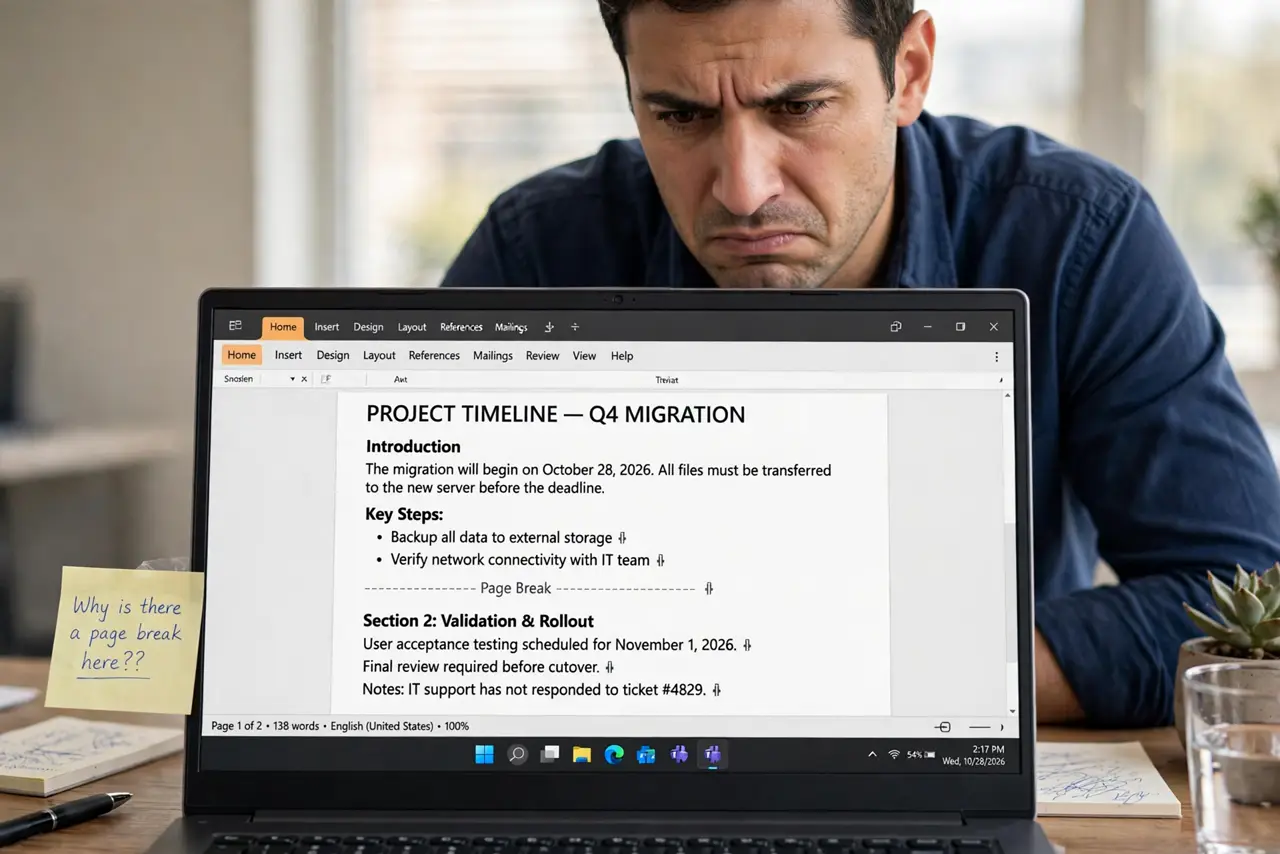
Turn on formatting marks to see what the break really is. Delete real page breaks with Delete or Backspace at the mark. If no mark exists, check the paragraph's Page Break Before setting and table row properties, since those fake breaks ignore the Delete key.
Follow these steps
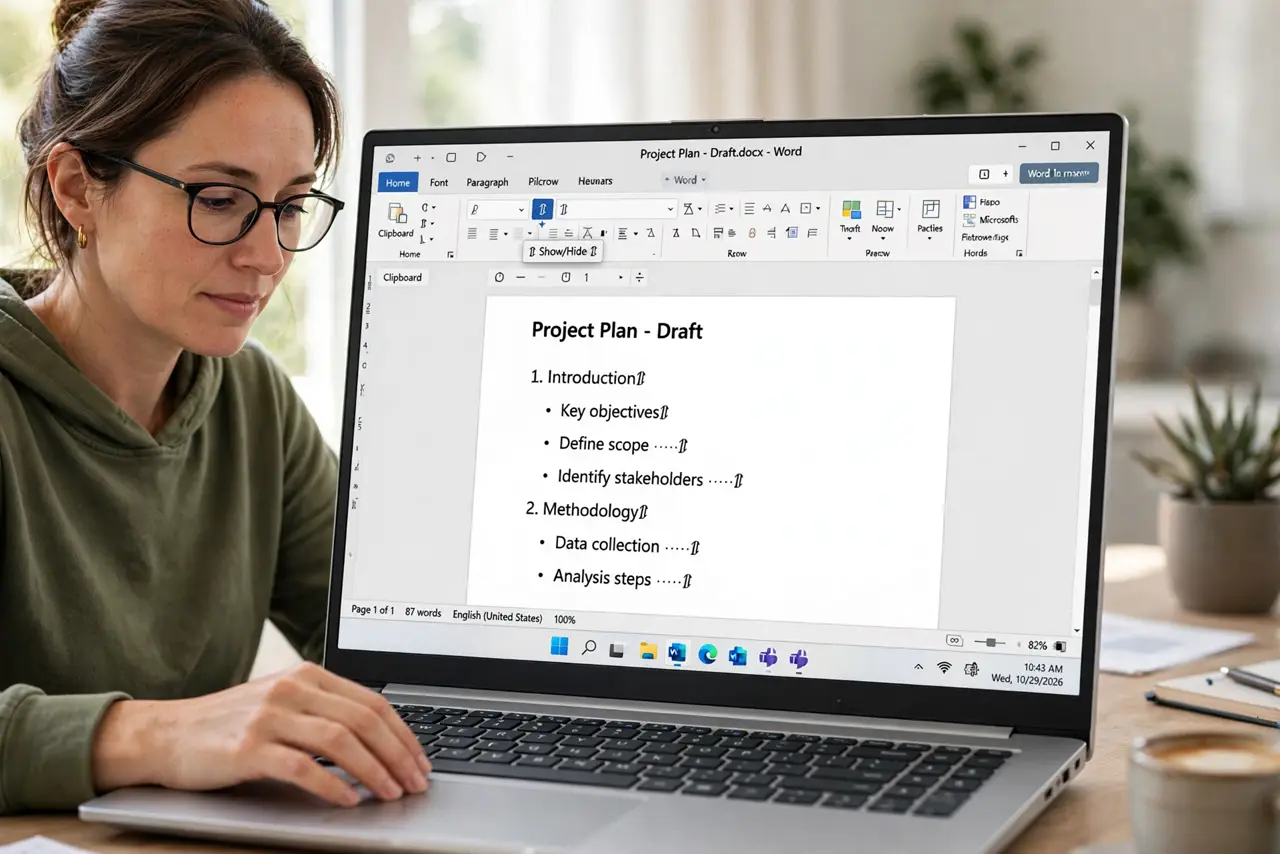
- Show the formatting marks. Press Ctrl+Shift+8 to reveal hidden marks. A real page break shows as a labeled line; if you see no mark, the break is fake and Delete will never work on it.
- Delete a real page break. Click just before the Page Break mark and press Delete, or just after it and press Backspace. The pages should join immediately.
- Check Page Break Before. If there is no mark, select the first paragraph of the unwanted page, open the Paragraph dialog, and uncheck Page Break Before on the Line and Page Breaks tab. This setting is the most common fake break.
- Check table row properties. If a table sits at the break, open Table Properties and look at row settings like Allow row to break across pages. A table splitting badly can shove content onto a new page that looks like a break.
- Look for empty paragraphs with big spacing. Select the gap and check for empty paragraphs carrying huge Space After values. Delete the empties or zero their spacing.
- Verify with Print Preview. Open Print Preview or export to PDF and confirm the pages flow correctly. The screen view and the printed result should finally agree.
What NOT to do
- Do not hammer Delete on an invisible break. If you cannot see a break mark, there is no break character to delete.
- Do not add more breaks to fix a break. Stacking breaks on a fake one only deepens the mess.
- Do not ignore the paragraph settings. Page Break Before and Keep With Next cause most undeletable breaks.
- Do not retype the whole page to escape it. Finding the real cause takes a minute; retyping wastes an hour.
Frequently asked questions
Why can't I delete a page break in Word?
It is probably not a real break. Check the paragraph's Page Break Before setting or a table property that forces content onto the next page.
How do I see page breaks in Word?
Press Ctrl+Shift+8 to show formatting marks. Real page breaks appear as labeled break lines.
What is Page Break Before?
A paragraph setting that forces the paragraph onto a new page. It looks exactly like a manual break but ignores the Delete key.