Have Word Read Aloud
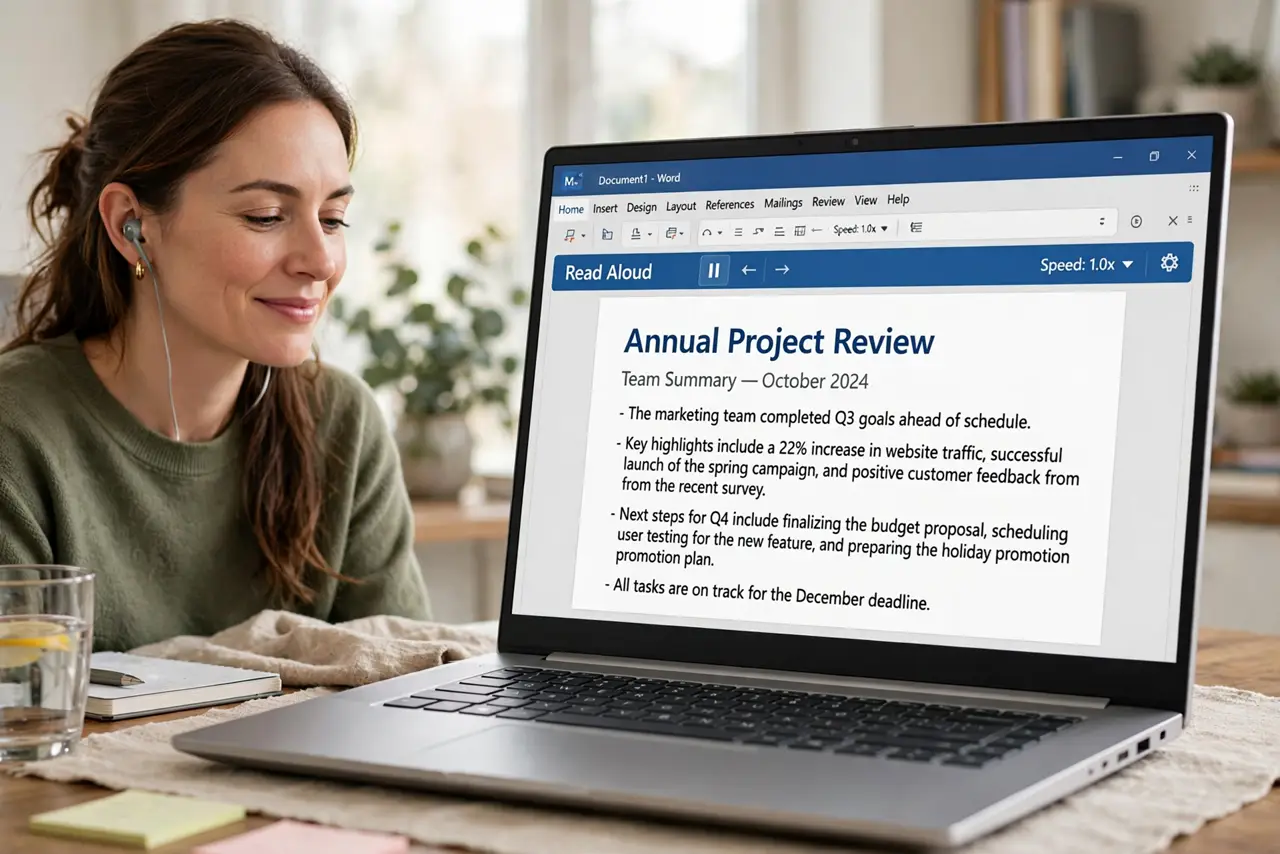
Proofreading on screen misses errors your ears would catch — Word's Read Aloud reads the document back to you with each word highlighted. It is built into Microsoft 365 on Windows, Mac, and the web, with adjustable voice and speed. Perfect for catching typos, awkward sentences, and for listening hands-free.
TL;DR / Quick Fix
Open your document in Word for Microsoft 365, go to the Review tab, and click Read Aloud — Word reads from your cursor with the text highlighted. Use the on-screen controls to pause, skip, or change voice and speed. It works on Windows, Mac, and the web.
Follow these steps
- Open the document in Word. Read Aloud is a Microsoft 365 feature. Open your .docx in the desktop app or Word on the web.
- Place the cursor where reading should start. Click at the beginning, or at the paragraph you want to check. Read Aloud starts from the cursor position.
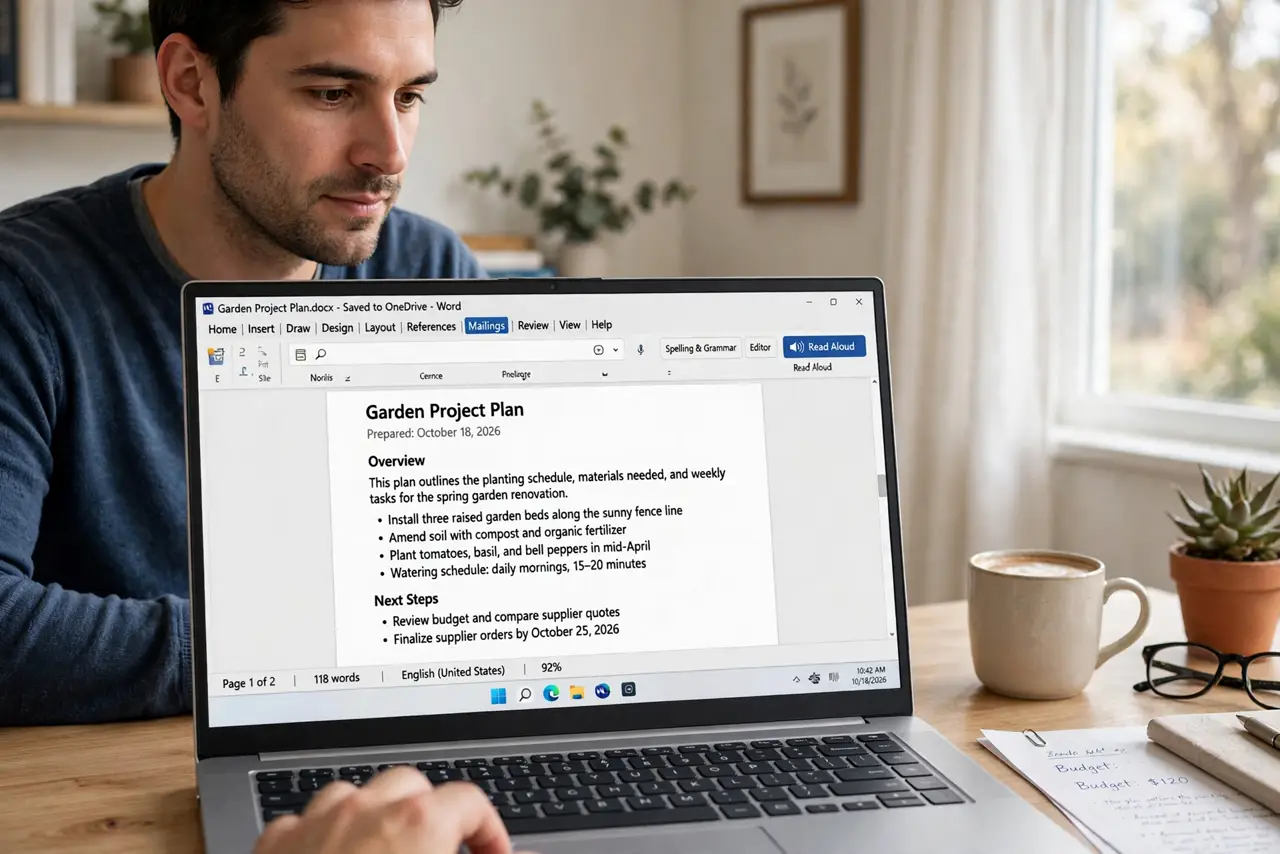
- Go to Review > Read Aloud. On the Review tab of the ribbon, click Read Aloud. The toolbar appears and reading begins, with each word highlighted as spoken.
- Control playback from the toolbar. Pause, skip forward or back a paragraph, and stop. The controls stay on screen while reading continues.
- Adjust voice and speed. Open the toolbar settings to pick a different voice or change the reading speed — slower for proofreading, faster for skimming.
- Stop when done. Click the X on the toolbar or press Esc. The document is unchanged — Read Aloud never edits your text.
What NOT to do
- Do not expect it in very old Word versions. Read Aloud needs Microsoft 365 or recent Word; Word 2010-era installs lack it.
- Do not proofread only by listening. Ears catch rhythm errors; eyes catch spelling — use both passes for important documents.
- Do not pick the fastest speed for proofreading. Speed-listening skips over the exact awkward phrasing you are trying to catch.
- Do not forget headphones in shared spaces. Your document read aloud is audible to everyone nearby — plug in earbuds.
Frequently asked questions
Does Read Aloud work in Word on the web?
Yes — open the document at office.com, go to Review > Read Aloud. The voice depends on your browser, but the controls are the same.
Can I change the reading voice?
Yes, in the Read Aloud toolbar settings. Available voices depend on your system — Windows and Mac each ship several.
Will it read text in text boxes and footnotes?
Mostly yes — it follows the document order including headers and footers. Complex floating objects may be skipped; check manually.