Styles in Word? Plain Basics
You're manually making every heading bold, bigger, and blue — one by one, through a 30-page document. Word styles do all of that in one click: define what a Heading 1 looks like once, and every heading in the document follows. Change the style later and the whole document updates instantly. It's the single biggest Word time-saver most people never learn.

TL;DR / Quick Fix
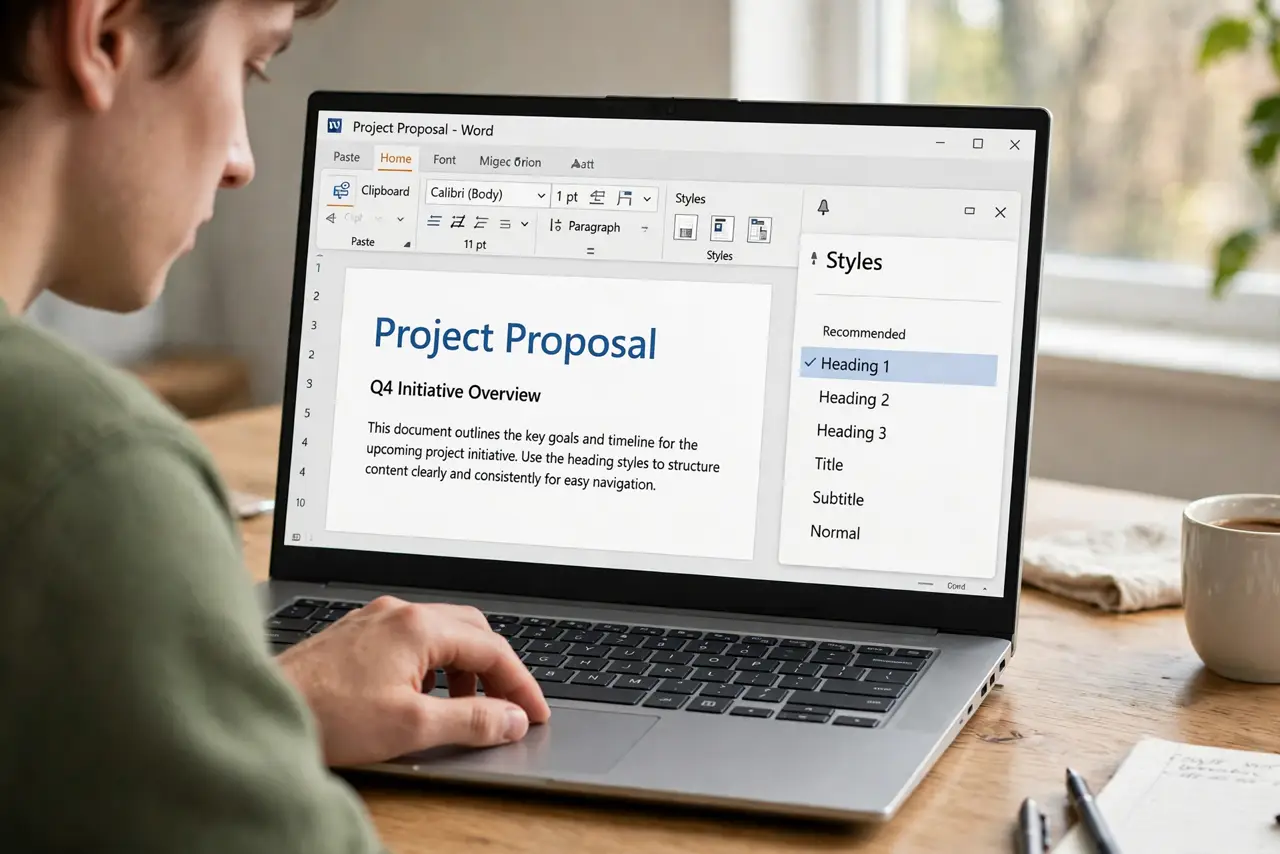
Quick fix: select a heading, then click Heading 1 in the Styles gallery on the Home tab — repeat for all headings. To change every heading at once, right-click the style and choose Modify. Use styles from the start and your table of contents builds itself.
Follow these steps
- Apply styles instead of manual formatting. Select text and click a style — Heading 1, Heading 2, Normal — in the Styles gallery. Stop bolding and resizing by hand; the style carries the formatting.
- Use heading levels in order. Heading 1 for chapter titles, Heading 2 for sections, Heading 3 for subsections — in order, no skipping. This structure is what tables of contents and navigation panes read.
- Modify a style to change everything. Right-click any style, choose Modify, and change the font, size, or color. Every paragraph using that style updates instantly — that's the whole point.
- Create your own styles. Format a paragraph the way you like, then right-click it in the Styles gallery and save the selection as a new style. Custom styles survive in the document and any template you save.
- Use the Styles pane for an overview. Open the Styles pane to see every style in use. It reveals manual formatting overrides — the sneaky bolding that fights your styles — so you can clear it.
- Save a template for repeat documents. Once your styles are perfect, save the file as a Word template. Every future report starts with your styles ready — no rebuilding from scratch.
What NOT to do
- Do not mix manual formatting with styles. Hand-bolded text inside a styled paragraph creates formatting fights that are miserable to untangle later.
- Do not skip heading levels. Jumping from Heading 1 to Heading 3 breaks the document outline, the navigation pane, and accessibility for screen readers.
- Do not paste formatted text without checking styles. Pasted content drags in foreign styles that clash with yours — use Paste and Match Formatting for clean imports.
- Do not ignore the Normal style. Body text should use Normal (possibly modified), not 'no style' — unstyled text won't respond when you redesign the document.
Frequently asked questions
Why did my whole document change font?
You probably modified the Normal style, which everything is based on. That's actually styles working as designed — modify with intent, and use the Undo button if it was an accident.
Can I copy styles to another document?
Yes — use the Style Organizer to copy styles between documents, or simpler: paste a styled paragraph into the new document and the style comes along with it.
What's the difference between themes and styles?
Styles format individual elements (headings, body); themes set the overall palette of colors and fonts those styles draw from. Change the theme and all your styles shift together harmoniously.