Accept Tracked Changes
Your document looks like a crime scene — red strikethroughs, colored insertions, margin balloons everywhere. Tracked Changes shows every edit, but nobody wants to read the final version that way. Accepting changes folds the edits into clean text, and doing it deliberately keeps you from losing work.

TL;DR / Quick Fix
Quick fix: open Word's Review tab to see all tracked changes. Click Accept, then Accept All Changes to fold edits into clean text. For control, step through changes one by one with Next and Accept. Save a copy before accepting all, so the markup history is never gone.
Follow these steps
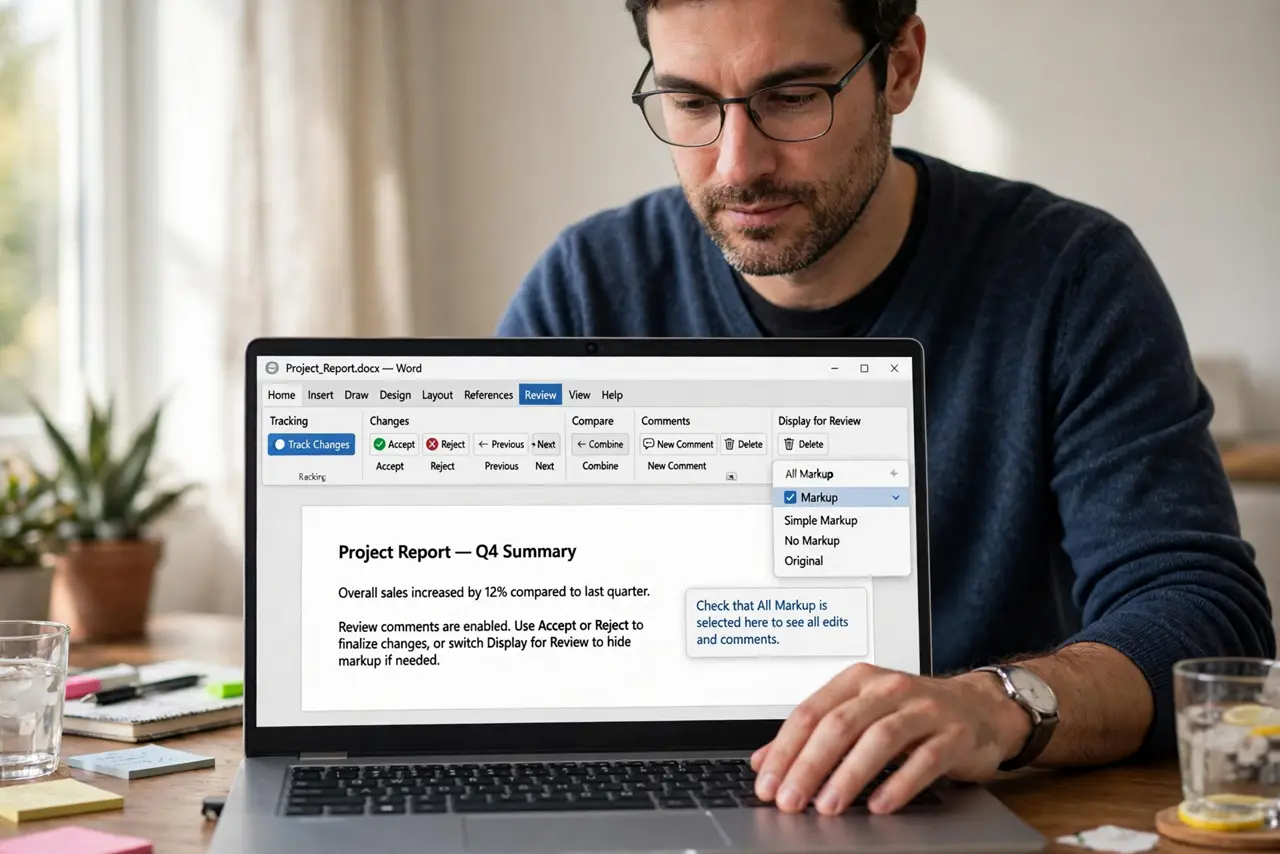
- Open the Review tab. The Review tab holds everything: Accept, Reject, Next, Previous, and the display options. If you do not see markup, check that All Markup is selected in the display dropdown.
- Step through changes one by one. Click Next to jump to the first change, then Accept or Reject each. Slow but safe — you see exactly what each edit does before it becomes permanent.
- Accept all changes at once. Confident in the edits? Click the Accept dropdown and choose Accept All Changes. Word folds everything into clean text in one move — heed the accept-all cautions if the document is long.
- Save a copy before bulk accepting. Use File, Save a Copy first. The markup history vanishes on accept, and a saved copy is your only way back if you accepted too eagerly.
- Check for hidden comments too. Accepting changes does not remove comments. Resolve them separately — the comment cleanup guide keeps feedback from lingering in the final file.
- Turn off Track Changes for final reading. After accepting, click Track Changes to toggle it off. Future edits then land silently instead of spawning new markup.
What NOT to do
- Do not accept all changes blindly on a legal or contract document. One wrong accept can change meaning — step through those.
- Do not forget comments survive accepting. A document can look clean yet still carry everyone-visible markup in its comments.
- Do not email the marked-up version to clients. Accept, save a clean copy, and send that — markup looks unprofessional.
- Do not assume accepting is undoable later. Once saved and closed, the change history is gone — the backup copy is your safety net.
Frequently asked questions
What is the difference between Accept and Accept All?
Accept handles one change at a time; Accept All folds every change at once. Use the first for careful review, the second when you trust all edits.
Can I reject changes instead?
Yes — Reject restores the original text for that edit. Reject All Changes rolls the whole document back to its pre-edit state.
Why do I still see markup after accepting?
You are likely viewing comments, or Track Changes is still on for new edits. Switch the display to No Markup for a clean preview.