Turn On Live Captions
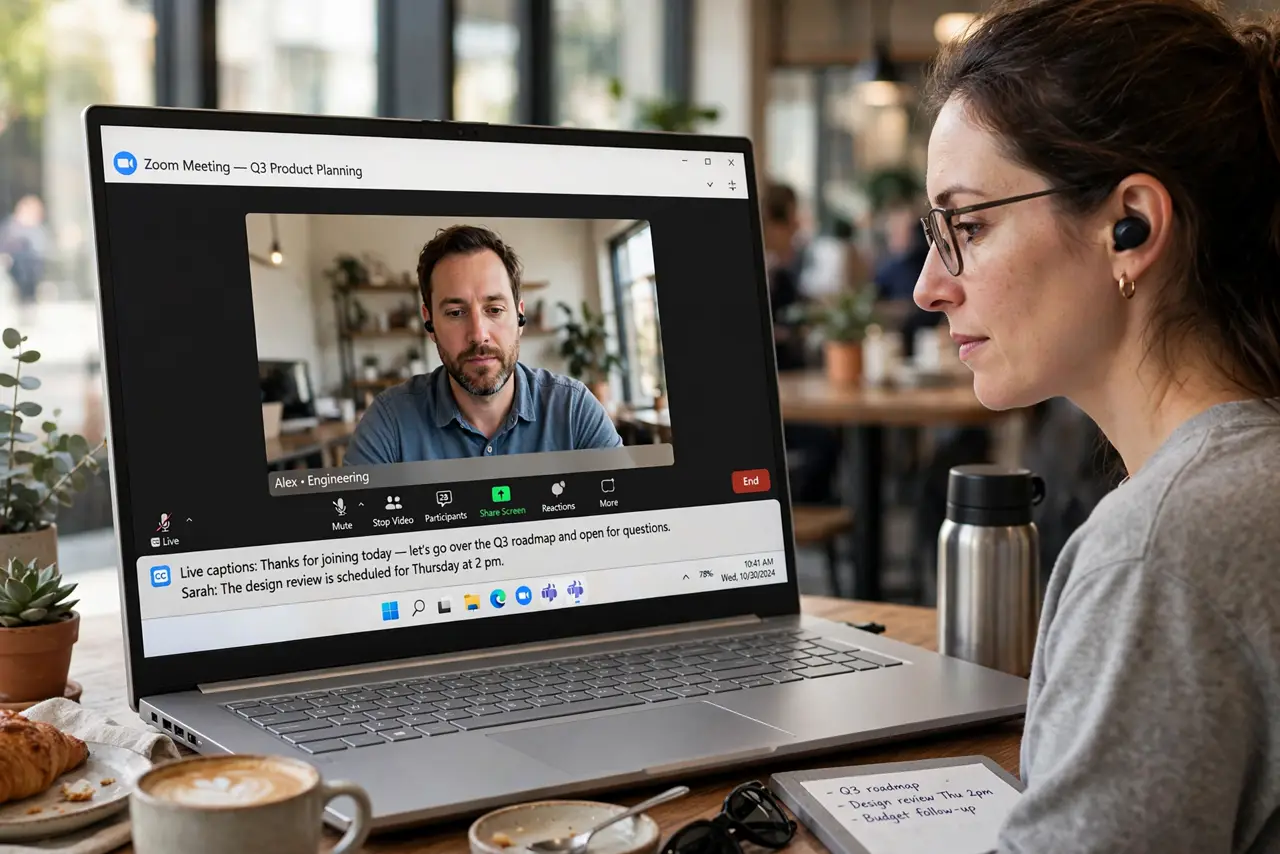
You missed what the client said because the dog barked at exactly the wrong second — or you are in a noisy cafe trying to follow a call. Zoom's live captions put real-time subtitles on every meeting, and they help far beyond hearing loss: accents, bad audio, multitasking note-takers. This guide enables automated captions as a participant and as a host, plus the settings that make them actually readable. For noisy environments generally, also set up noise suppression.
TL;DR / Quick Fix
Quick fix: in Zoom settings under Accessibility, turn on Closed Captioning and set captions to show automatically. Hosts can enable automated captions for everyone in the web settings. Bump the caption font size so you can actually read them without squinting.
Follow these steps
- Enable captions as a participant. In the Zoom app, open Settings, then Accessibility, and turn on Closed Captioning. During a call, click the CC button and choose to show the subtitle version.
- Enable automated captions as a host. In the Zoom web portal under Settings, enable Automated captions. Then in a meeting, start them from the CC menu so every participant can turn them on.
- Choose subtitle style for readability. In Accessibility settings, adjust caption font size. The default is small on big screens — one size up makes a real difference for sustained reading.
- Save the transcript when it matters. Hosts can enable saving captions, which produces a text transcript after the meeting. Useful for client calls where 'what did they actually say' matters later.
- Speak caption-friendly. Captions transcribe best with clear, steady speech. If you run meetings, remind presenters to slow down slightly — it helps both the captions and the humans.
- Know the limits. Automated captions handle clear speech well and struggle with crosstalk, heavy accents, and jargon. Treat them as an aid, not a court record.

What NOT to do
- Do not rely on captions for legal or compliance records. They are good but not verbatim — use a real transcript service for anything binding.
- Do not enable 'save captions' without telling participants. Recording-adjacent features deserve a heads-up for privacy and trust.
- Do not forget captions are per-device. Turning them on in the desktop app does not enable them on your phone.
- Do not speak over each other and blame the captions. Crosstalk defeats transcription; one speaker at a time is the fix.
Frequently asked questions
Are Zoom captions free?
Yes — automated captions are included in free and paid Zoom plans, with no add-on needed.
Can participants see captions without the host enabling them?
Participants need the host to have automated captions enabled, or the host can allow manual captioning. Check before an important call.
Do captions work in breakout rooms?
Yes, automated captions follow participants into breakout rooms once enabled for the meeting.