Use Raise Hand
In a twenty-person Zoom call, unmuting to jump in means talking over someone — and staying silent means never getting a word in. Raise Hand is the polite middle ground: a little hand icon tells the host you want to speak, and they can call on people in order. This guide finds the button on every device, covers host controls, and shares the etiquette that makes it work. For following along better, turn on live captions too.
TL;DR / Quick Fix
Quick fix: during a Zoom call, click Reactions and then Raise Hand — a hand icon appears by your name until you lower it. Hosts see hands in order and can lower them for you. Use it instead of unmuting to interrupt; it keeps big meetings orderly.
Follow these steps
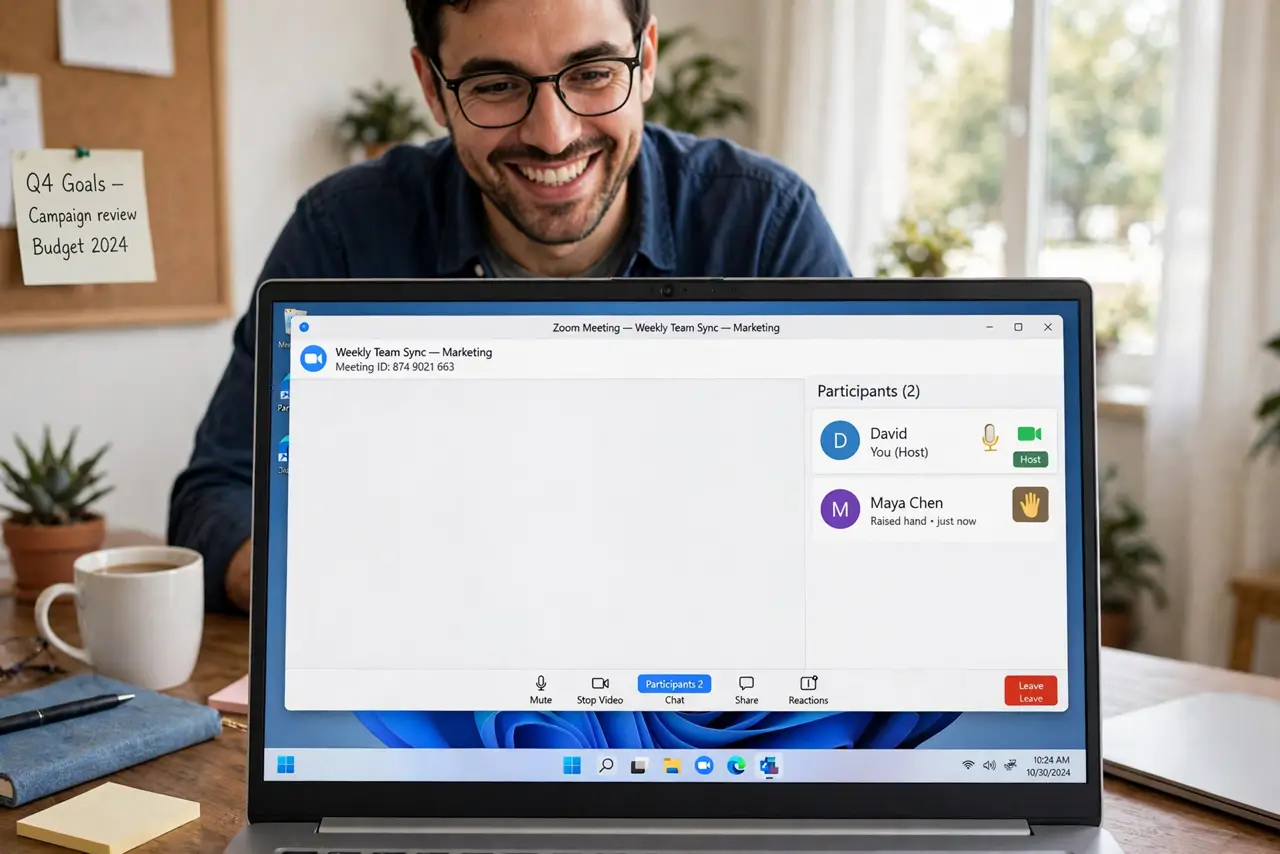
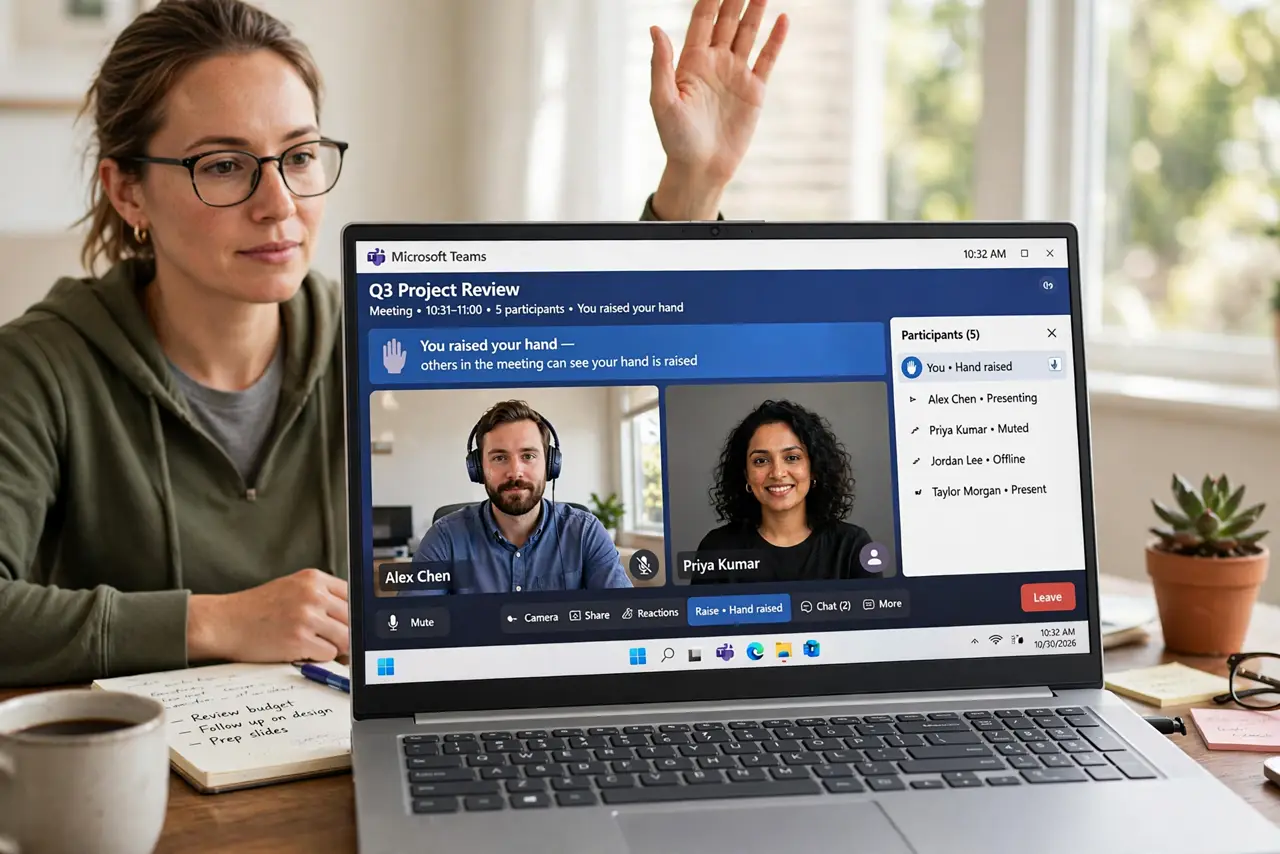
- Raise your hand as a participant. Click Reactions in the meeting toolbar, then Raise Hand. Your video tile and the participant list show a hand icon — the host sees it immediately.
- Find it on phone and tablet. On mobile, tap the screen, then More (the three dots), then Raise Hand. It is buried one level deeper than on desktop, which is why phone users miss it.
- Lower your hand when done. Click Reactions and Lower Hand after you speak. A forgotten raised hand confuses the host — make lowering it a habit like muting after talking.
- Use it instead of interrupting. The etiquette: raise the hand, wait to be called on, then unmute and speak. In big meetings this is the difference between order and chaos.
- Hosts: watch the participants panel. Hands appear in the order raised in the Participants panel. Call on people by name, then use Lower All Hands when moving to the next topic.
- Know the shortcuts. On desktop, Alt-Y (Windows) or Option-Y (Mac) toggles your hand instantly. Faster than hunting through menus mid-discussion.
What NOT to do
- Do not unmute and talk over people when Raise Hand exists. In meetings over ten people, the hand is the expected way in.
- Do not leave your hand up after speaking. Stale hands derail the host's queue — lower it the moment you finish.
- Do not use Raise Hand for every tiny comment in a small team call. In groups under five, normal conversation flow is fine.
- Do not forget mobile users see it under More. If phone participants never raise hands, tell them where it hides.
Frequently asked questions
Can the host lower my hand?
Yes — hosts and co-hosts can lower individual hands or all hands at once. You will see your hand disappear.
Does Raise Hand work in webinars?
Yes, attendees can raise hands in webinars too, though the host controls whether and when to call on them.
Is there a nonverbal feedback alternative?
Yes — Reactions like yes/no, go slower, and thumbs up give quick feedback without the hand queue. Use those for simple responses.