Store Your 2FA Backup Codes Right
When you enable two-factor authentication, the site hands you a set of one-time backup codes — the spare keys to your account if your phone dies. Most people screenshot them and forget them, which is exactly wrong. Stored right, they turn a lost-phone disaster into a minor inconvenience.
TL;DR / Quick Fix
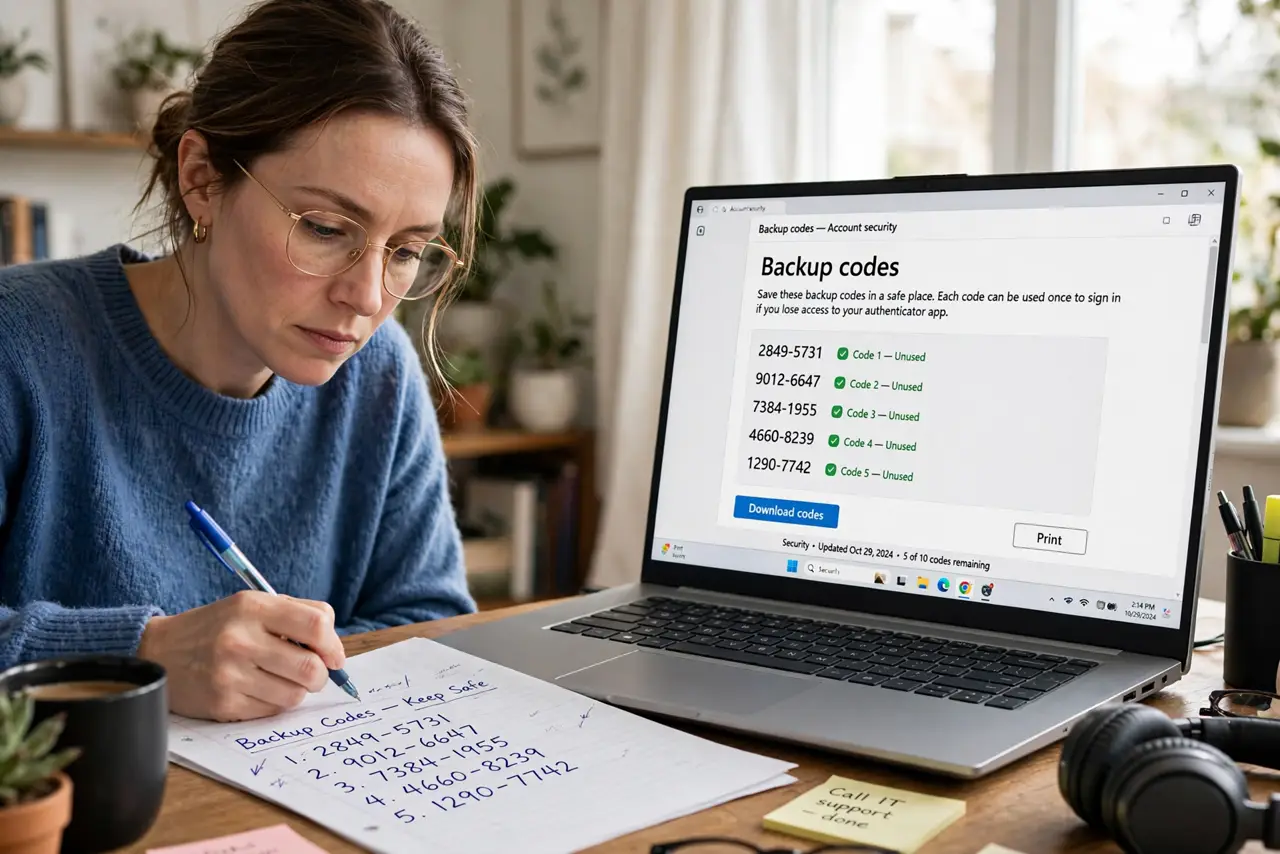
When a site shows 2FA backup codes, save them immediately — in your password manager's secure notes and on paper in a safe place. Each code works once if you lose your phone or authenticator. Never store your only copy on the same phone that holds the authenticator.
Follow these steps
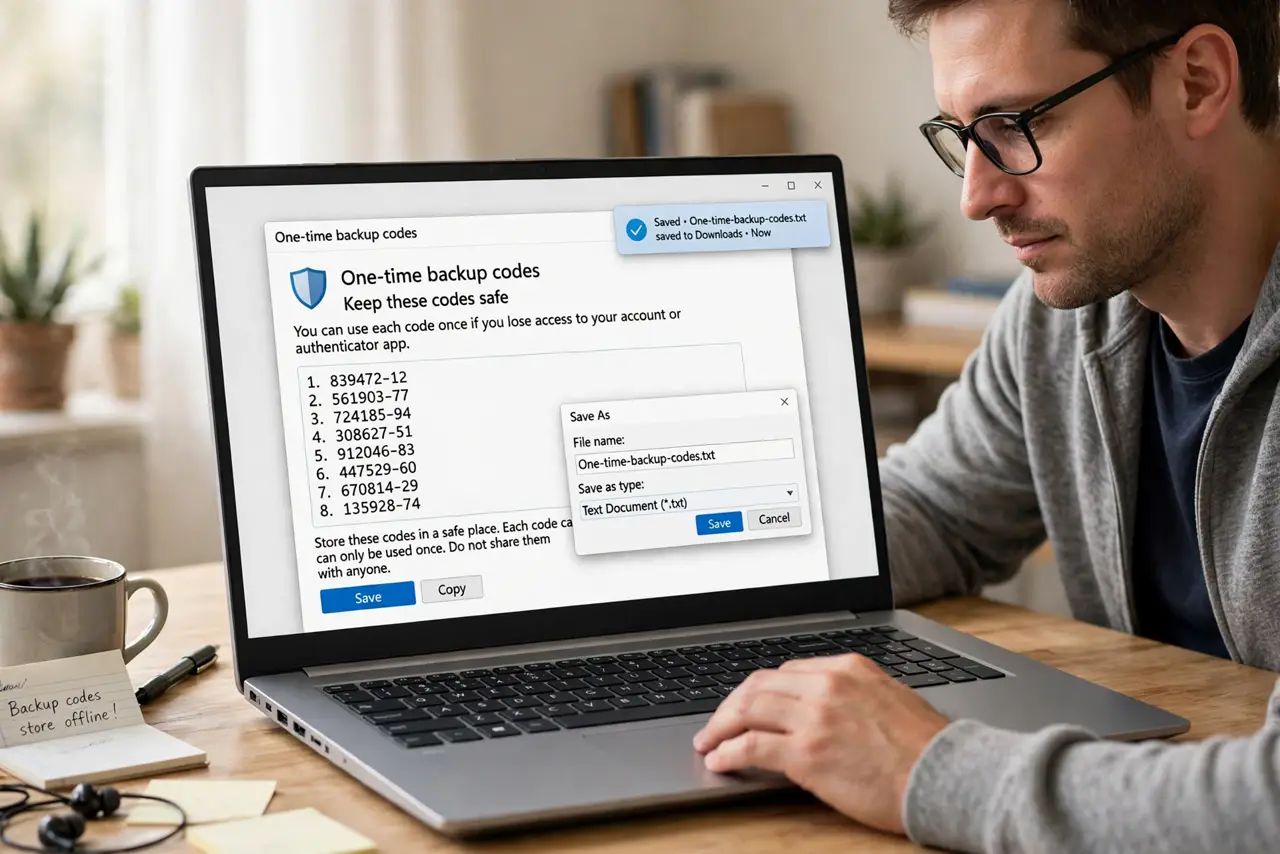
- Save the codes the moment they appear. The site shows them once. Screenshot, copy, or print immediately — navigating away usually means generating a whole new set.
- Store a copy in your password manager. Paste them into a secure note in your password manager, labeled with the site name. Encrypted, searchable, and backed up with the vault.
- Store a second copy on paper. Write or print them and keep the paper somewhere safe — a locked drawer or a fireproof box. Paper survives dead phones and forgotten master passwords.
- Label which site each set belongs to. A page of anonymous codes helps nobody. Write the site name and the date next to every set.
- Test one code now, not in a crisis. Use a single code to confirm the set works, then mark it used. A tested set beats a theoretical one.
- Regenerate after any scare. If the codes might have been seen — a shared screen, a lost notebook — generate a fresh set in the site's security settings and destroy the old.
What NOT to do
- Do not keep the only copy on the authenticator phone. The codes exist for when that phone is gone — same-device storage defeats the purpose.
- Do not photograph codes and leave them in your camera roll. Camera rolls sync everywhere and are the first thing a phone thief browses.
- Do not share backup codes with 'support'. No legitimate support agent ever asks for them — anyone who does is running a scam.
- Do not reuse a code twice. Each code works once; the site invalidates it after use. Mark used codes so you do not try them again in a panic.
Frequently asked questions
What happens if I lose both my phone and my backup codes?
Then it is the site's account recovery — identity verification and a waiting period. Slow by design; see lost phone recovery.
Can someone steal my account with a backup code?
Yes — each code is a full login bypass. Guard them like passwords: that is why paper plus password manager beats a camera roll.
Do backup codes expire?
Usually not, until used or regenerated. Some sites expire unused sets after long periods — check the site's security page yearly.