Lost Your Phone With 2FA on It? Recover
Your phone is gone and your two-factor codes went with it. Getting locked out of your own accounts is stressful, but most services built a recovery path for exactly this. This guide walks through the recovery options in order.

TL;DR / Quick Fix
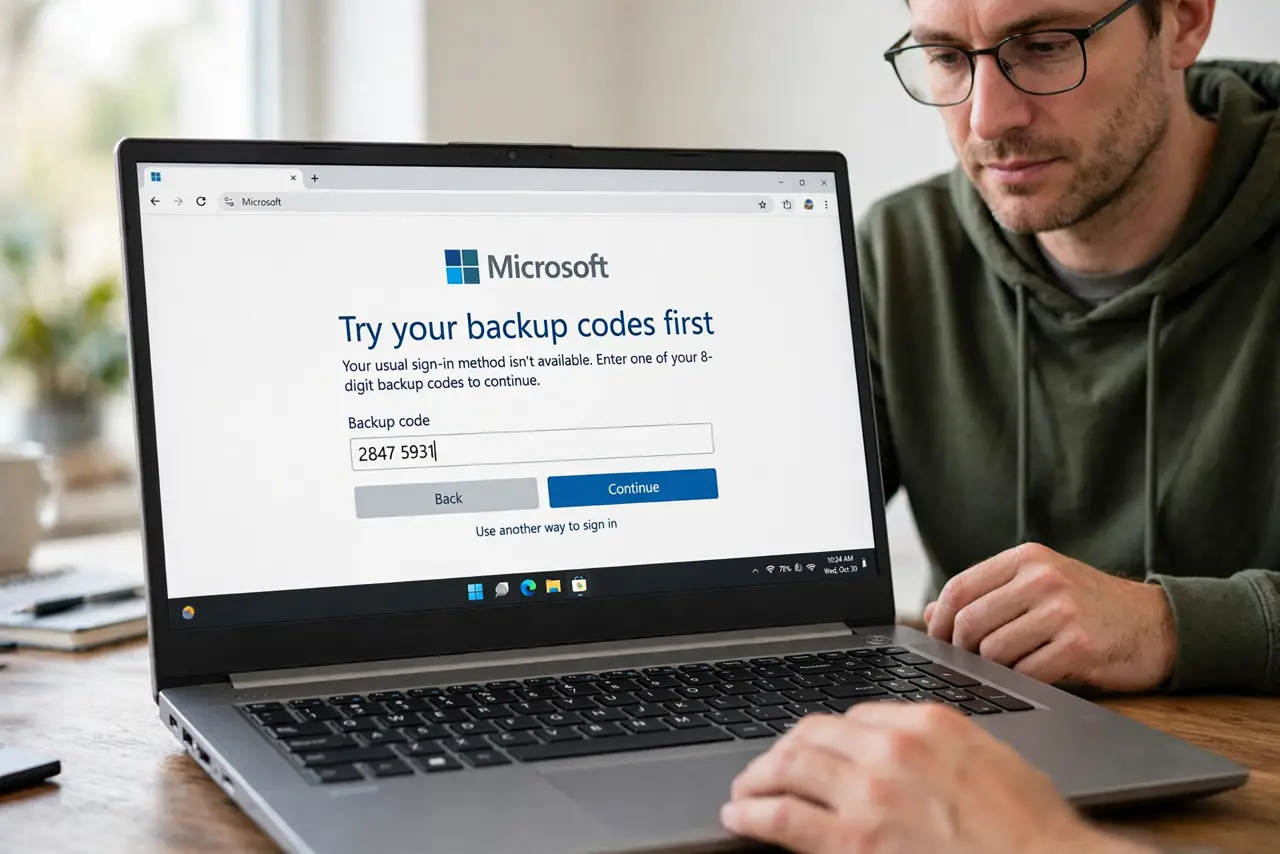
Quick fix: try your saved backup codes first — they log you in without the phone. If those are gone, use each account's recovery flow with your backup email or ID verification. Once back in, set up two-factor on the new phone immediately and save fresh backup codes.
Follow these steps
- Try your backup codes first. Find the one-time backup codes you saved during two-factor setup. Each code logs you in once without the phone — this is the fastest way back in.
- Check for a synced authenticator. If your authenticator app backed up to your cloud account, install it on the new phone and sign in. Your codes may simply reappear.
- Use the account's recovery flow. On the login page, choose Try another way or Can't access your authenticator. Follow the steps with your recovery options like a backup email or phone number.
- Verify your identity. Some services ask for ID verification or a waiting period of a few days. This is normal — it protects you if a thief is the one asking.
- Set up two-factor on the new phone. Once you are back in, add the new phone's authenticator app before you do anything else. Do not leave the account sitting with two-factor half-configured.
- Save fresh backup codes. Generate new backup codes and store them somewhere safe, like printed in a drawer. Then revoke the old phone's access in the account's device list.
What NOT to do
- Do not create a brand-new account to 'start over.' You would lose your history and data, and recovery of the old account is usually possible.
- Do not skip the waiting period by trying shady shortcuts. Waiting a few days is the security working as designed.
- Do not trust anyone who offers to recover the account for a fee. Official recovery is free and happens on the service's own site.
- Do not leave the lost phone signed in. Remotely sign out or wipe it with Find My or Find My Device once your accounts are safe.
Frequently asked questions
I never saved backup codes — am I locked out forever?
Usually not. Most big services offer identity verification or a recovery waiting period. It takes longer, but accounts are recoverable.
How long does account recovery take?
Anywhere from minutes with a backup email to several days with ID verification. Google and Apple can take 3 to 5 days for the strictest cases.
Should I remove the lost phone from my accounts?
Yes, as soon as you are back in. Check each account's signed-in devices and remove the lost phone so its codes and sessions die with it.