Number Matching in 2FA? Explained
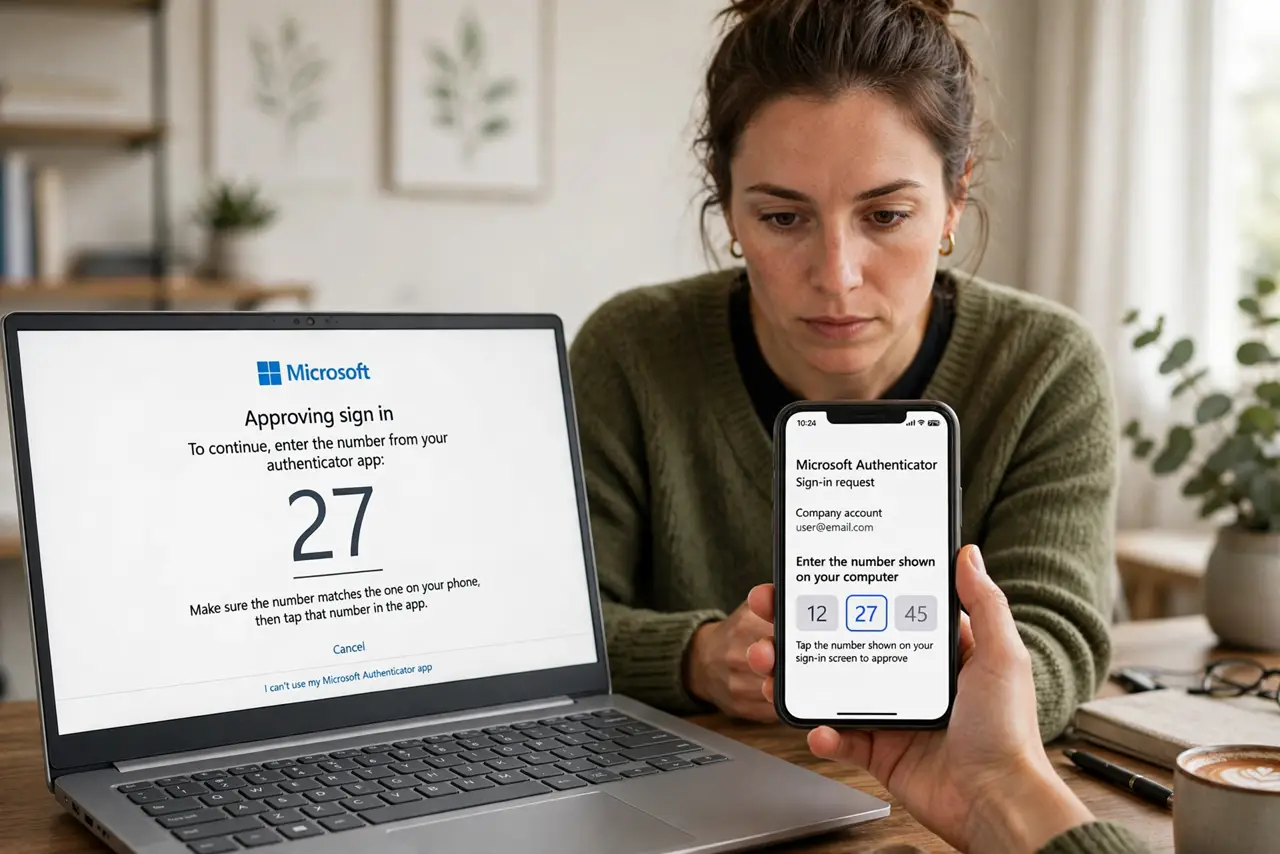
Instead of a blind Approve button, your login screen shows a number — 42, say — and your phone asks you to tap the matching one. That tiny change kills MFA fatigue attacks: an attacker hammering approve prompts can't see your screen, so they can't pick the right number. Here's how to turn it on.
TL;DR / Quick Fix
Number matching shows a two-digit number on your login screen that you must tap in the authenticator app — a blind Approve tap no longer works. It stops MFA fatigue attacks, because the attacker cannot see your screen. Enable it in your Microsoft or Duo authenticator settings.
Follow these steps
- Understand what changes. The push notification shows two or three numbers instead of Approve/Deny. You tap the one displayed on your login screen — proof you can see the real session.
- Open your authenticator app settings. In Microsoft Authenticator: Settings > enable number matching (often on by default now). In Duo: the admin enables it; users just see the new prompt.
- Try a real login. Sign in somewhere and watch the flow: number on screen, matching tap on phone. One practice run makes it second nature.
- Teach it to family members. The new prompt confuses people used to Approve buttons. A thirty-second demo prevents panicked 'is this a hack?' calls.
- Know it defeats fatigue attacks. An attacker triggering prompts remotely never sees your screen's number — see fatigue attacks. Their flood of prompts becomes useless noise.
- Keep it on everywhere offered. Some services enable it by default; others hide it in admin settings. If you manage accounts for others, switch it on for them too.
What NOT to do
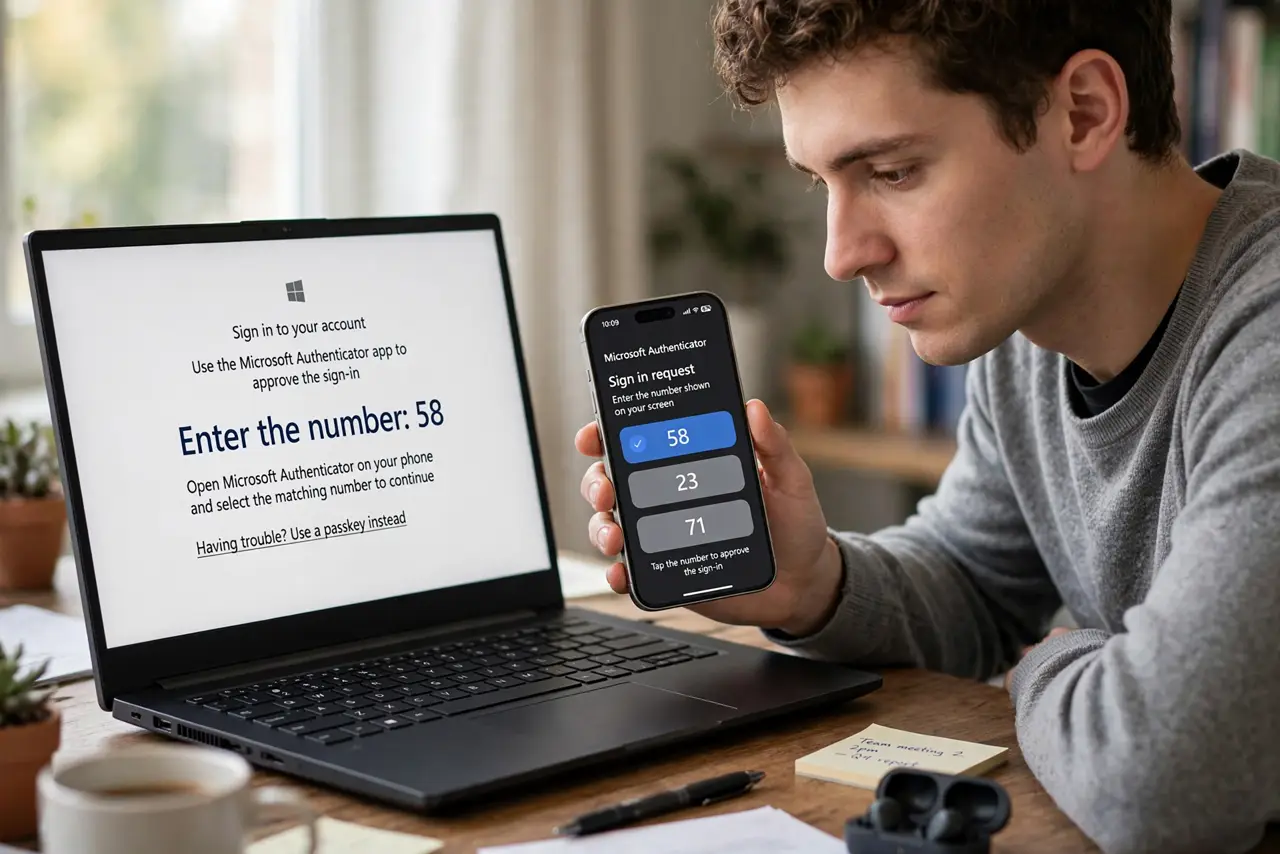
- Do not read the number out over the phone to anyone. A 'support agent' asking for your matching number is running a social-engineering attack.
- Do not match a number you did not generate. If the phone asks but you are not logging in anywhere, deny it — same rule as any surprise prompt.
- Do not assume every app has it. Number matching is a Microsoft Authenticator and Duo feature; other apps use different anti-fatigue designs.
- Do not disable it because it is one extra tap. That tap is the entire security upgrade — it is the cheapest protection you will ever get.
Frequently asked questions
Which apps support number matching?
Microsoft Authenticator and Duo lead here. Other authenticators use alternatives like biometric-confirmed approvals — check your app's settings.
Does it work for all logins or just work accounts?
Any login flowing through the supporting authenticator — personal Microsoft accounts included, not just corporate ones.
What if I cannot see the login screen's number?
Then do not approve. The number must come from a screen you control — a number read to you by a caller is an attack, full stop.