Access Point vs Router?
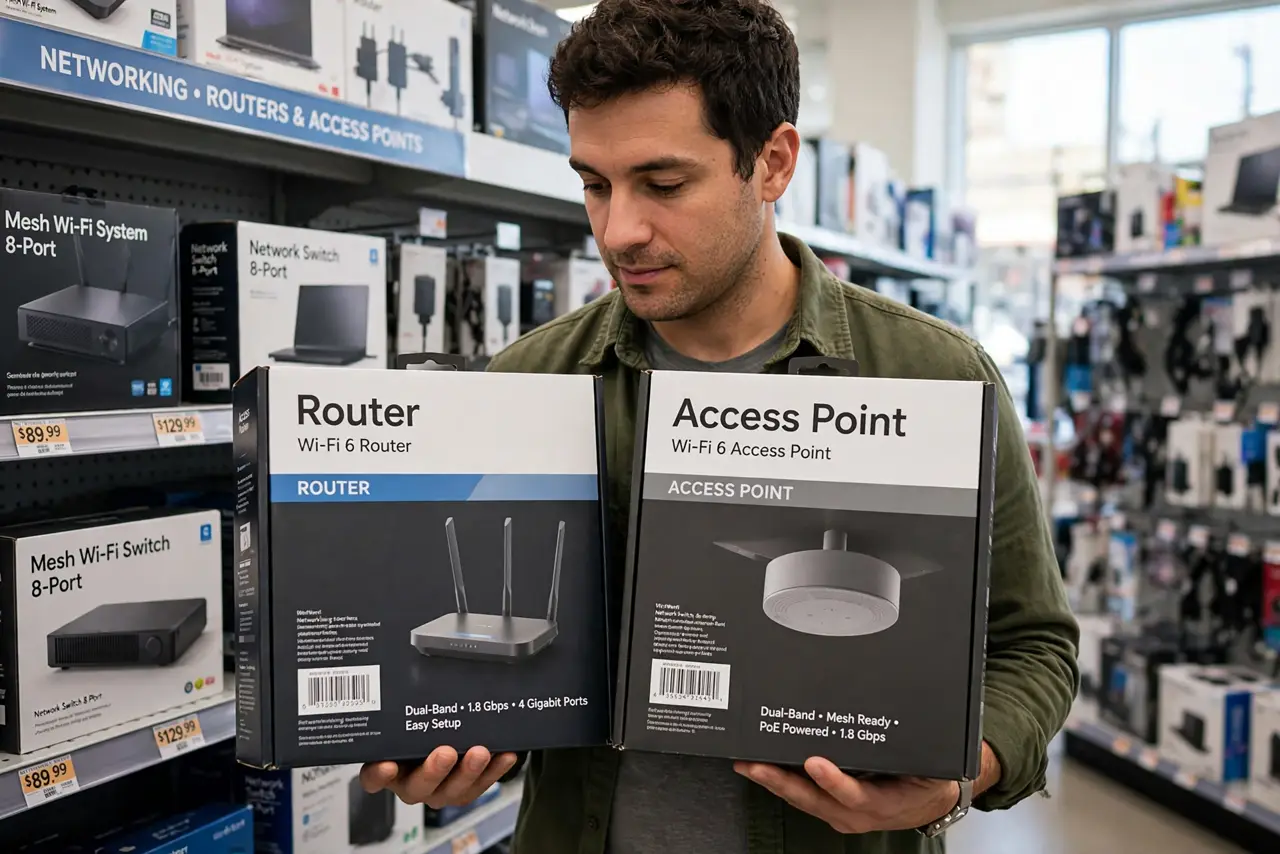
When Wi-Fi does not reach the far rooms, the store shelf offers two boxes that look nearly identical: routers and access points. They are not interchangeable — a second router creates a second network and a pile of subtle problems, while an access point simply extends the one you have. Here is which to buy.
TL;DR / Quick Fix
Quick fix: to extend Wi-Fi, buy an access point (or set an old router to AP mode) and wire it to the main router with Ethernet. A second router in router mode creates double NAT and two competing networks — the classic cause of ‘connected but nothing works.’
Follow these steps
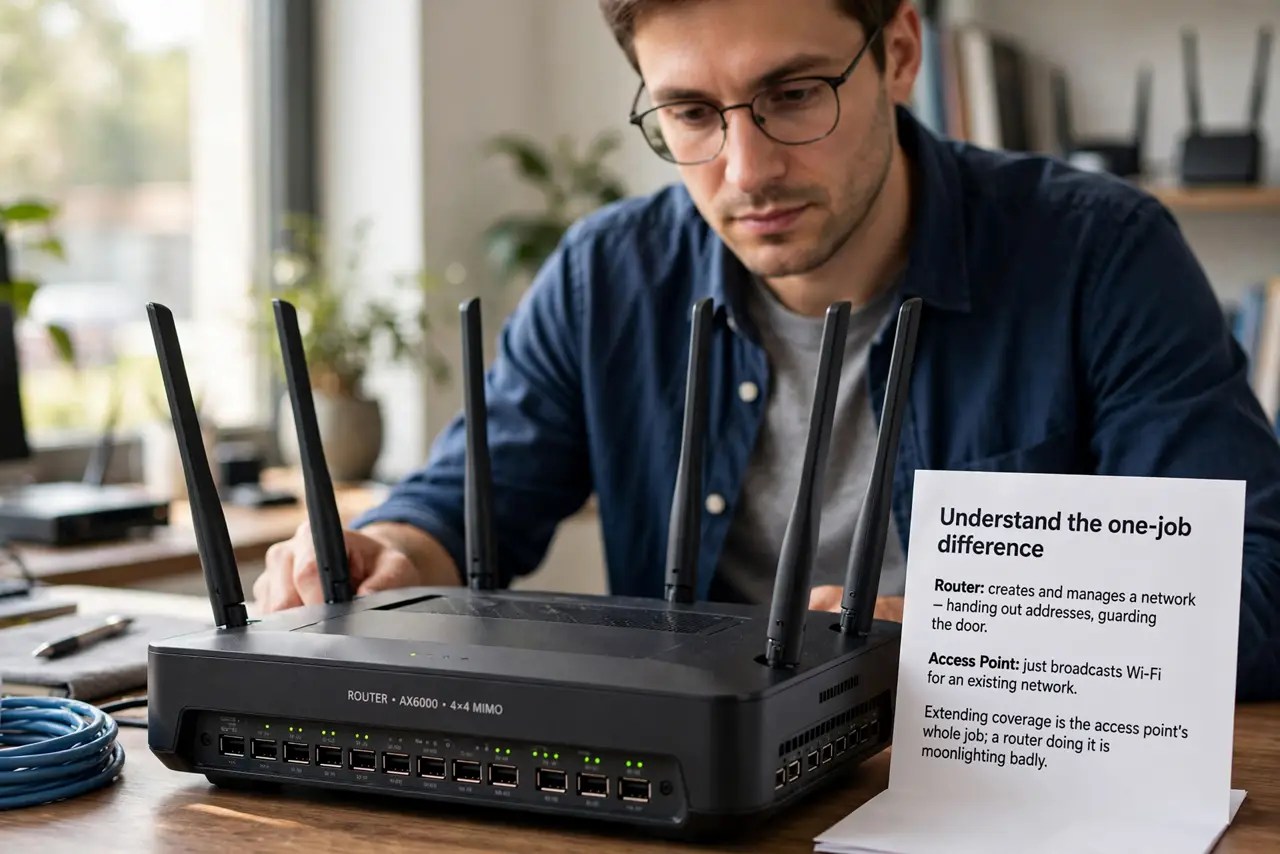
- Understand the one-job difference. A router creates and manages a network — handing out addresses, guarding the door. An access point just broadcasts Wi-Fi for an existing network. Extending coverage is the access point’s whole job; a router doing it is moonlighting badly.
- Prefer a wired access point. Run an Ethernet cable from your main router to where coverage dies and plug in the access point. Wired backhaul means full speed at the far end — unlike a wireless extender, nothing is halved.
- Reuse an old router in AP mode. Almost every router has an ‘access point’ or ‘bridge’ mode in its settings — that converts your spare box into a proper access point for free. See the old-router conversion guide for the exact steps.
- Use the same network name and password. Set the access point’s Wi-Fi name and password identical to the main router’s. Devices then roam between them on their own — one network, two broadcasters, no manual switching.
- Put it on a different channel. Set the access point to a different Wi-Fi channel than the main router (1, 6, or 11 on 2.4 GHz). Same channel means the two radios shout over each other; different channels means they cooperate.
- Avoid the double-router trap. Plugging a second router in normally creates double NAT — two networks stacked, breaking game consoles, VPNs, and port forwarding in confusing ways. If you already did this, switch the second box to AP mode.
What NOT to do
- Do not add a second router in router mode. Double NAT is the number-one self-inflicted home-network problem.
- Do not place the access point next to the main router. It belongs where coverage dies, not where it is already strong — coverage, not company.
- Do not use different network names ‘to know which you’re on.’ It forces manual switching and kills seamless roaming.
- Do not skip the Ethernet cable if you can run one. Powerline adapters are a distant second; wireless repeating is a distant third.
Frequently asked questions
Can I use my ISP’s router plus my own as an access point?
Yes — put your own router in AP mode and let the ISP box keep doing the routing. You get your better Wi-Fi without the double-NAT headache.
How many access points is too many?
For most homes, one or two well-placed units cover everything. More than that needs channel planning — overlapping coverage on the same channel hurts more than it helps.
Is a mesh system just access points?
Essentially, yes — mesh nodes are access points with automatic setup and roaming management. See mesh vs extender if you are choosing between the approaches.