Login Alert From an Unknown Place? Check It Right
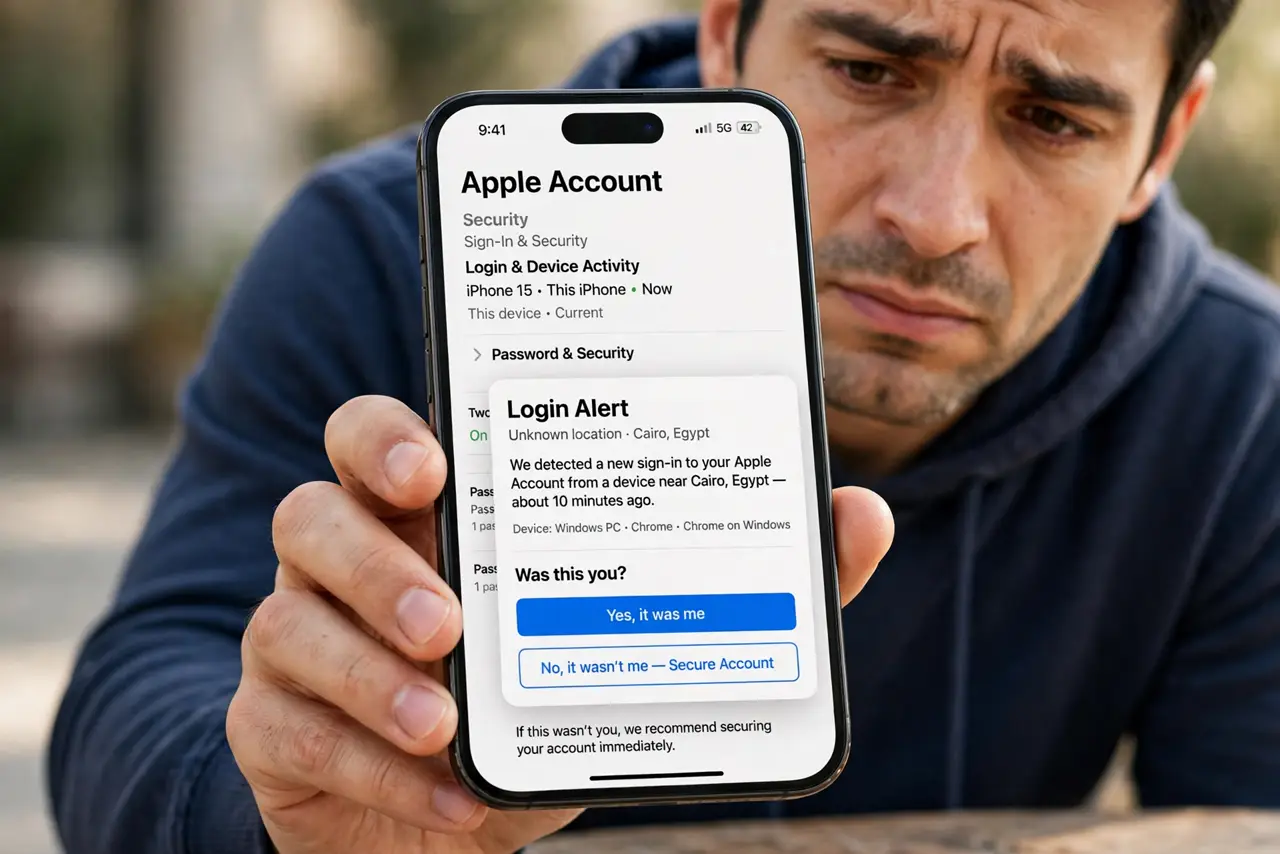
A message saying someone signed in from a city you have never visited is worrying, but it can also be a trick, or a false alarm from a travel network. Do not click the link in the alert. Check the account yourself, from the official app or site.
TL;DR / Quick Fix
Quick fix: do not tap the alert link. Sign in through the official app or a bookmark, open recent activity or sessions, and sign out anything you do not recognize. Then change your password and turn on two-factor authentication. Do this today, not next week.
Follow these steps
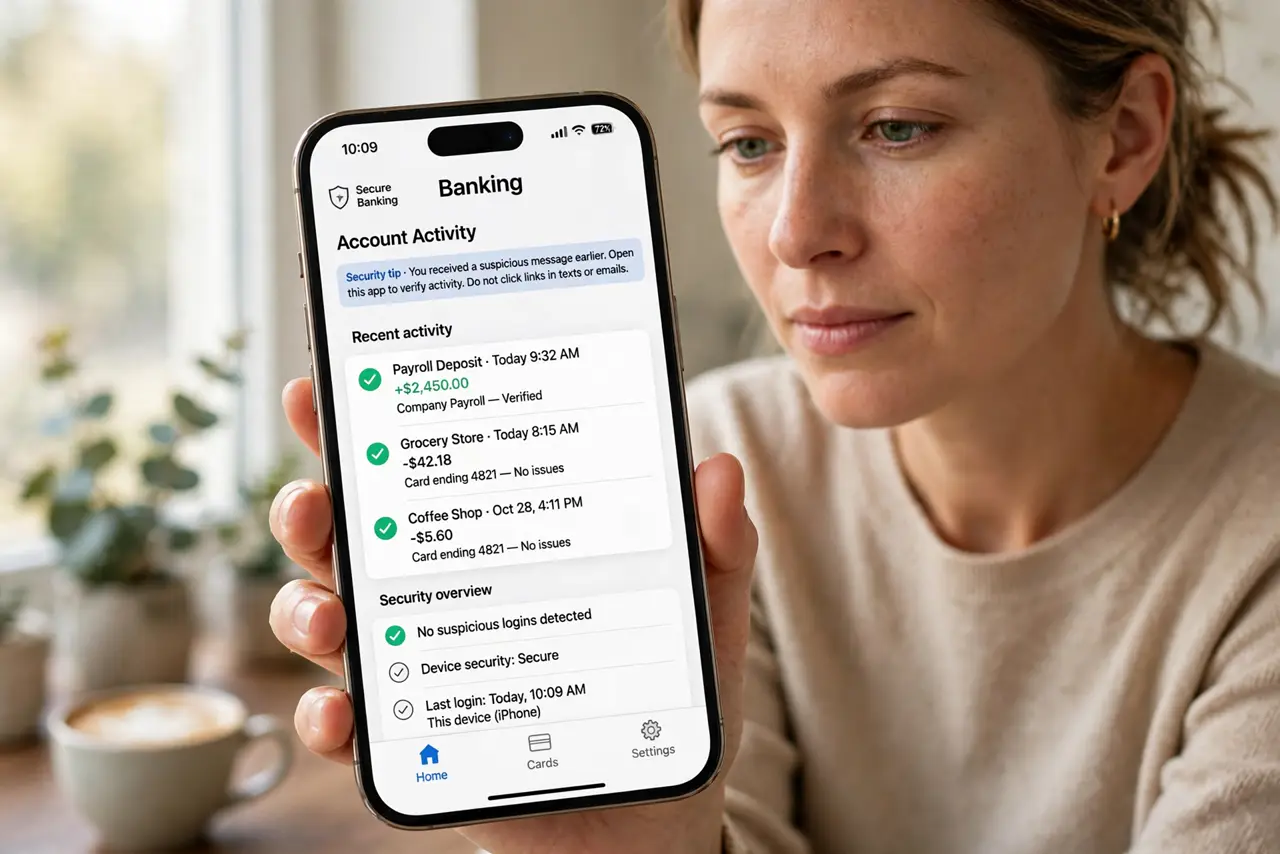
- Do not click the link in the alert. A fake alert can carry a link to a fake login page. Open the account yourself, through the app or a bookmark, and check activity there.
- Open recent activity or sessions. In account settings, look for recent sign-ins, devices, or sessions. Check the place, device, and time for each entry, and note anything unfamiliar.
- Sign out unknown sessions. Use the sign out of other sessions option for any device or place you do not recognize. This ends that session, even if the person still knows your password for a short while.
- Change your password. Choose a fresh password you do not use anywhere else. Changing it stops anyone who guessed or leaked your old one from signing in again.
- Turn on two-factor authentication. Turn on two-factor authentication so future sign-ins need a second check from your phone or security key, not just the password.
- Check for changes to the account. Look at recovery email, recovery phone, and connected apps. An intruder sometimes changes recovery details first, so restore anything you did not set.
What NOT to do
- Do not click a link in a login alert to secure your account. That is exactly how fake alerts steal passwords.
- Do not ignore an alert just because you travel sometimes. Check the device and time, not only the city name.
- Do not change your password on a page reached from the alert. Change it only on the real site or app.
- Do not share the alert or its code with anyone claiming to help. Support staff do not need your codes.
Frequently asked questions
What if the place is a city near me, not far away?
Networks often show a nearby hub city instead of your exact town. Check the device and time first, and only act if those also look wrong.
What if I recognize every session?
Then the alert may be a delayed notice or a network quirk. Still confirm two-factor authentication is on, and keep the password unique.
What if I cannot sign in at all?
Use the official account recovery page from the real site, not a link in a message, and follow its identity checks step by step.