Set Up Google Recovery
Your Google account holds your email, photos, documents — your digital life — and most people discover their recovery options only after getting locked out. Google's recovery email, phone number, and backup codes all take minutes to set up while you have access, and hours of anguish to reconstruct without. Do it today.
TL;DR / Quick Fix
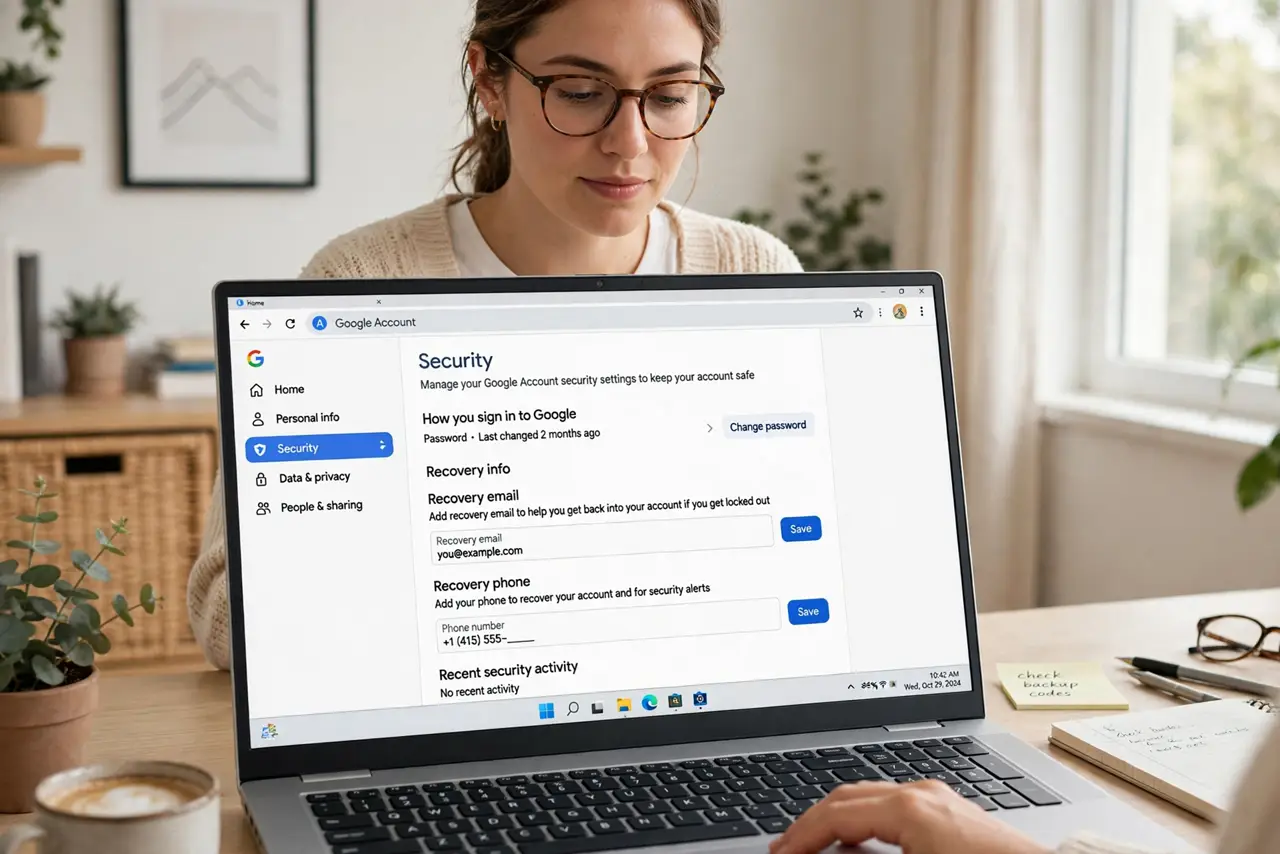
Quick fix: open your Google Account, go to Security, and add a recovery email and a recovery phone number you actually control. Generate backup codes and store them on paper. These three — email, phone, codes — are the complete safety net.
Follow these steps
- Add a recovery email. In your Google Account, go to Security, then Recovery email. Use an address you control that is not this Google account — a partner's, a second provider's. This is where reset links go.
- Add a recovery phone. In the same section, add a recovery phone number — your current mobile number. Google texts verification codes there during recovery. Keep it updated when your number changes.
- Generate backup codes. Under 2-Step Verification, find Backup codes and generate a set. Print them and store the paper somewhere safe — codes on the phone do not help when the phone is the problem.
- Check recent security activity. While in Security settings, review recent sign-ins. Anything unfamiliar gets investigated now — recovery setup is also a good moment for a security audit.
- Keep a second admin path. If you run a family or business, ensure a second trusted person has appropriate access. One admin for everything is a single point of failure.
- Test the recovery flow mentally. Walk through it: phone lost, password forgotten — can you still get in? Recovery email plus backup codes should answer yes. If the answer is no, something is missing.
What NOT to do
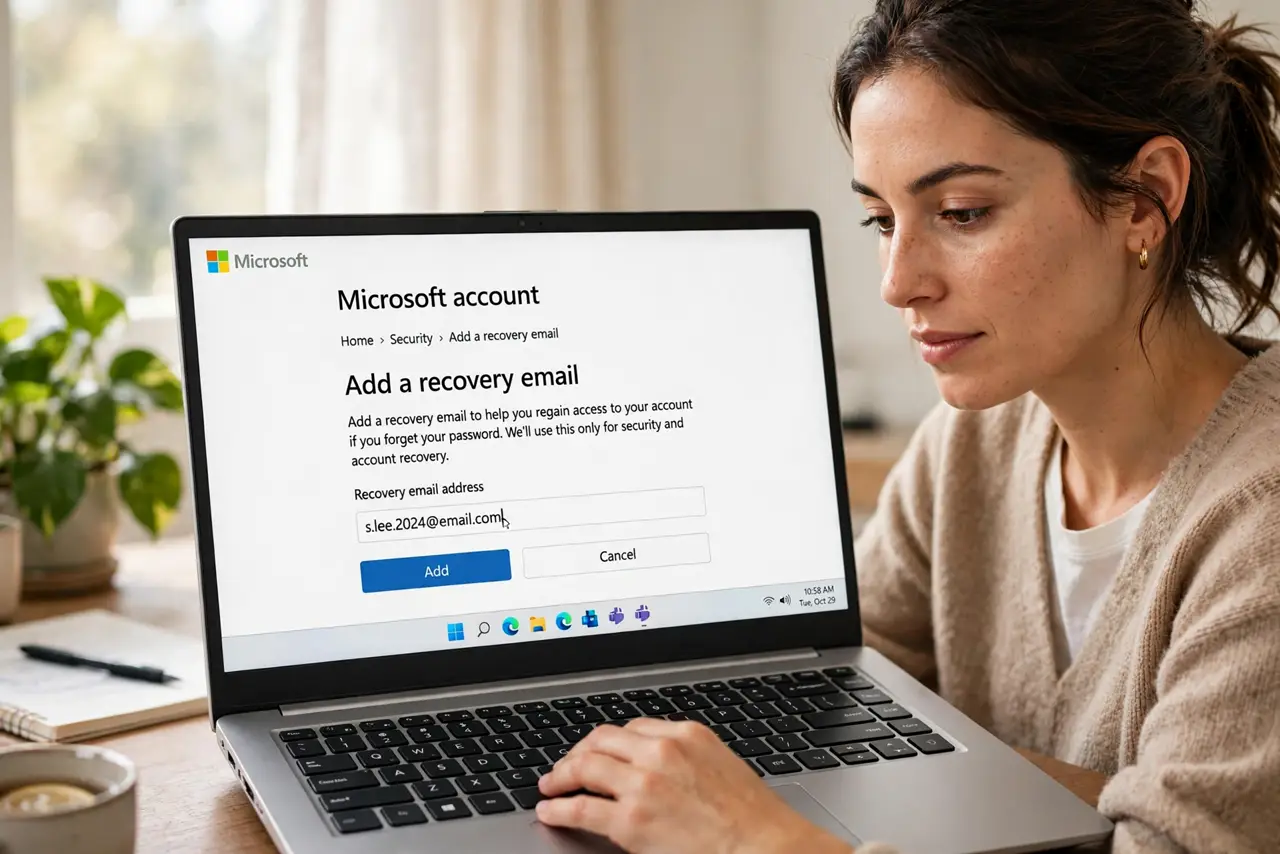
- Do not use your Google account as its own recovery email. A recovery address you cannot reach during a lockout is decoration.
- Do not skip the backup codes. Email and phone both fail in some scenarios — theft, travel, number changes. Codes are the third leg.
- Do not let the recovery phone go stale. A number from two phones ago silently breaks code delivery — update it the day it changes.
- Do not share backup codes digitally. Paper in a drawer beats a photo in the cloud — codes are keys, treat them like keys.
Frequently asked questions
How long does Google account recovery take?
With good recovery info, minutes. With nothing set up, days of automated verification — or failure. The setup is the difference.
Can someone abuse my recovery email?
Only if they control it — that is why it must be an address you own. A recovery email you abandoned is a vulnerability, not a safety net.
Do backup codes expire?
No, but each is one-time use. Generate a fresh set after using several, and store the new paper.