Spot an Account Takeover
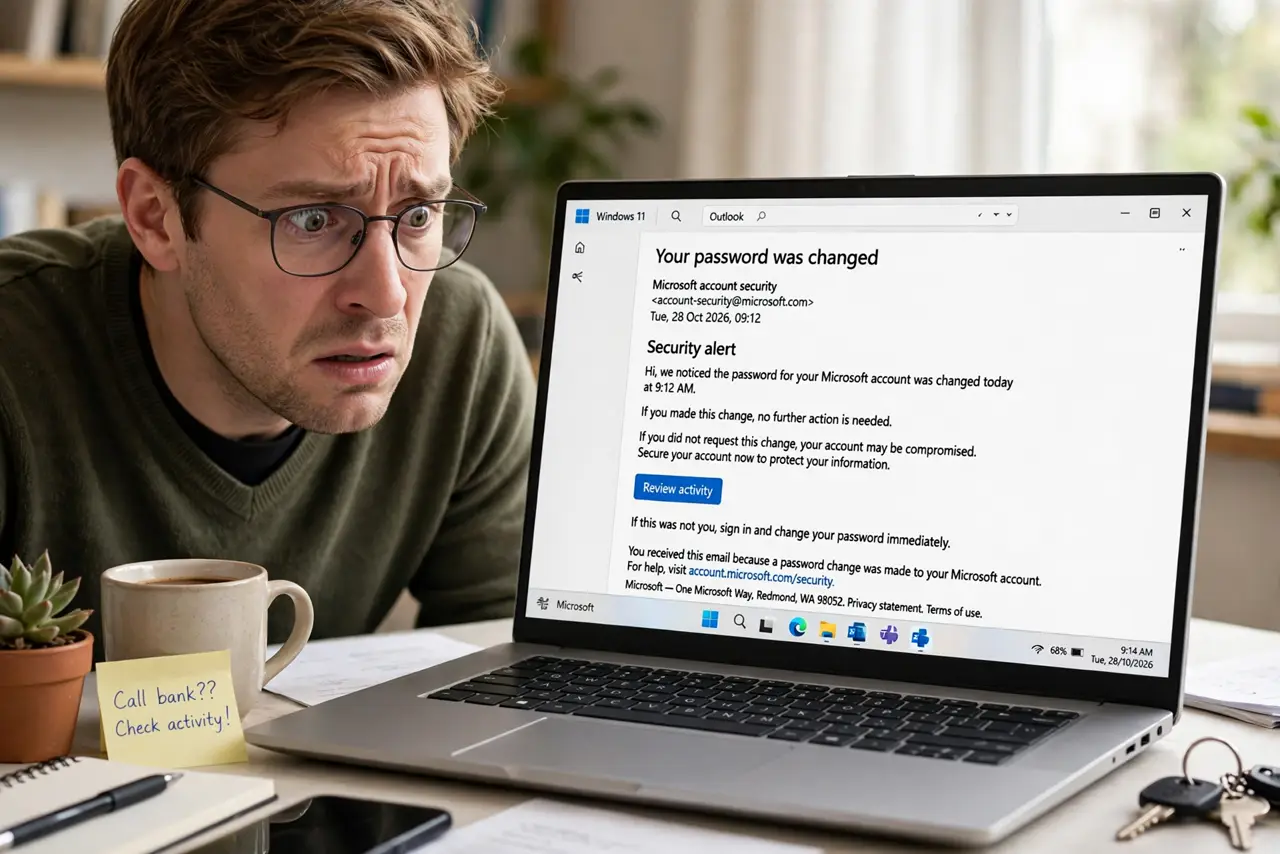
An email says your password was changed — but it wasn't you. Or a friend asks why you're sending them weird links. Account takeovers start quietly: a login from a strange place, a recovery email you never requested. Spotting the signs early is the difference between a scare and a disaster.
TL;DR / Quick Fix
Quick fix: check for login alerts, unknown devices, and password-reset emails you never requested. If anything looks off, change the password from the real site — never through an email link — sign out all sessions, and turn on two-factor authentication. Act fast; stolen accounts get worse with time.
Follow these steps
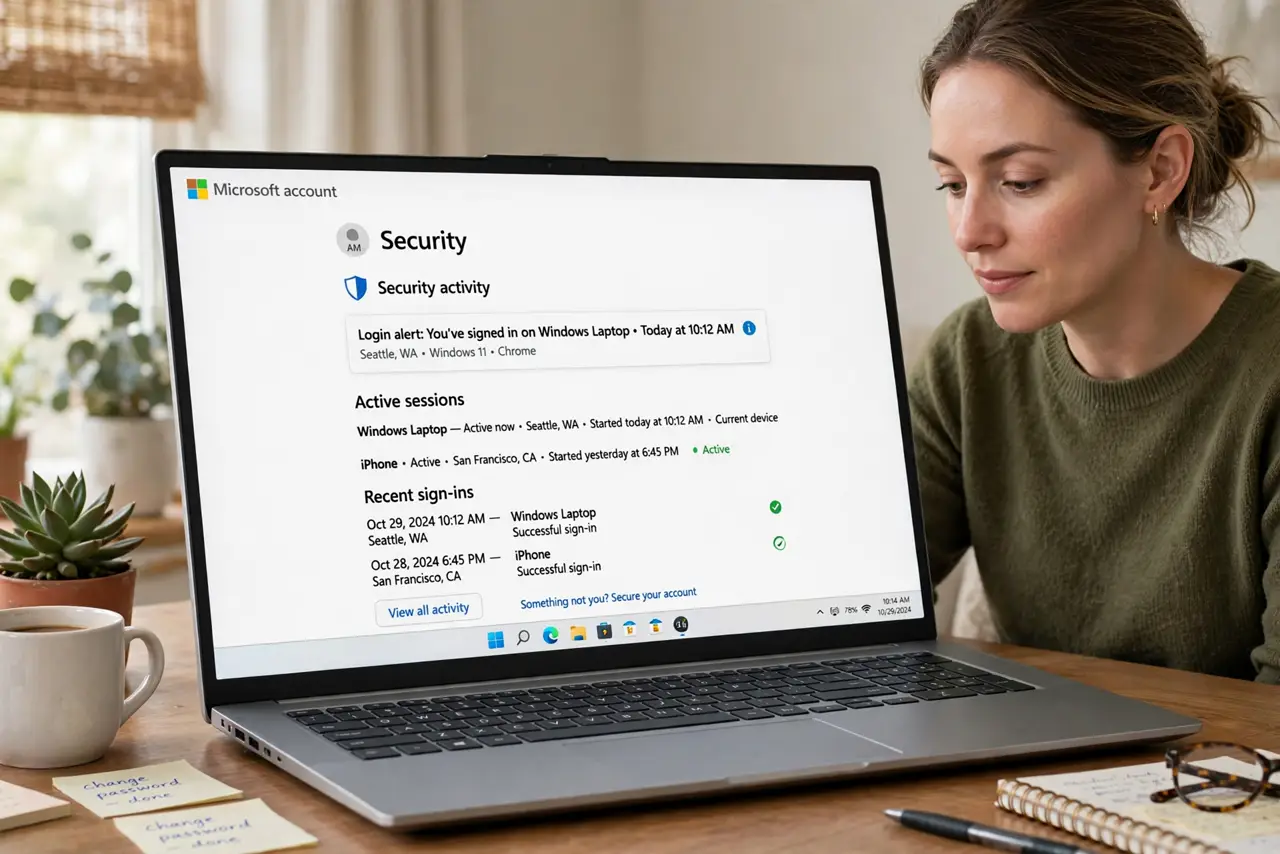
- Check your login alerts and active sessions. Open the account's security page and review recent logins and connected devices. An unknown-location alert or a device you don't own is the clearest sign someone else is in.
- Look for password-reset emails you didn't request. A reset email out of nowhere means someone knows your address and is probing. Don't click its link — instead go to the site directly and check your account. See what a phishing reset looks like first.
- Ask whether your contacts got strange messages. Attackers use hijacked accounts to spam contacts with scam links. If friends report weird DMs 'from you,' your account is already sending.
- Change the password from the real site. Type the site's address yourself — never follow the alert email's link. Use a long unique password, different from every other account.
- Sign out every session everywhere. Most services offer 'sign out of all devices' in security settings. Do it — it kicks the attacker out along with you, and you log back in fresh.
- Turn on two-factor authentication now. An authenticator app beats SMS codes — see the comparison. Also check your recovery email and phone number haven't been swapped to the attacker's.
What NOT to do
- Do not click links in the alert email to 'secure your account.' Phishing emails mimic these alerts perfectly — navigate to the site yourself.
- Do not reuse the old password with one character changed. If it leaked once, variations of it are already in attacker dictionaries.
- Do not wait to see if it blows over. Attackers escalate fast — locking you out completely is often their next step.
- Do not forget to check your recovery info. Attackers add their own email and phone so they can get back in after you change the password.
Frequently asked questions
How do attackers get into accounts in the first place?
Usually leaked passwords reused across sites, phishing pages, or SIM swapping to intercept reset codes. Unique passwords plus two-factor blocks nearly all of it.
I got locked out — can I recover the account?
Yes, through the service's official recovery flow with your ID or recovery options. Start immediately; delays help the attacker cement control.
Should I pay if they demand money for my account?
No. Paying rarely returns the account and marks you as someone who pays. Recover through official channels instead.