AirPlay Receiver Not Found on the Same Network
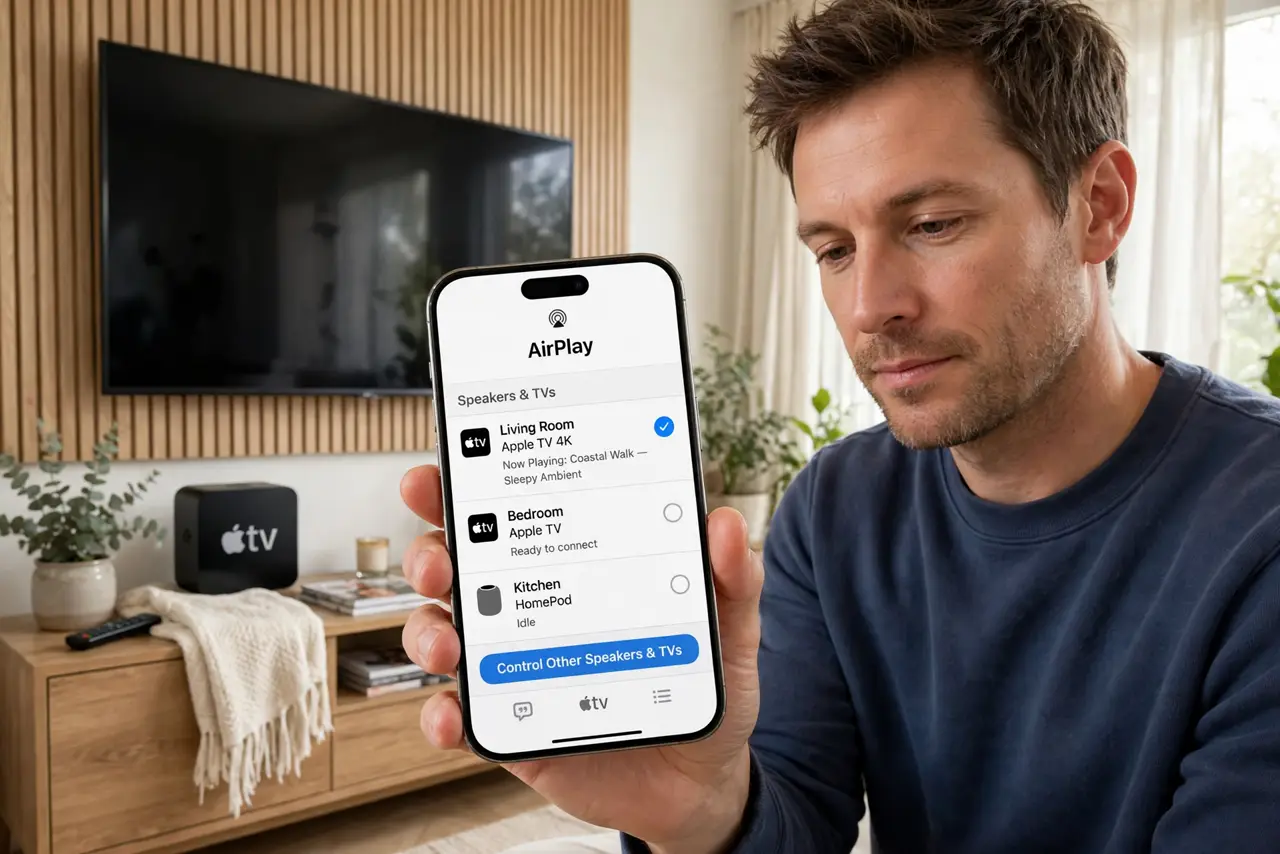
The iPhone should offer the Apple TV or speaker in the AirPlay list, but the list is empty. Like casting, AirPlay needs both ends on the same network with nothing blocking local discovery.
TL;DR / Quick Fix
Quick fix: confirm the iPhone and the receiver are on the exact same Wi-Fi name, then restart both. Turn the VPN off on the iPhone, check the receiver is awake, and look at the router for client isolation if the list stays empty.
Follow these steps
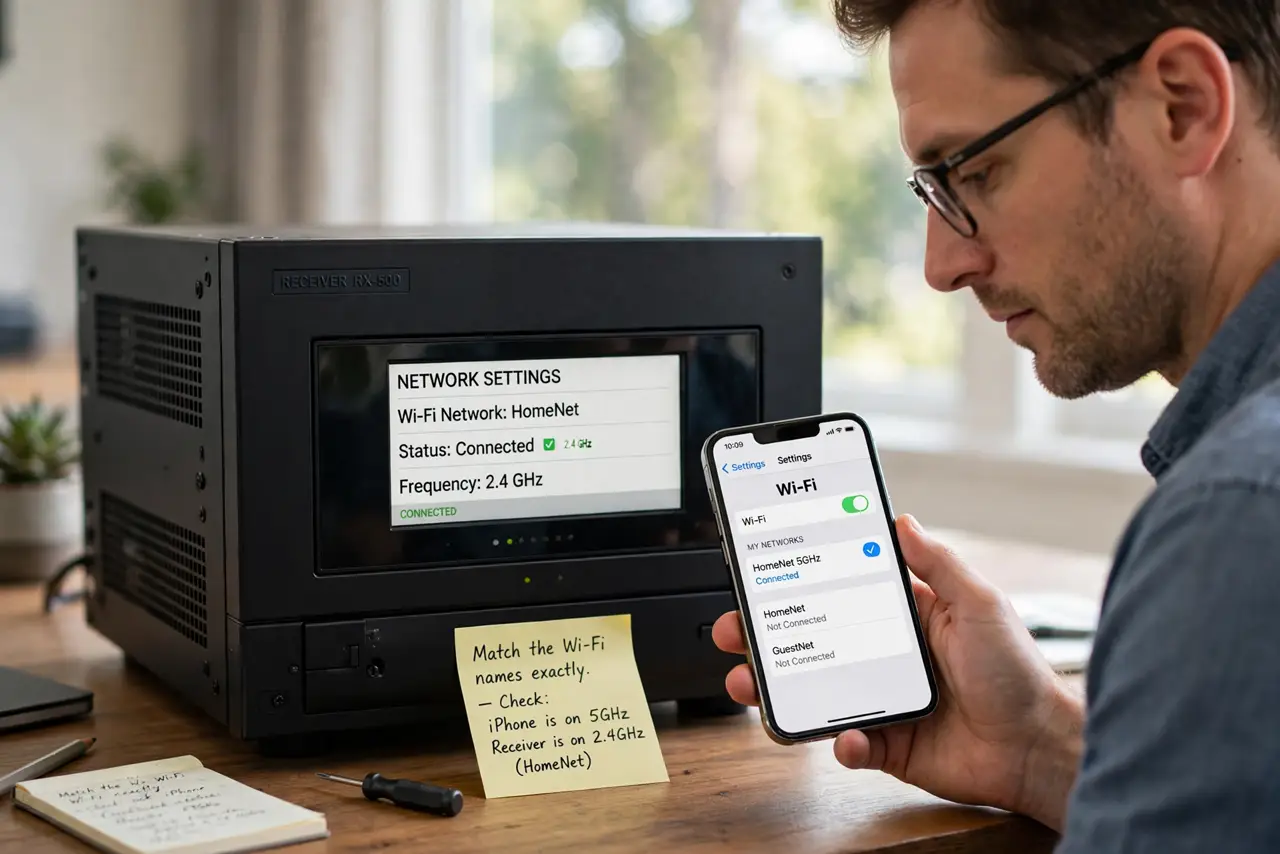
- Match the Wi-Fi names exactly. Check Wi-Fi on the iPhone and the network setting on the receiver. A phone on the 5 GHz variant and a receiver on the base name can look the same while being two separate networks.
- Wake the receiver fully. An Apple TV or speaker in deep sleep may not answer discovery. Wake it with its remote first, then open the AirPlay list again on the iPhone.
- Turn off the VPN on the iPhone. A VPN routes the iPhone's traffic away from the local network. AirPlay discovery cannot cross that tunnel, so the receiver vanishes until the VPN is off.
- Restart both ends. Restart the receiver and the iPhone. Discovery is a conversation, and restarting both sides clears a stuck conversation faster than restarting one.
- Check the router for client isolation. Log into the router and disable AP or client isolation if it is on. That setting blocks devices from finding each other, which silences AirPlay completely.
- Check for a one-device no-internet pattern. If the receiver cannot reach the internet at all, discovery also fails — the one-device no-internet pattern. Confirm the receiver loads its home screen content before blaming AirPlay itself.
What NOT to do
- Do not restore the Apple TV to fix discovery. A restart and a network check solve nearly every missing-receiver case, while a restore erases everything for nothing.
- Do not test AirPlay with mobile data on and Wi-Fi off. AirPlay is a local-network feature, so it needs Wi-Fi on and connected, not a cellular connection.
- Do not leave the VPN on and keep retrying. Each retry fails the same way until the VPN is off, so check that setting early instead of late.
- Do not buy a new receiver because the list is empty once. Discovery hiccups are common and temporary, while a new box costs real money for the same network.
Frequently asked questions
Why is the AirPlay list empty?
The iPhone and the receiver are on different networks, one of them is asleep, a VPN is hiding the iPhone, or the router blocks device-to-device discovery.
Does Bluetooth need to be on?
It helps discovery on newer setups, so leave Bluetooth on while troubleshooting, even though the stream itself travels over Wi-Fi.
Can I AirPlay without any Wi-Fi?
Some setups support peer-to-peer AirPlay, but it is unreliable. A shared Wi-Fi network is the setup Apple intends.