Alarms Do Not Sound? Fix Them on Windows Fast
You set an alarm and it never sounds, so you miss the reminder entirely. Volume, Do not disturb, and app notification permission can each silence an alarm that looks correctly set. Check them in order.

TL;DR / Quick Fix
Quick fix: set a test alarm one minute ahead, turn volume up, turn Do not disturb off, and confirm the clock app may show notifications. If the test alarm sounds, your original alarm had a wrong time, day, or permission, not a broken speaker.
Follow these steps
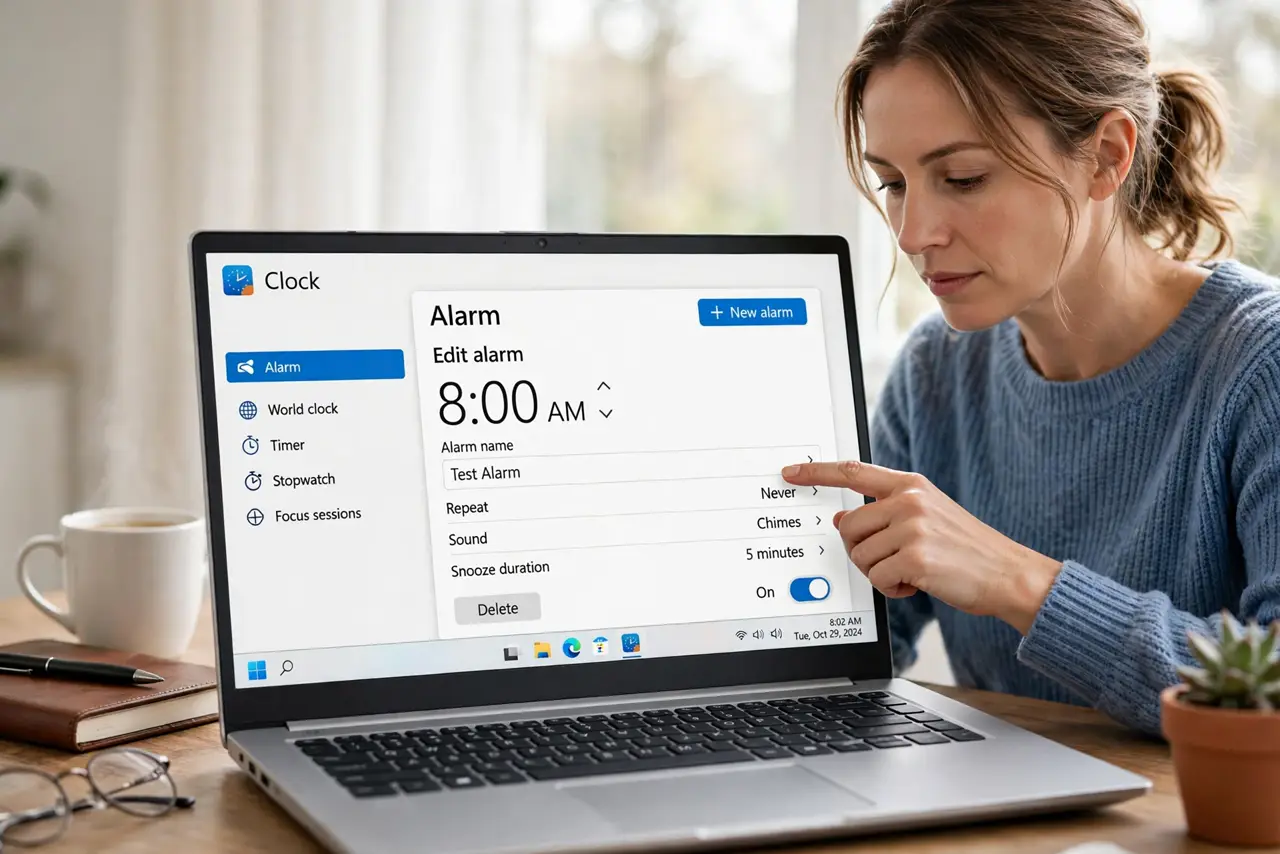
- Set a test alarm one minute ahead. Open the Clock app, set an alarm one minute from now, and wait. A test alarm tells you whether alarms can sound at all, before you debug a specific alarm.
- Turn volume up and check output. Turn the system volume up and confirm sound plays from the expected speakers or headphones. An alarm cannot sound through muted or disconnected output.
- Turn Do not disturb off. Open Quick Settings and turn Do not disturb off. Do not disturb can silence alarm banners on some setups, so test with it off first.
- Check the clock app notification permission. Open Settings, then System, then Notifications, and confirm the Clock app is allowed to show notifications. A silenced clock app cannot alert you.
- Check the original alarm time and days. Open the alarm that failed and confirm its time, morning or evening setting, and repeat days. A correct-looking alarm set for the wrong day will never sound when you expect it.
- Restart and retest. Save your work, restart, and set another one-minute test alarm. If the test sounds after restart, the original failure was a stuck state, not a setting.
What NOT to do
- Do not set ten alarms to compensate for one silent alarm. Fix the volume, Do not disturb, and permission first, or all ten will stay silent too.
- Do not assume the speaker is broken because an alarm failed. Play music or a video first: if sound works there, the alarm setting is the problem.
- Do not set an alarm and immediately close the laptop lid. A sleeping laptop may not sound an alarm the way you expect, so test with the laptop awake first.
- Do not ignore the morning and evening setting. An alarm set for the wrong half of the day looks correct while never sounding when you need it.
Frequently asked questions
Why did my alarm not sound?
Usually volume, Do not disturb, clock app permission, or a wrong time or repeat day. A one-minute test alarm separates these causes quickly.
Do alarms sound when the laptop sleeps?
Not reliably. Test alarms with the laptop awake first, and do not rely on a sleeping laptop for a critical wake-up alarm.
What if the test alarm sounds but the real one does not?
Check the real alarm time, morning or evening setting, and repeat days. The test proves sound works, so the original alarm details are wrong.