Chat in Floating Bubbles
You are following a recipe — or a map, or a video — and every reply means leaving the app, losing your place, and finding your way back. Android's chat bubbles fix exactly this: conversations float as small movable circles over whatever you are doing, so a quick reply never costs your place. iPhone does not have system-wide bubbles, but it has its own quick-reply tricks. This guide sets up both. For the notification side, see snoozing alerts and notification history.

TL;DR / Quick Fix
Quick fix: turn on chat bubbles on Android in Settings, then Notifications, then Bubbles — conversations float as movable circles over other apps so you can reply without switching. iPhone has no system-wide bubbles; use picture-in-picture calls or quick-reply from notifications instead. Bubbles suit short replies, not long chats.
Follow these steps
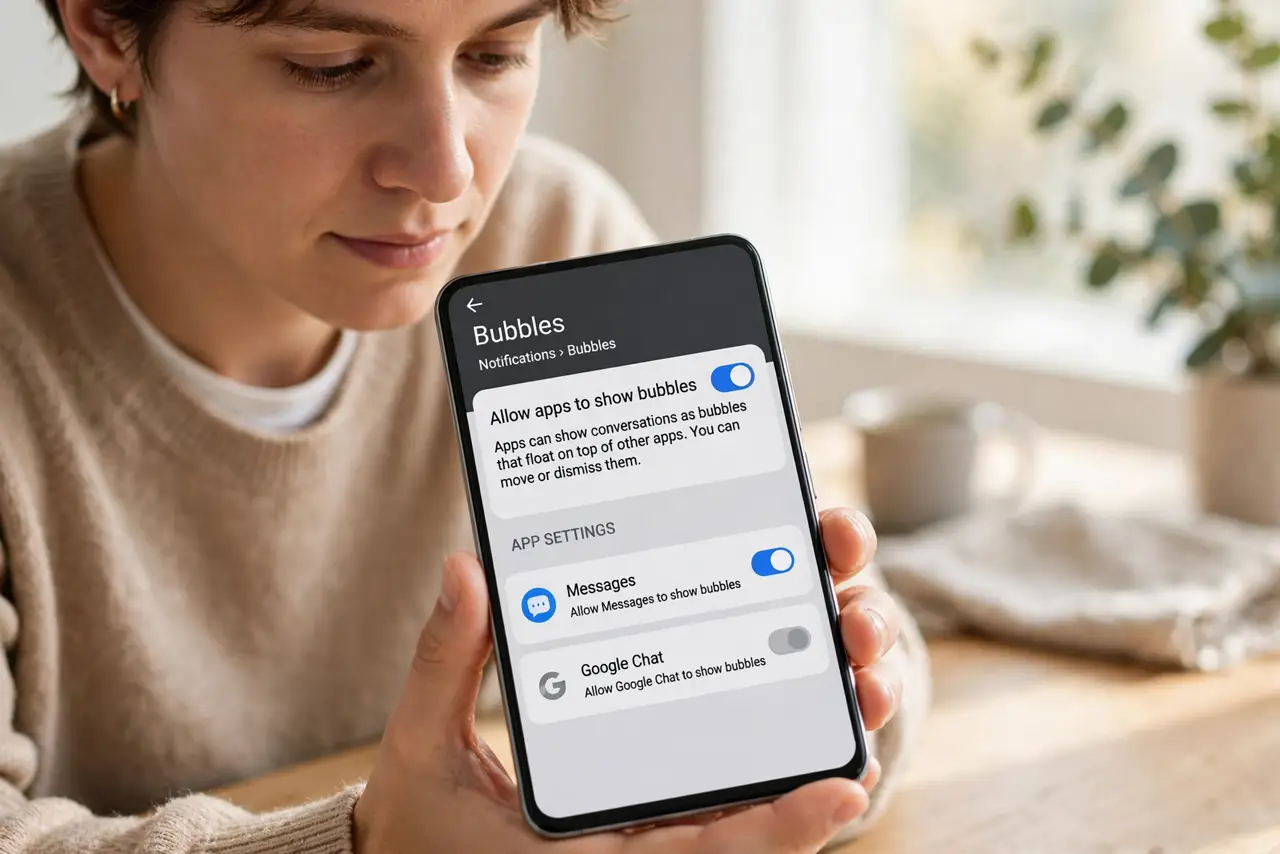
- Enable Bubbles on Android. Go to Settings, then Notifications, then Bubbles, and allow apps to show bubbles. Then open your chat app's settings and enable bubbles per conversation — usually a long-press on the chat offers it.
- Reply from the floating bubble. Tap the bubble circle to expand a mini chat window over your current app; tap outside or drag it away to collapse. Your place in the underlying app never moves.
- Manage bubbles per conversation. Not every chat deserves floating status — enable bubbles only for the active conversations. A screen full of bubble heads is worse than app-switching.
- Dismiss bubbles when done. Drag the bubble to the bottom trash area to close it. The conversation stays in the app; only the floating window goes away.
- Quick-reply on iPhone instead. iPhone has no bubbles: long-press a notification (or swipe down on an incoming banner) to reply inline without opening the app. For calls, picture-in-picture keeps video floating while you do other things.
- Know when bubbles hurt. Long conversations deserve the full app — bubbles are for quick exchanges. If you are typing paragraphs in a bubble, open the app properly.
What NOT to do
- Do not enable bubbles for every conversation. Bubble sprawl recreates the clutter you were escaping — curate the floating few.
- Do not have sensitive chats floating over screen shares. A bubble popping open during a presentation shares more than you intend — dismiss before sharing.
- Do not expect bubbles in every app. Support is per-app on Android; some chat apps never implemented it — check yours specifically.
- Do not confuse bubbles with split-screen. Bubbles float over one app; split-screen shows two side by side — different tools for different needs.
Frequently asked questions
Do bubbles drain the battery?
Negligibly — a floating bubble is just a small overlay. The chat app's normal background activity dominates battery use, not the bubble itself.
Can I move the bubble?
Yes — drag it anywhere along the screen edges. It snaps to the side and politely gets out of the way.
Why does my chat app lack bubbles?
The app must implement Android's Bubbles API. If yours has not, check for updates or use the app's own floating-window feature if it offers one.