Use Circle to Search
You see something on your screen — a jacket in a video, a plant in a photo, a phrase in a foreign menu — and want to search it without screenshotting and switching apps. Circle to Search lets you literally draw a circle around anything on screen and get instant results. It is already on many Samsung and Pixel phones, just waiting to be enabled.
TL;DR / Quick Fix
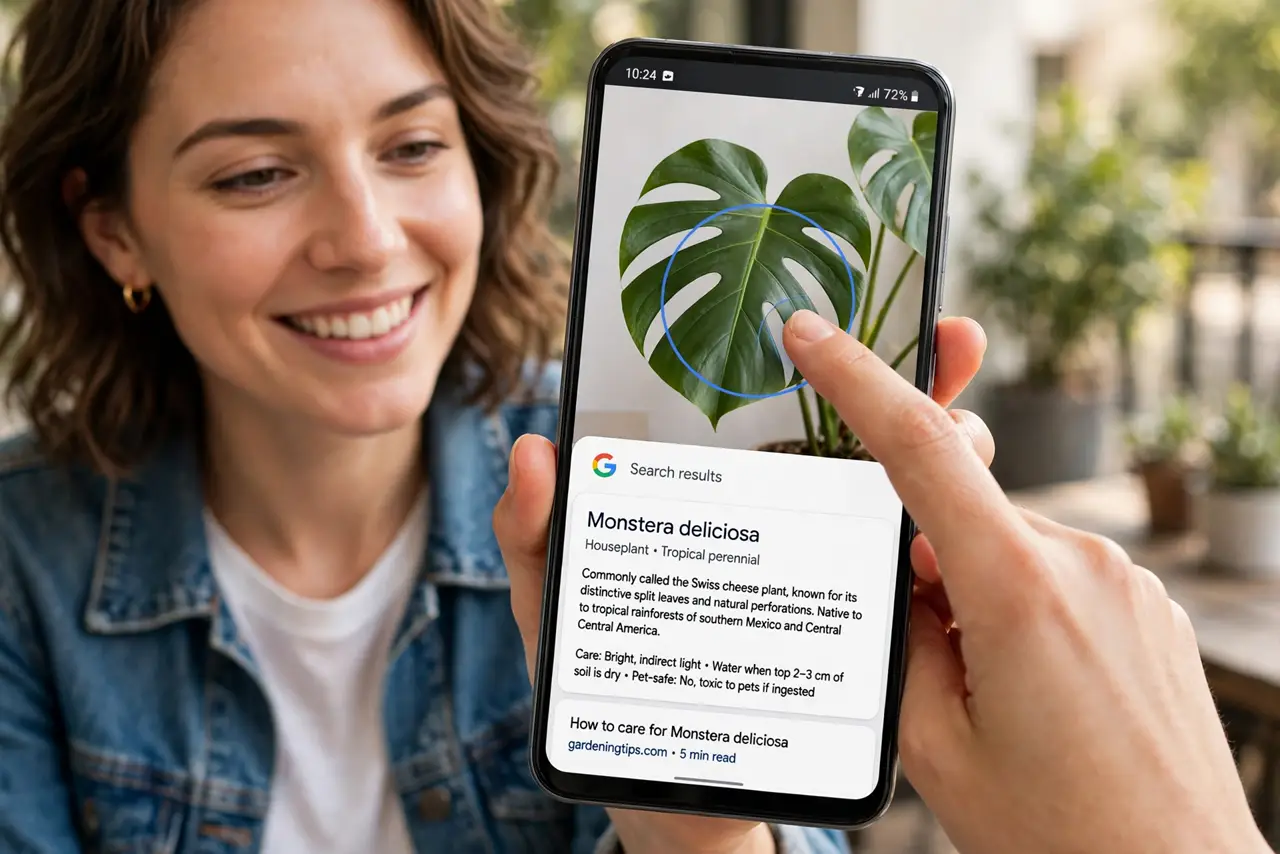
Quick fix: on supported Samsung and Pixel phones, long-press the home bar, then circle, scribble, or tap anything on screen to search it. Google identifies the item and shows results in a pop-up without leaving your app. Enable it under Settings, Display, Navigation bar if it doesn't respond.
Follow these steps
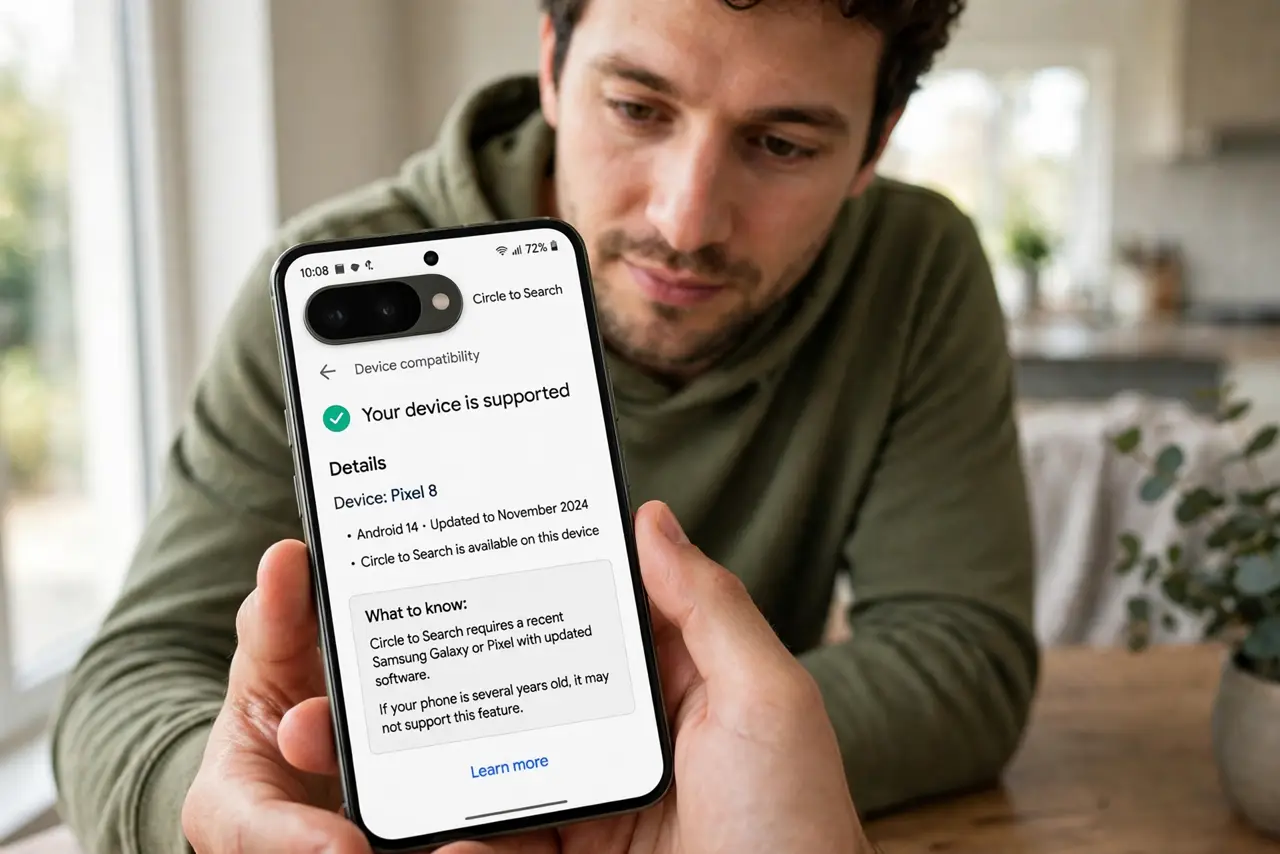
- Check your phone supports it. Circle to Search needs a recent Samsung Galaxy or Pixel with updated software. If your phone is several years old, it may simply not have the feature.
- Enable it in settings. Go to Settings, then Display, then Navigation bar, and turn on Circle to Search. Some phones list it under AI or Google settings instead.
- Trigger it with a long press. Long-press the home bar or navigation handle — a shimmer sweeps the screen, meaning it is listening for your gesture.
- Circle, scribble, or tap. Draw a circle around the object, scribble over text, or just tap an item. Google searches the highlighted part and shows results in a pop-up card.
- Refine with follow-up. Tap the search bar in the results card to add words like 'buy' or 'identify.' The visual search plus your text narrows results fast.
- Dismiss and move on. Swipe the card away to return to what you were doing. Nothing is saved unless you choose to share or save the result.
What NOT to do
- Do not circle sensitive info casually. Whatever you highlight gets sent to Google's servers — skip passwords, IDs, and private chats.
- Do not expect it to work offline. The visual search needs an internet connection to analyze and return results.
- Do not assume it is always accurate. It guesses from pixels — verify before buying the 'matching' jacket.
- Do not leave it on if you trigger it accidentally. If long-presses keep firing it during games, disable it in the same settings panel.
Frequently asked questions
Which phones have Circle to Search?
Recent Samsung Galaxy S and Z series and Google Pixel phones with current software. Availability expands with updates.
Does it work on iPhone?
No — it is an Android feature. iPhone users get similar results with Google Lens through the Google app.
Can I turn it off?
Yes. The same settings page where you enabled it has the toggle — turning it off restores the normal long-press behavior.