Clear an App's Cache Without Losing Data
An app misbehaves and someone tells you to clear its cache — but you are afraid of losing logins, chats, or progress. Clearing cache is safe: it only deletes temporary files. This guide shows exactly what cache clearing does and does not touch, so you can fix bloated apps with confidence.
TL;DR / Quick Fix
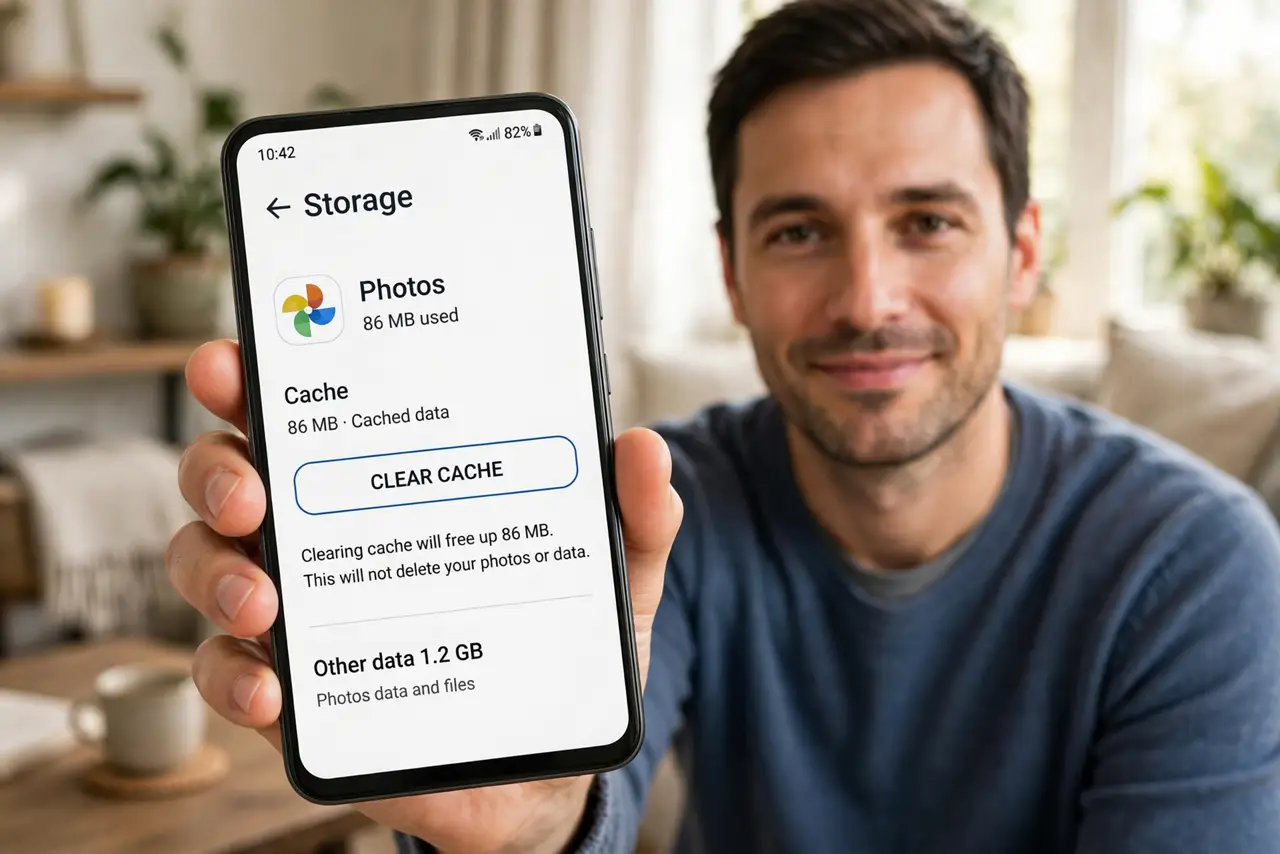
Quick fix: open the app's info screen, tap Storage, then Clear Cache — your logins, chats, and settings stay intact. Only use Clear Data if you intend to reset the app completely. If the app still misbehaves after clearing cache, update or reinstall it.
Follow these steps
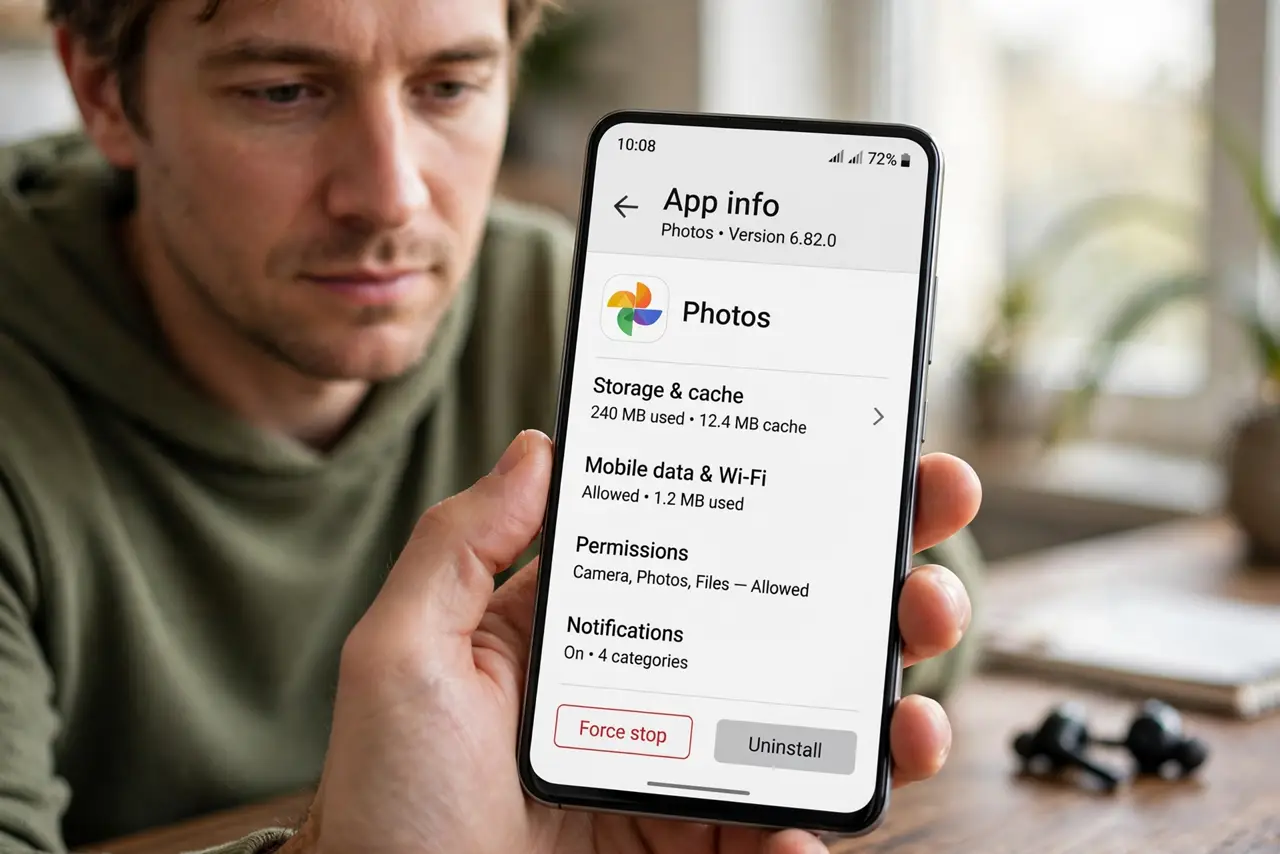
- Open the app's info screen. Long-press the app icon and tap App info, or find it in Settings, Apps. Every app has this screen.
- Tap Storage or Storage usage. Inside app info, open the Storage section. You will see the cache size and the Clear Cache button.
- Tap Clear Cache. Tap it. The cache size drops to zero and the app keeps working — logins, chats, downloads, and settings all survive.
- Know what Clear Data would do. The button next to it, Clear Data or Clear Storage, resets the app completely — logins gone, settings gone. Do not tap it by accident.
- Reopen the app and test. Launch the app and check the misbehavior. Cache-related glitches — stale images, frozen feeds — usually vanish here.
- Repeat for other heavy apps. Browsers, social apps, and streaming apps accumulate the most cache. Clearing a few of them can free gigabytes.
What NOT to do
- Do not tap Clear Data when you mean Clear Cache. The names sit side by side, and the wrong one logs you out of everything.
- Do not expect cache clearing to fix every bug. It fixes stale-data glitches, not broken features or server problems.
- Do not clear cache obsessively every day. The cache exists to speed things up — clearing it constantly just makes apps slower.
- Do not use third-party cache cleaners. The built-in button does the job without the ads and permissions.
Frequently asked questions
Will clearing cache delete my photos or chats?
No. Cache holds temporary files like thumbnails and previews. Your photos, chats, logins, and settings live in the app's data, which cache clearing does not touch.
What's the difference between Clear Cache and Clear Data?
Clear Cache removes temporary files safely. Clear Data resets the app to a freshly-installed state — logins and settings included.
How often should I clear app cache?
Only when an app misbehaves or storage runs low. Routine cache clearing provides no benefit and slows apps down temporarily.