Cut Mobile Data Waste
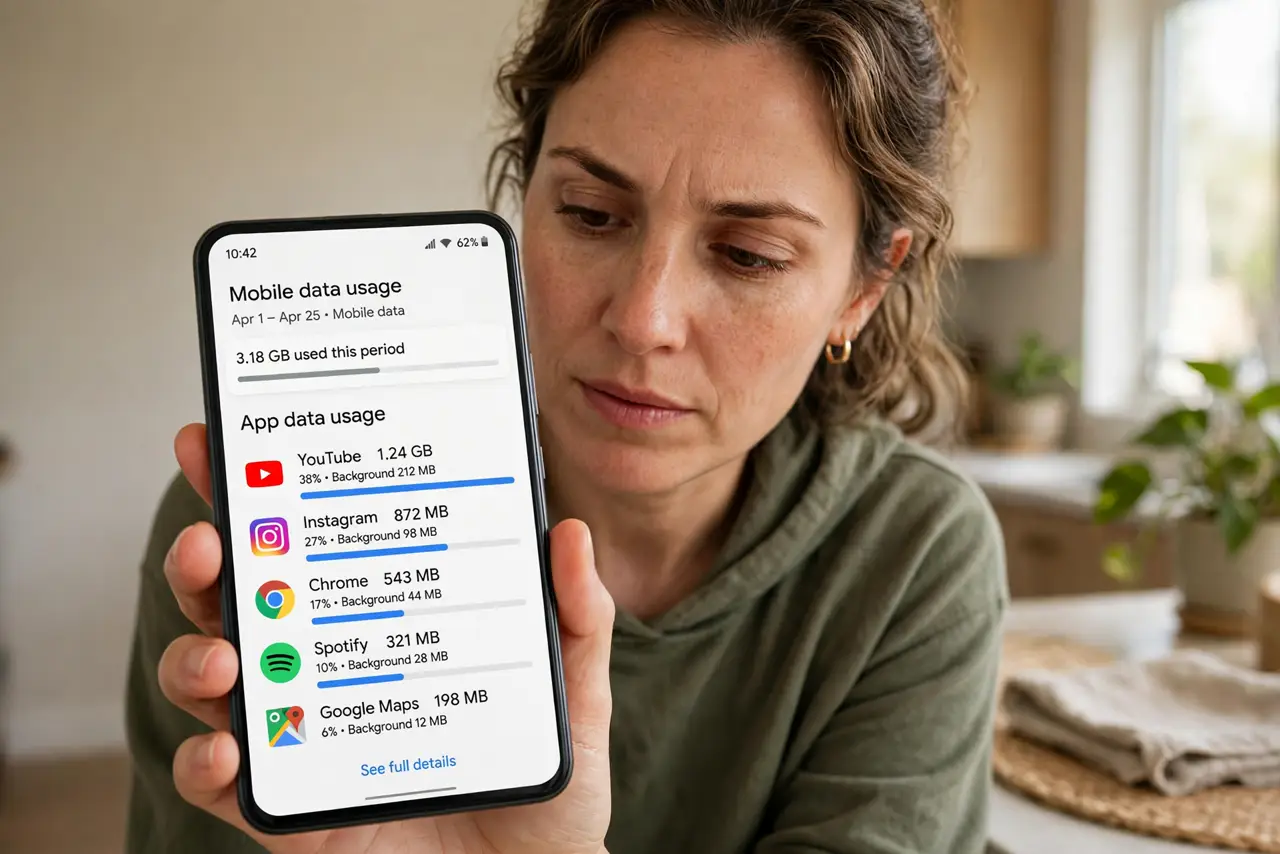
Your data plan evaporates days before the month ends, and you barely streamed anything. The thief is background data: apps syncing, preloading, and updating on mobile data while the phone sits in your pocket. Data Saver plus per-app limits put the plan back under your control — alongside Adaptive Connectivity for the battery side.
TL;DR / Quick Fix
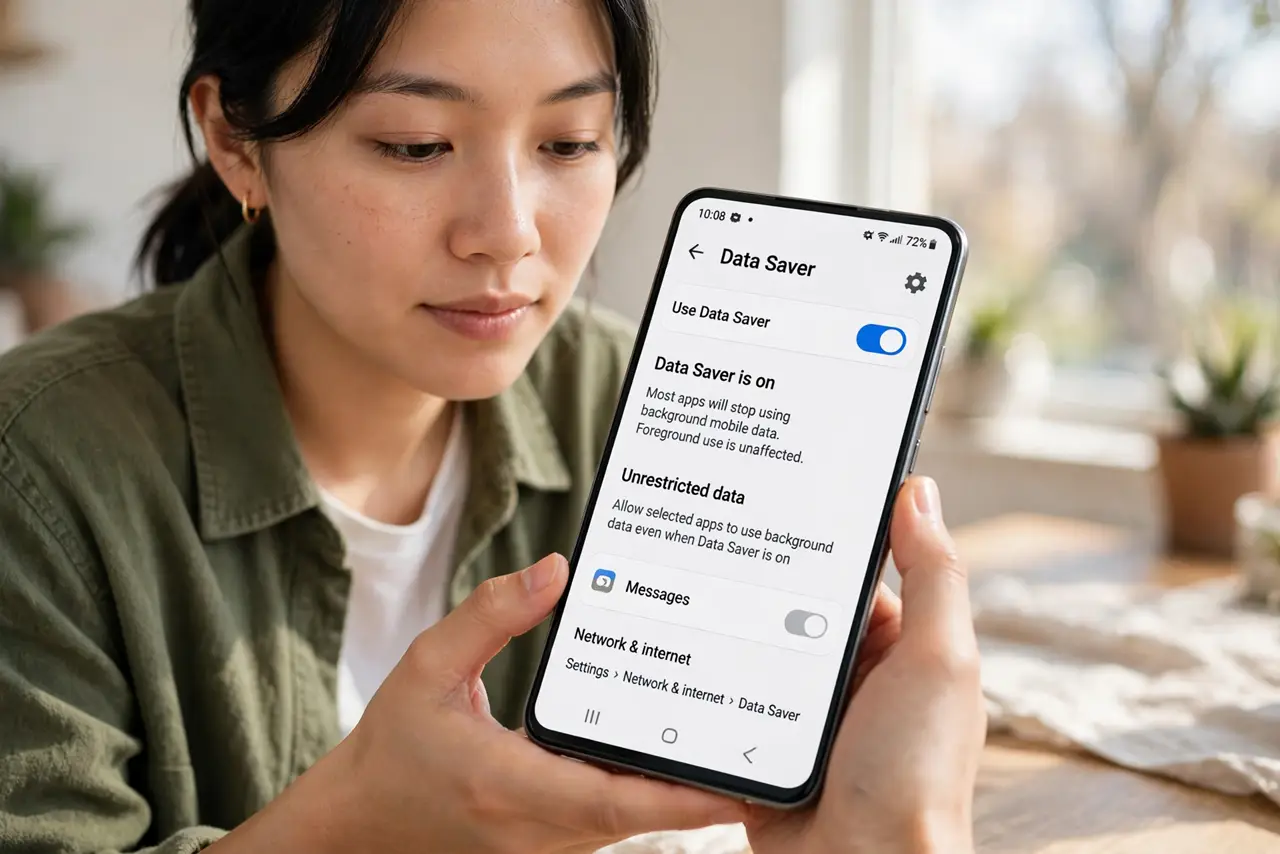
Quick fix: turn on Data Saver in Settings > Network & internet to block background data for most apps, then set a monthly warning just under your plan's limit. Stop chat apps auto-downloading media on mobile data. Check per-app usage monthly — one rogue app usually explains the disappearing gigabytes.
Follow these steps
- Turn on Data Saver. Go to Settings > Network & internet > Data Saver and enable it. Most apps immediately stop using background mobile data — foreground use is unaffected.
- Set a data warning and limit. In the same area, set a warning a gigabyte or two under your plan cap, and optionally a hard limit. The phone warns you before the carrier bills you.
- Restrict the worst offenders. Check Settings > Network > App data usage, sort by consumption, and restrict background data for the hogs. One rogue app often explains the whole mystery.
- Stop auto-downloads in chat apps. In WhatsApp, Telegram, and similar: settings > storage/data > turn off auto-download on mobile data. Group-chat videos are silent plan-killers.
- Use Wi-Fi for updates. Set the Play Store and system updates to Wi-Fi only. A single app update over mobile data can eat a meaningful chunk of a small plan.
- Review monthly. Glance at per-app usage when the bill cycle resets. New hogs appear with new apps — the review takes two minutes.
What NOT to do
- Do not set the hard limit below what you actually need. A phone cut off mid-month is worse than an overage — set warnings, be cautious with limits.
- Do not forget tethering counts. Laptop browsing through your phone drinks data fast — watch it separately.
- Do not blame Data Saver for slow apps. If an app misbehaves, whitelist it rather than disabling the whole feature.
- Do not ignore the per-app list. Data Saver is the blanket; per-app restrictions are the precision tool.
Frequently asked questions
Will Data Saver break my apps?
Rarely — apps work normally in the foreground; only background syncing pauses. Whitelist anything that misbehaves.
Does this help battery too?
Yes, less background radio activity saves power — see app standby for the deeper battery fix.
What about iPhone?
iPhone has Low Data Mode per network (Settings > Cellular > Data Mode) — same idea, Apple flavor.