Try Desktop Mode on a Monitor
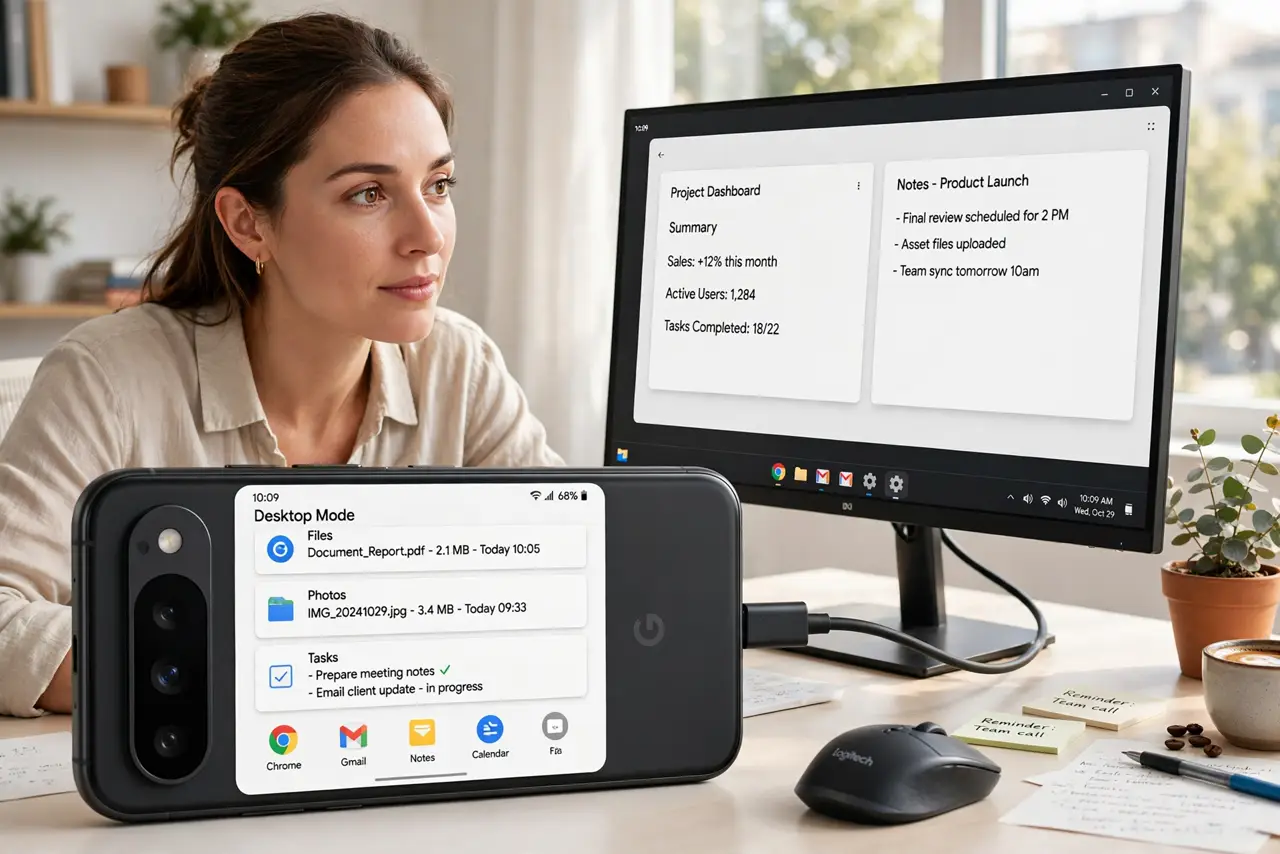
Your phone is a surprisingly capable computer trapped in a six-inch screen. Plug it into a monitor and some Android phones switch to a desktop mode — windows, taskbar, mouse support — turning the phone into a pocket PC. It will not replace a laptop, but for travel and emergencies it is a genuine second computer you already own.
TL;DR / Quick Fix
Quick fix: some Android phones offer a desktop mode when connected to an external display — a windowed interface with taskbar and mouse support. Connect via USB-C to HDMI, pair a Bluetooth mouse and keyboard, and your phone becomes a basic workstation. Check your phone's specs first.
Follow these steps
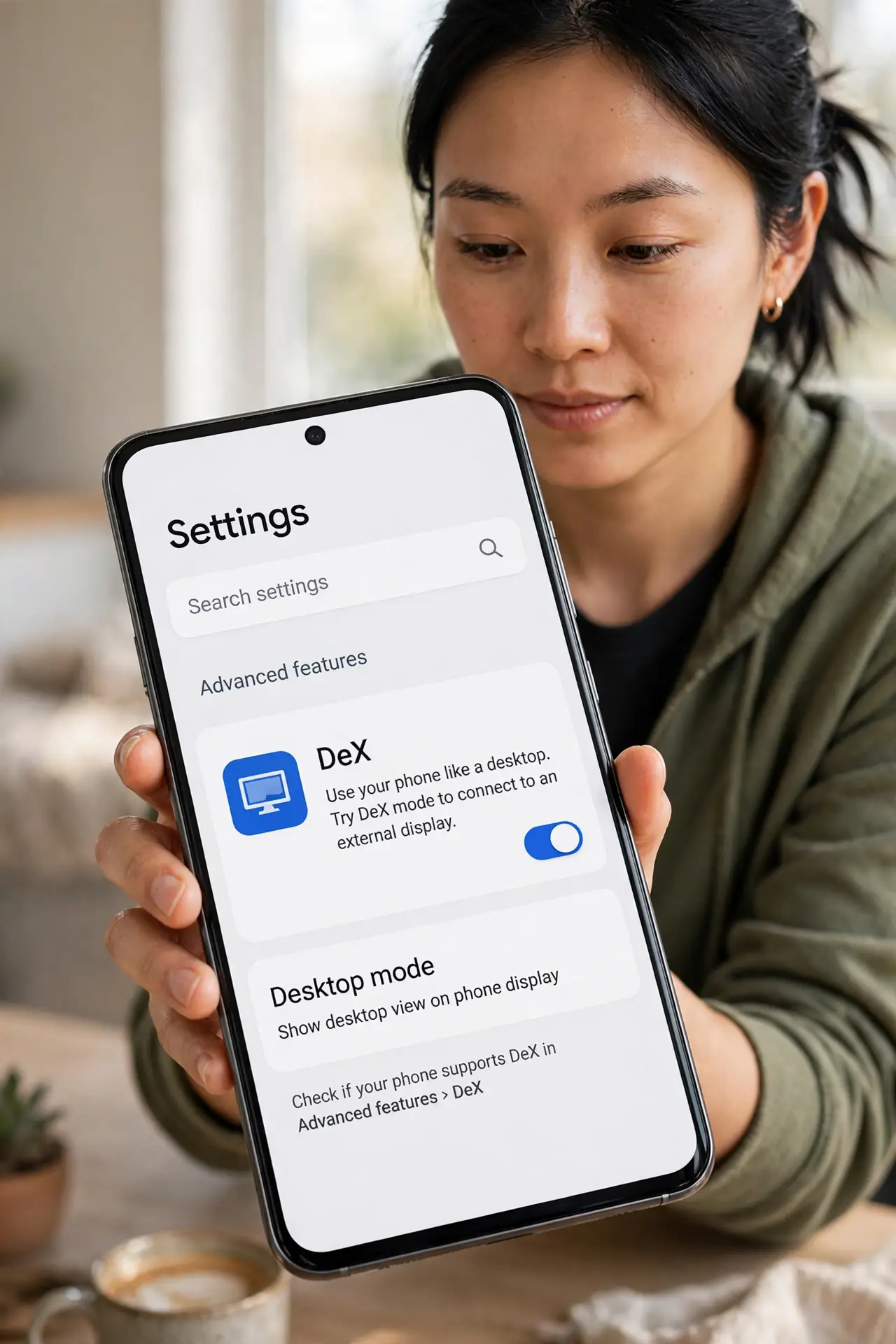
- Check your phone supports it. Desktop modes are a feature of specific phones — Samsung's DeX and similar. Look in Settings for a desktop or DeX option, or check the manufacturer's specs. No option means no mode.
- Get the right cable or adapter. You need USB-C video output to HDMI or DisplayPort. Many charging cables are charge-only and will never carry video — use an adapter that explicitly lists video support.
- Connect the monitor. Plug the adapter into the phone, the monitor into the adapter. The phone should offer to start desktop mode — accept it and the monitor switches to the windowed interface.
- Pair a mouse and keyboard. Bluetooth mouse and keyboard transform the experience from novelty to workstation. Touch still works, but a cursor is what makes windows manageable.
- Keep the phone charged. Driving a display drains the battery fast. Use an adapter with power passthrough, or keep a charger handy — a dead phone ends the desktop session.
- Know what it replaces — and what it does not. Documents, web, email, and media: genuinely workable. Heavy multitasking, pro apps, and all-day ergonomics: still laptop territory. Treat it as a travel backup, not a replacement.
What NOT to do
- Do not buy the adapter before checking phone support. No desktop mode means an expensive cable to nowhere.
- Do not use a charge-only USB-C cable. Identical-looking cables that cannot carry video are the top setup failure.
- Do not expect laptop performance. The phone's chip is capable but thermally limited — sustained heavy work throttles.
- Do not forget a charger. An hour of desktop mode can eat half a battery; passthrough power is not optional for real sessions.
Frequently asked questions
Does my iPhone have a desktop mode?
No — iPhones mirror to external displays but do not offer a windowed desktop interface. This is an Android-side feature.
Can I use my phone's apps in desktop mode?
Mostly yes — apps open in resizable windows. Apps that demand portrait mode may letterbox awkwardly.
Is it good enough to travel without a laptop?
For light trips — email, docs, presentations — many people do exactly that. For heavy or unpredictable work, bring the laptop.