Use Gemini on Android
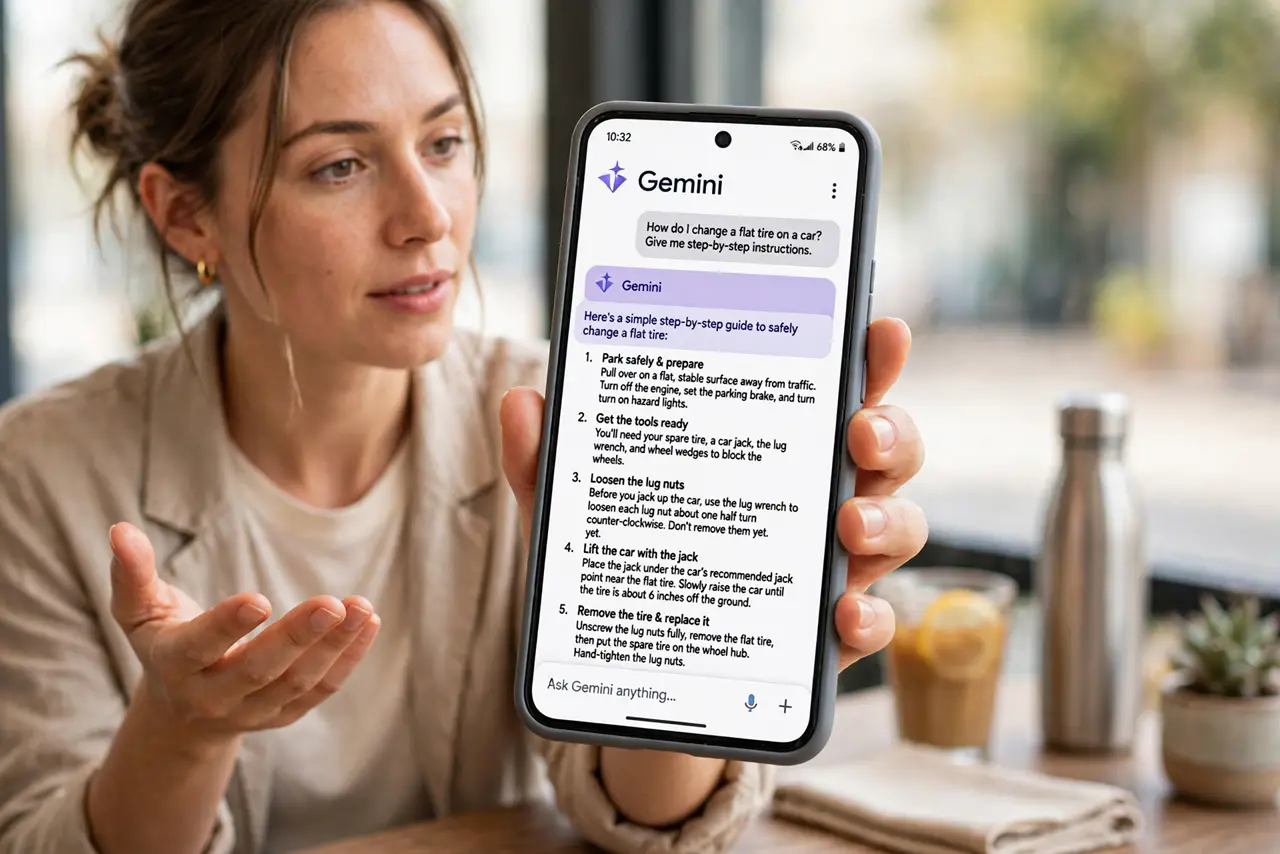
Gemini is Google's AI assistant on Android, and it can feel confusing at first — it replaces the old Google Assistant, answers differently, and asks about privacy settings you never saw before. Once you set it as the default and learn the two ways to call it, it handles the same everyday jobs — reminders, summaries, quick answers — with noticeably smarter follow-ups.
TL;DR / Quick Fix
Quick fix: update the Google app, open Assistant settings, and choose Gemini as your default assistant. Trigger it with 'Hey Google' or a long press of the power button — it drafts messages, summarizes pages, and sets reminders. Turn off Gemini Apps Activity to limit stored recordings.
Follow these steps
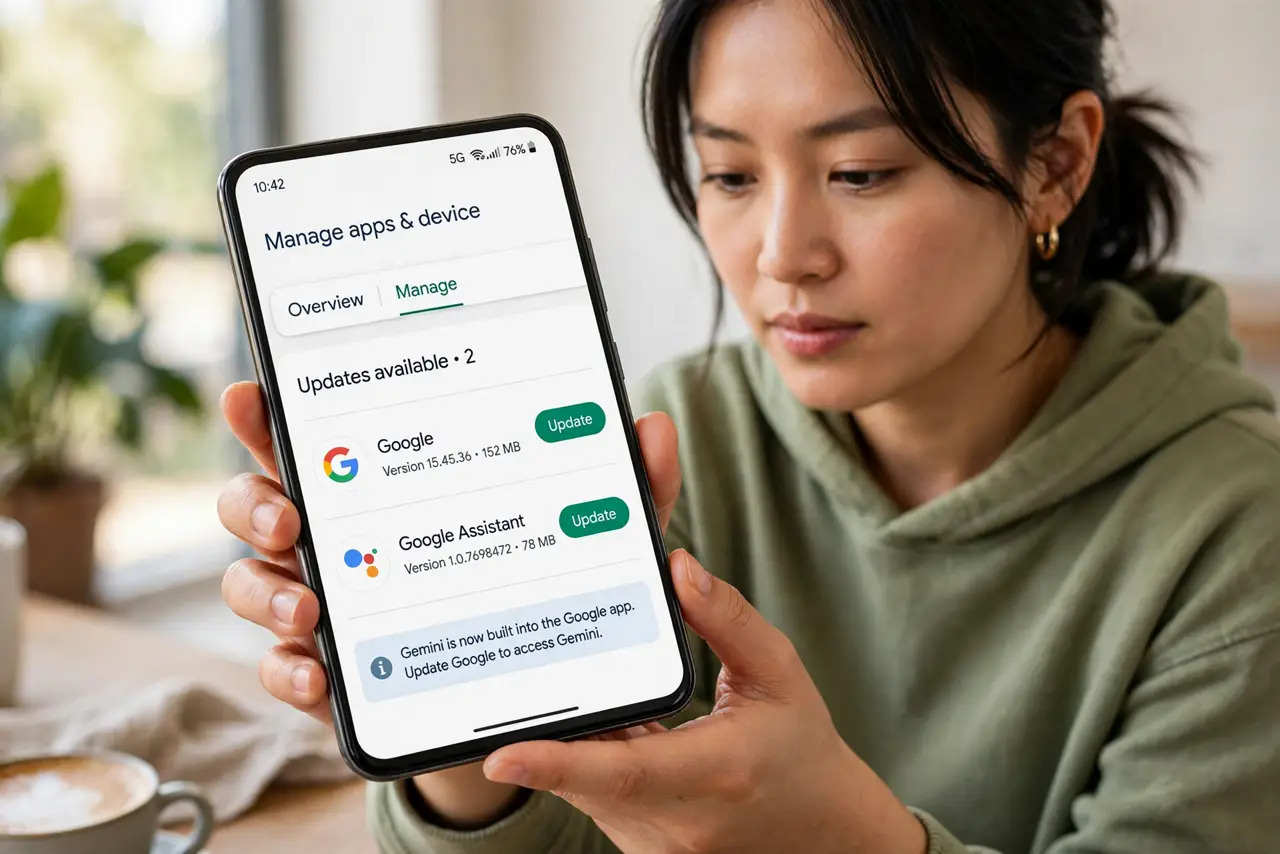
- Update the Google app first. Open the Play Store and update Google and the Google Assistant apps. Gemini ships inside the Google app, so an old version hides the switch entirely.
- Set Gemini as your default assistant. Open the Google app, tap your profile picture, then Settings, then Google Assistant, and choose Gemini. This makes it respond to 'Hey Google' and the power-button shortcut.
- Learn the two ways to call it. Say 'Hey Google' hands-free, or press and hold the power button. A small overlay appears over whatever you are doing — no app switching needed.
- Ask it to do real tasks. Try 'remind me to call the dentist at 6', 'summarize this page', or 'draft a polite follow-up email'. Gemini handles multi-step requests better than the old Assistant.
- Control what it remembers. Open Gemini settings, then Gemini Apps Activity, and choose how long conversations are kept. Turning it off limits stored history — useful on a shared device.
- Switch back if you prefer the classic. In the same Assistant settings you can return to Google Assistant. Nothing breaks — it is a preference, not a one-way upgrade.
What NOT to do
- Do not share passwords or bank details in prompts. AI conversations may be stored and reviewed — treat the assistant like a helpful stranger, not a vault.
- Do not trust its answers for medical, legal, or money decisions without checking. Gemini is confident and sometimes wrong.
- Do not disable the Google app to 'remove' Gemini. That breaks Assistant, voice typing, and search features you rely on.
- Do not grant microphone access you do not want. If 'Hey Google' listening bothers you, turn off the wake phrase and trigger Gemini with the button instead.
Frequently asked questions
Is Gemini replacing Google Assistant?
Yes, on most Android phones Gemini is the new default. You can still switch back to the classic Assistant in settings if you prefer it.
Does Gemini cost money?
The basic version is free on Android. A paid tier exists with extra features, but everyday tasks work without paying.
Why won't Gemini respond to 'Hey Google'?
The wake phrase may be off, the Google app may be outdated, or voice match was never trained. Check Assistant settings and retrain your voice model.