Caption Any Audio
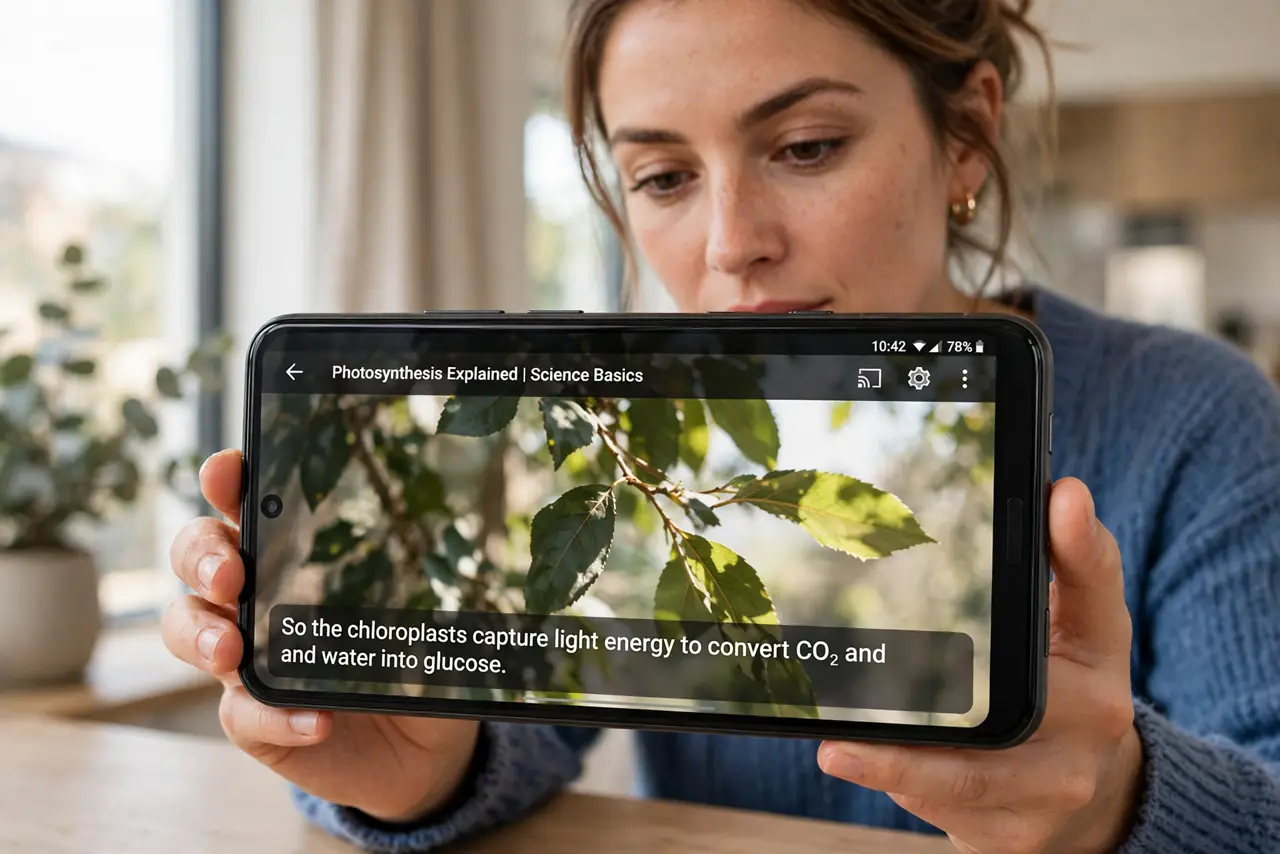
A video has no subtitles, a voice message is too long to listen to, or you are in a noisy room — and you just want the words. Android's Live Caption generates captions for any audio playing on your phone, no app support needed. Here is how to turn it on.
TL;DR / Quick Fix
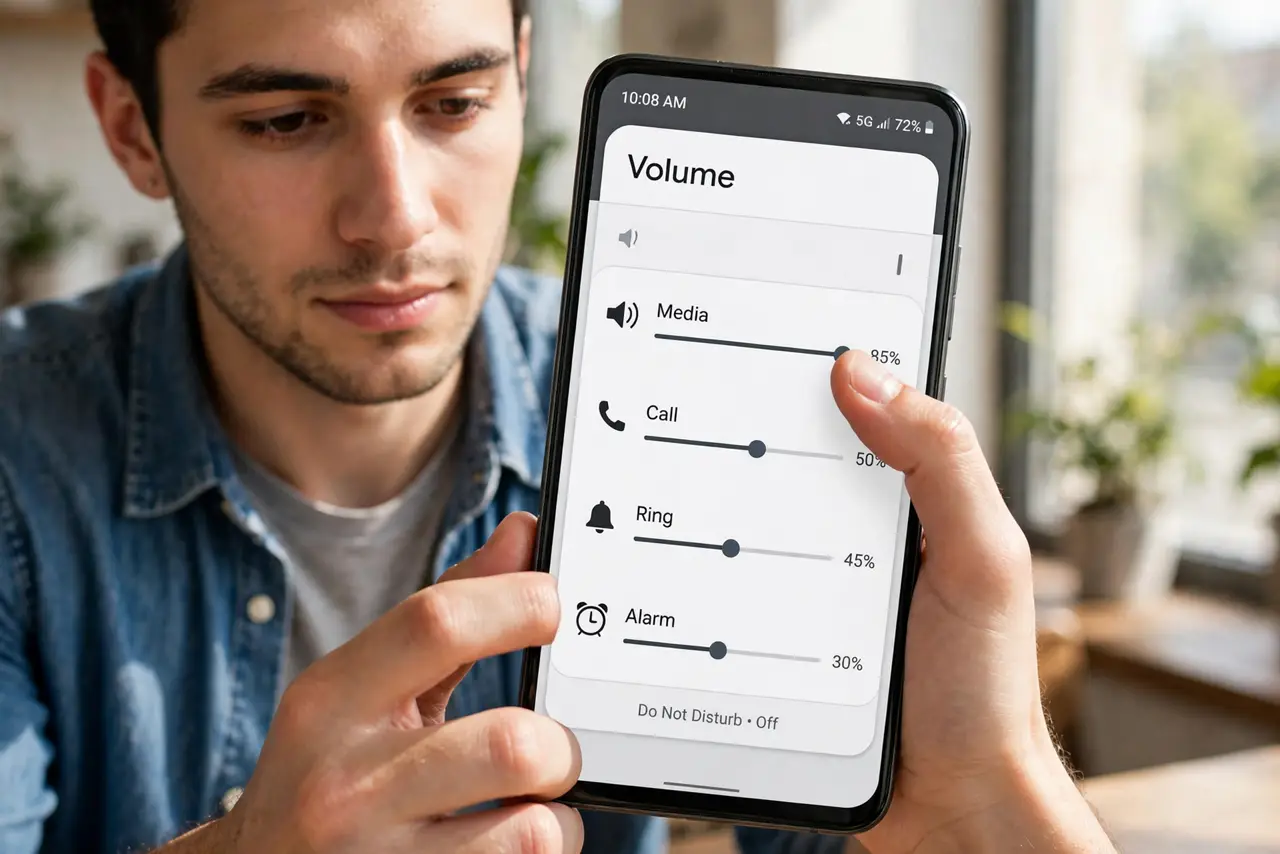
Quick fix: press a volume button, tap the Live Caption icon, and Android captions any audio — videos, calls, voice messages — automatically. It works offline and across apps. If captions lag, it is usually a weak moment for the processor, not a setting.
Follow these steps
- Turn it on from the volume panel. Press any volume button, then tap the Live Caption icon at the top of the volume slider. Captions start immediately for whatever is playing.
- Enable it in Settings for always-on. In Settings, Sound, Live Caption, you can leave it on permanently. It then captions everything without the volume-panel dance.
- Move the caption box. Drag the caption bubble anywhere on screen. Park it where it does not cover faces or subtitles baked into the video.
- Use it on calls and voice notes. Live Caption works on phone calls and voice messages too — read the conversation when you cannot listen. Great for noisy commutes.
- Know it runs on-device. The captioning happens on your phone, not in the cloud — which is why it works offline and in airplane mode.
- Pair it with amplification when needed. If the issue is hearing rather than noise, combine captions with sound amplification for the full assist.
What NOT to do
- Do not expect perfect captions. Accents, mumbling, and music still trip it up — it is an aid, not a transcript.
- Do not leave it on if you do not need it. It uses battery and processing in the background.
- Do not rely on it for critical information. For medical or legal audio, get a proper transcript.
- Do not confuse it with app subtitles. Live Caption is system-wide — it even captions apps that offer no subtitles at all.
Frequently asked questions
Does Live Caption work offline?
Yes — it runs on-device, so airplane mode is no obstacle.
Which phones have it?
Most Android phones from recent years. If the icon is missing, check for a system update.
Is there a version for other platforms?
Yes — see Windows captions and Mac captions.