Location History? Basics
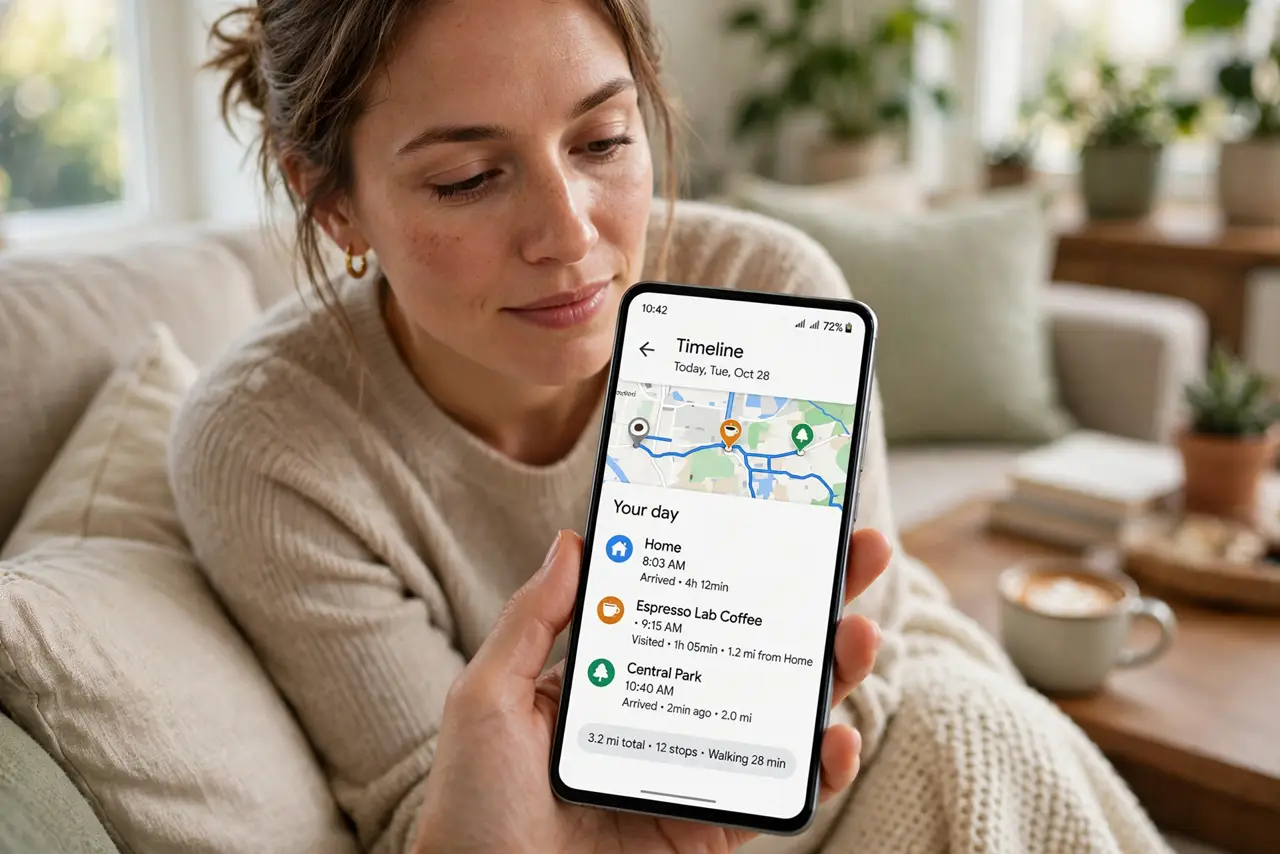
Your phone knows every place you have been — the coffee shop Tuesday, the airport last month — and it keeps a timeline of it all. Location History (called Timeline on Android) is genuinely useful for finding that restaurant you forgot, and genuinely creepy when you think about who holds the data. Here is what it is, how to view it, and how to control it.
TL;DR / Quick Fix
Quick fix: Location History is your phone's automatic log of places you visit, viewable in Google Maps Timeline. Useful for remembering past trips, alarming as a data trail. Review it, delete what you do not want kept, and turn it off if the tradeoff is not worth it.
Follow these steps
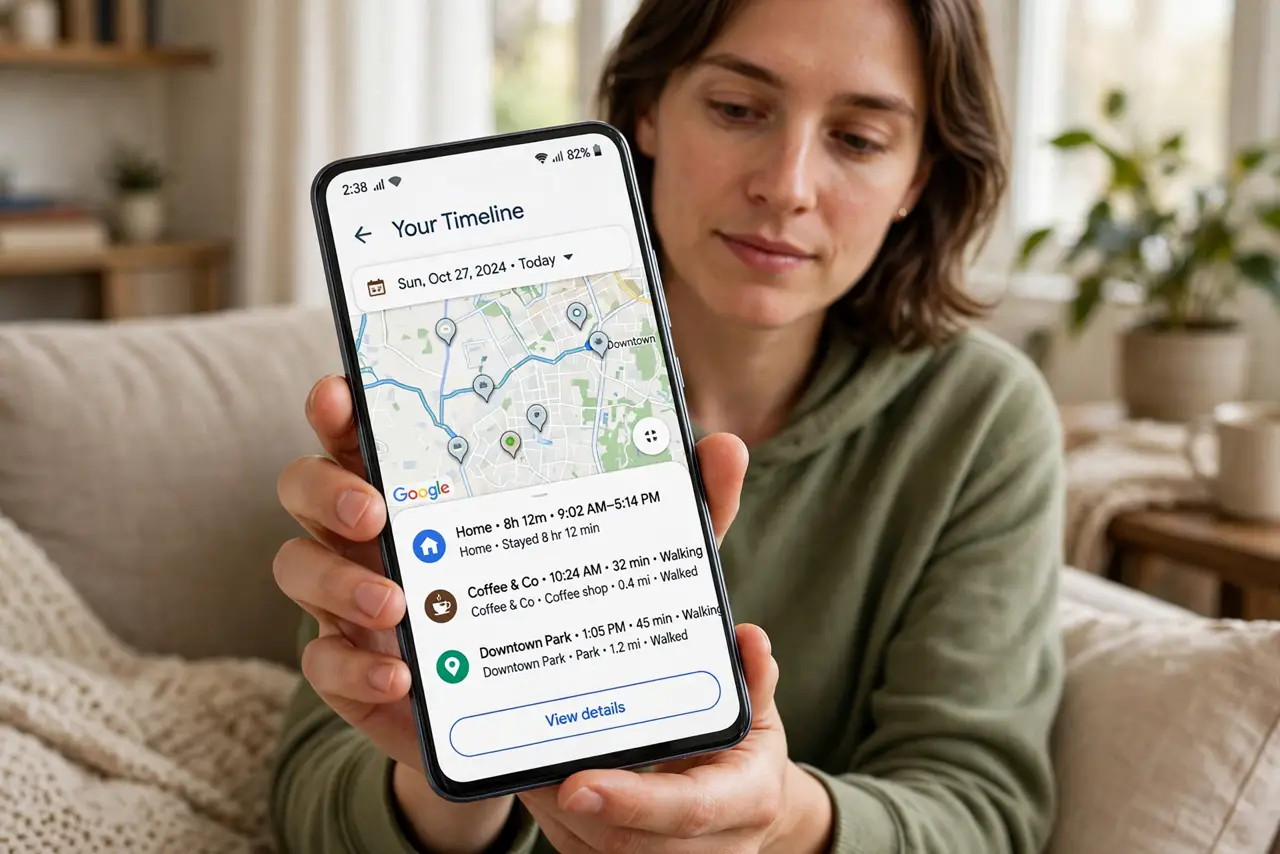
- Find your Timeline. On Android, open Google Maps, tap your profile picture, and choose Your Timeline. You will see your movements by day — every stop the phone recorded. Most people are surprised by how complete it is.
- Understand what is stored. The Timeline logs places visited, routes taken, and time spent — derived from GPS, Wi-Fi, and cell signals. Google keeps it in your account; see how to delete location history if the archive bothers you.
- Pause it if you want. In Timeline settings you can turn Location History off — the phone stops adding new entries. Note this also disables genuinely useful features like commute predictions and location-based reminders.
- Delete selectively. You can delete a single day, a single stop, or a date range without nuking everything. Auto-delete options (3, 18, or 36 months) keep a rolling window instead of a permanent record.
- Check which apps use location. Maps is not the only watcher — weather, social, and shopping apps request location too. Review app permissions in Settings and set rarely-used apps to 'only while using' or deny them entirely.
- Know the account-level switch. Location History is a Google account setting, not just a phone setting — it follows you across devices. Turning it off on the phone but leaving it on in the account changes nothing. See the location history off guide for the complete shutdown.
What NOT to do
- Do not assume turning off one toggle kills all tracking. Account-level, app-level, and device-level settings are three separate switches.
- Do not delete the Timeline in a panic and lose useful data. Export or review first — past trips are sometimes exactly what you need.
- Do not grant 'always' location to apps that do not need it. Weather needs your city; a flashlight app needs nothing.
- Do not forget signed-in shared devices. A family tablet on your account builds Timeline entries that are not yours — use separate accounts.
Frequently asked questions
Can someone else see my Timeline?
Anyone with your Google account password can. That is the real risk — secure the account with two-factor authentication before worrying about Google itself.
Does pausing delete old history?
No — pausing stops new entries; old ones remain until you delete them. Pause and delete are two separate actions.
Why does my Timeline show places I never visited?
GPS drift, Wi-Fi mislocation, or a shared account. Check for stray entries before assuming the worst — the data is often just imprecise.