Scan Apps with Play Protect
You installed an app from outside the Play Store — maybe a beta, maybe a regional app — and now something feels off: battery draining, odd popups, permissions you do not remember granting. Google Play Protect is the built-in scanner on Android that checks apps for harmful behavior, including sideloaded ones. Running a manual scan takes a minute and tells you whether that app is known-bad or just badly behaved.
TL;DR / Quick Fix
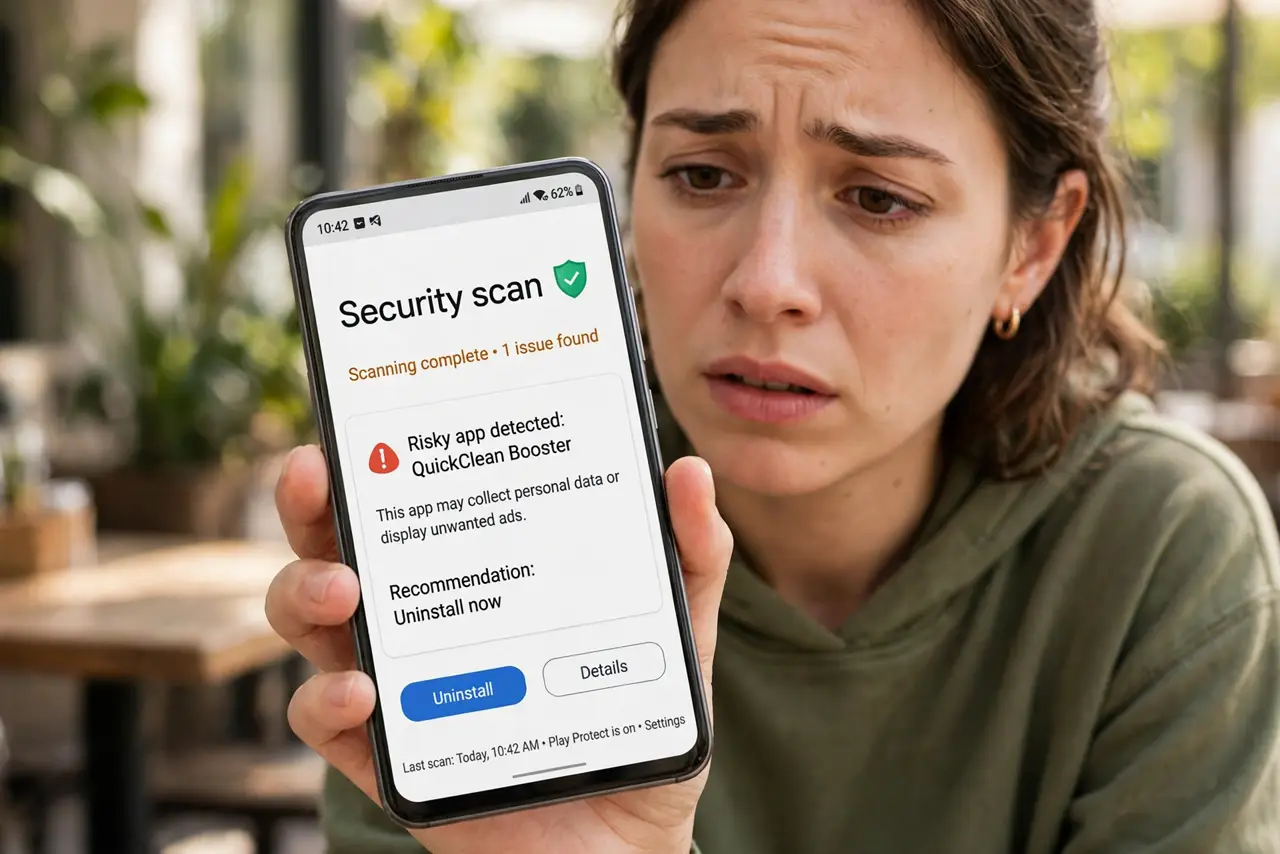
Quick fix: open the Play Store, tap your profile, then Play Protect, and run a scan — it checks all installed apps, including sideloaded ones, for harmful behavior. If it flags the app, uninstall it. If the scan is clean but the app misbehaves, revoke its permissions or remove it.
Follow these steps
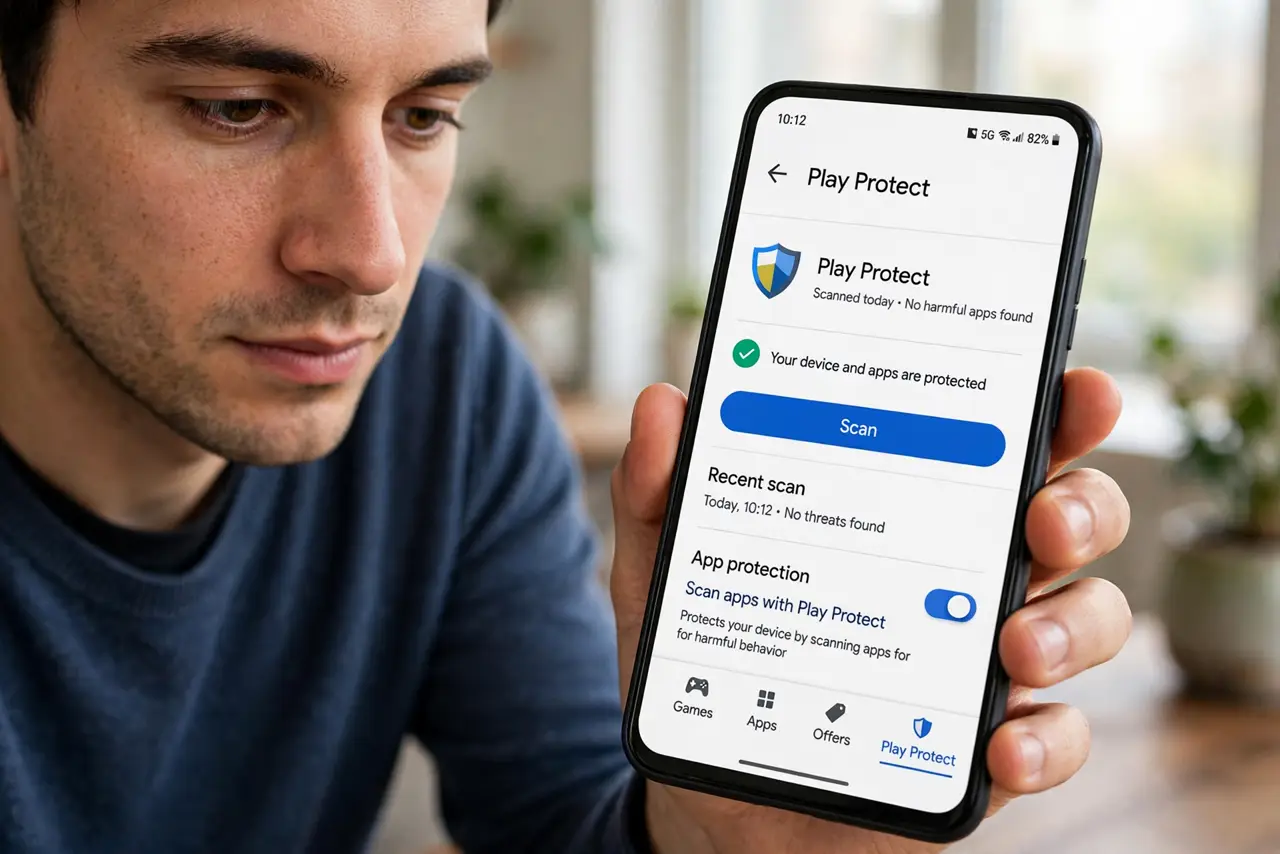
- Open Play Protect from the Play Store. Open the Play Store, tap your profile picture, then Play Protect. This is the scanner's home screen — it shows when the last scan ran and whether anything was found.
- Run a manual scan now. Tap Scan. Play Protect checks every installed app — from the Play Store or sideloaded — against its database of known harmful apps. It takes a minute or two on most phones.
- Read the result carefully. A clean result means no known threats were found — not a guarantee of good behavior. If an app is flagged, Play Protect names it and usually offers to disable or uninstall it on the spot.
- Uninstall anything flagged. Do not keep a flagged app just in case. Uninstall it, then restart the phone. If you sideloaded it from a site, avoid that source — see installing outside the Play Store safely for the safer way.
- Check the app's permissions. Even a clean scan does not excuse a flashlight app wanting your contacts. Open Settings, Apps, the app in question, Permissions, and revoke anything it does not need to function.
- Turn on improved detection. In Play Protect settings, enable the option to send unknown apps to Google for analysis. It slightly increases data sharing but catches brand-new threats faster.
What NOT to do
- Do not ignore a Play Protect warning. A flagged app is guilty until proven innocent — warnings exist because the app matched real malware.
- Do not assume a clean scan means the app is trustworthy. Scans catch known threats; shady-but-new apps and aggressive adware can slip through.
- Do not grant every permission a sideloaded app requests. Permissions last until you revoke them — deny first, allow only what breaks without it.
- Do not download lookalike security apps from random sites. The built-in scanner is the real one; copycat security apps are a classic trojan horse.
Frequently asked questions
Does Play Protect scan apps I sideload?
Yes — it scans every installed app regardless of source. Sideloaded apps actually get extra scrutiny, since they skipped the Play Store's upfront review.
Is Play Protect as good as an antivirus app?
For most people, yes — it is built in, always updated, and does not drain the battery like third-party scanners. A separate antivirus adds little on a modern Android.
Why did Play Protect block an app I trust?
It flags apps with risky behavior patterns, and occasionally a legitimate beta trips it. If you are certain of the source, you can allow it — but be genuinely certain, not just hopeful.