Pin an App to the Screen
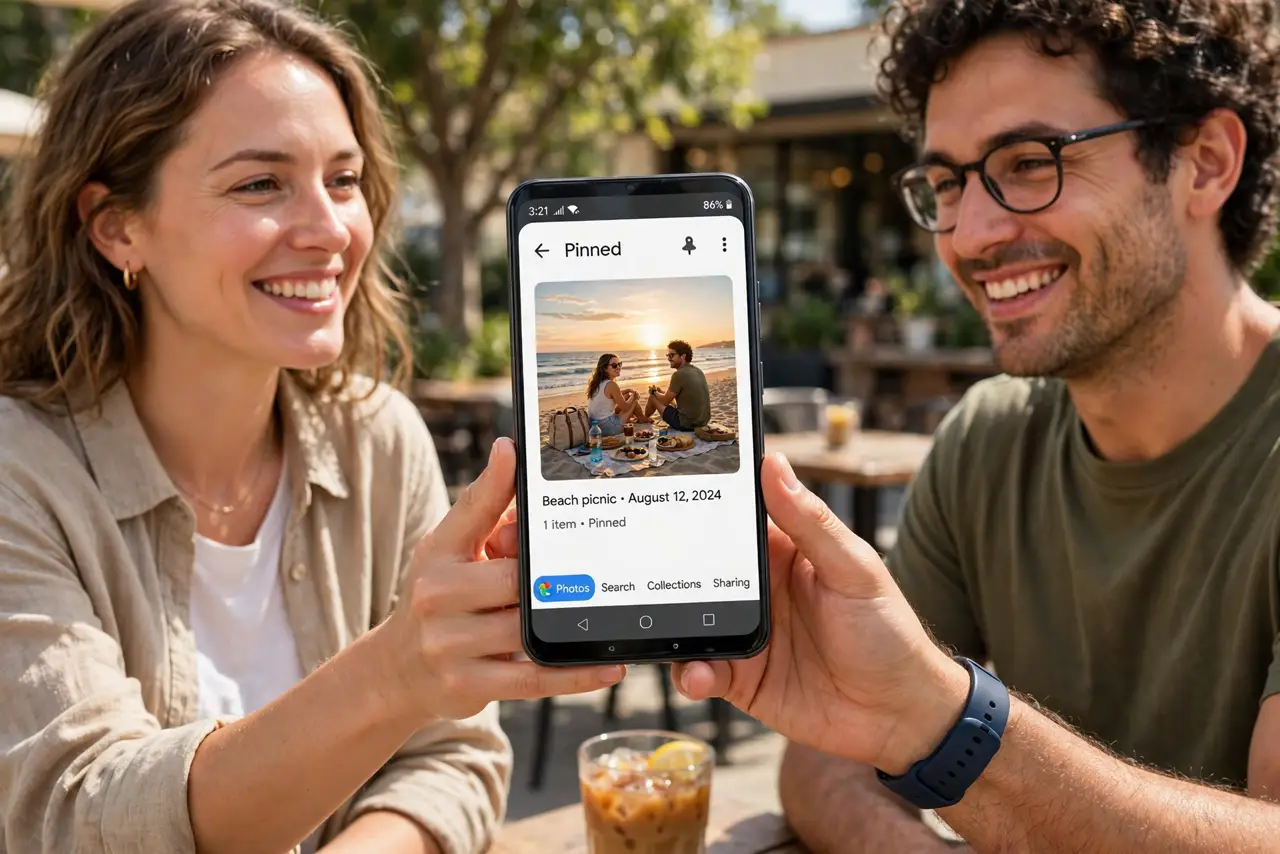
You hand your phone to someone to see one photo, and suddenly they are scrolling your messages. Screen pinning locks the phone to a single app until you unpin it with your PIN or pattern — perfect for lending the phone to kids or friends. Here is how to turn it on and use it without getting stuck.
TL;DR / Quick Fix
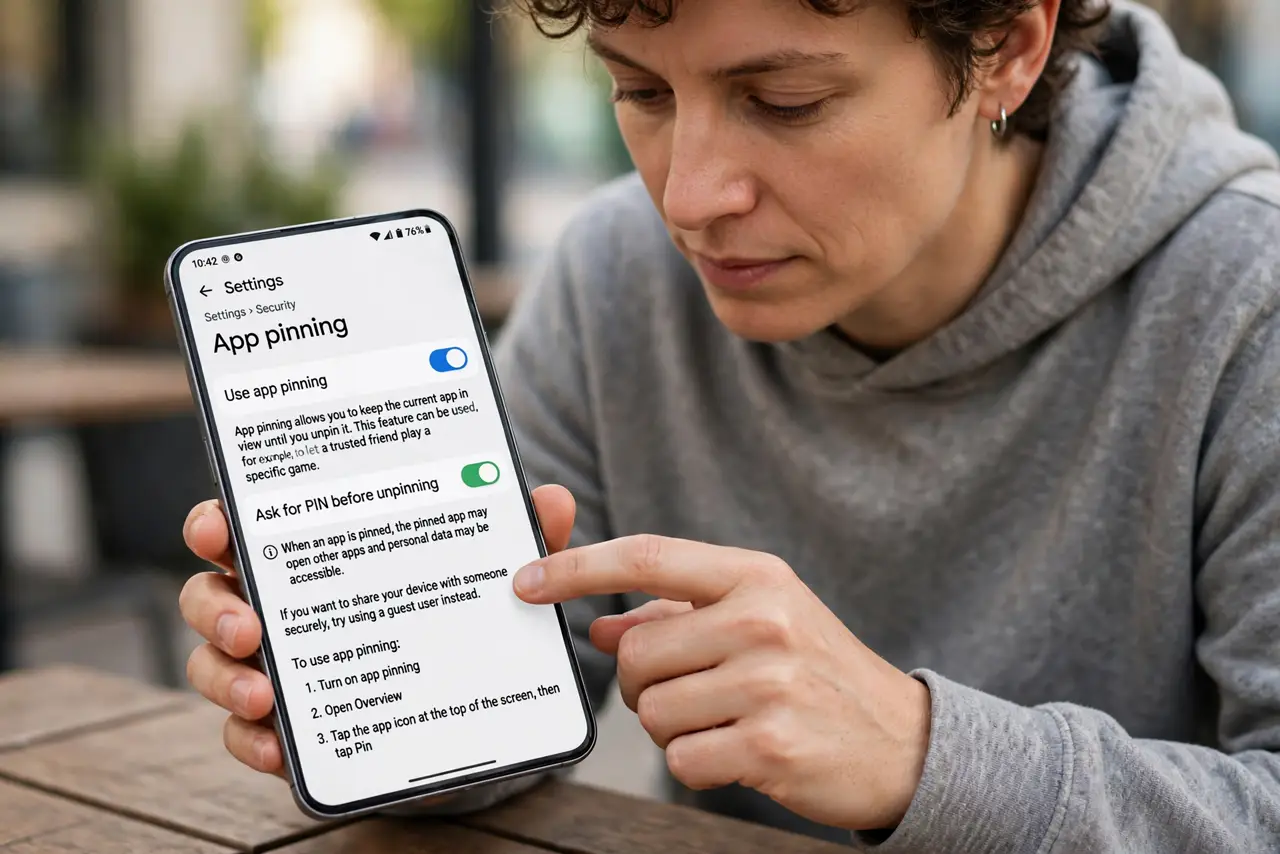
Quick fix: open Settings > Security (or Biometrics and security) and turn on App pinning or Screen pinning. Open the app, tap the recent-apps button, tap the app icon at the top, and choose Pin. Unpin by holding Back and Recents together. Ask for the PIN before unpinning.
Follow these steps
- Turn on screen pinning in Settings. Open Settings > Security (on Samsung: Biometrics and security > Other security settings) and enable App pinning or Screen pinning. Turn on ‘Ask for PIN before unpinning’ while you are there.
- Open the app you want to lend. Launch the exact app — the photo gallery, a game, a video — before pinning. The phone locks to whatever is on screen.
- Pin from the recent-apps view. Tap the recent-apps (square) button, tap the app's icon at the top of its card, and choose Pin. A confirmation appears.
- Hand the phone over calmly. The borrower can use only that app. Home, Back, and switching apps are all blocked until you unpin.
- Unpin with the button combo. Press and hold Back and Recents at the same time for a couple of seconds. Enter your PIN or pattern when asked.
- Test it on yourself first. Pin an app and try to escape before lending the phone. If you cannot unpin, check the setting again before someone else holds your phone.
What NOT to do
- Do not pin without the PIN requirement. Without it, anyone can unpin — the feature becomes decoration.
- Do not pin an app that needs another app to work. A pinned browser cannot open a linked map, for example.
- Do not use pinning as a child lock for hours. It is for brief lending; use Family Link for real supervision.
- Do not panic if the combo feels awkward. It takes two tries to learn; practice once and it becomes muscle memory.
Frequently asked questions
How is screen pinning different from locking the whole phone?
Pinning keeps one app usable while the rest stays locked. Locking the phone blocks everything. Pinning is for sharing; locking is for privacy.
Why can't I unpin the app?
The button combo is Back + Recents held together, not tapped. If it still fails, the PIN prompt may be hidden — see the guide on unpinning problems.
Does pinning work on iPhones?
iPhones use Guided Access instead: Settings > Accessibility > Guided Access. Triple-click the side button inside an app to start it.