Block Spam Calls? Basics
Robocalls about your car's warranty and silent calls from unknown numbers -- spam calls are a plague, and blocking them one number at a time is whack-a-mole. Android's built-in spam protection plus a few smart settings can silence most of them automatically. Here is the layered defense that actually works.
TL;DR / Quick Fix
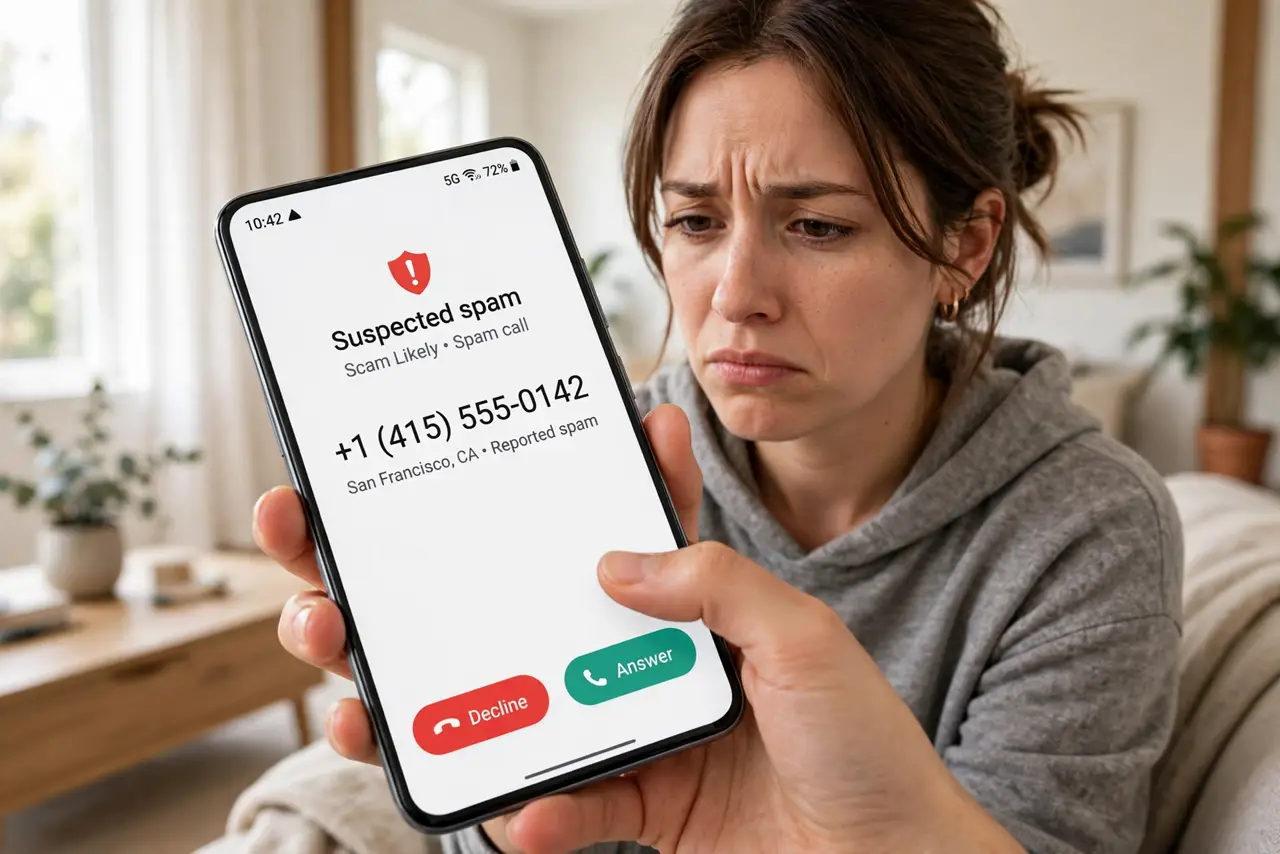
Quick fix: turn on Android's built-in spam protection in the Phone app settings -- it flags and can auto-block suspected spam. Send unknown callers straight to voicemail, and never answer or call back unknown numbers. Report spam calls in the Phone app to improve the shared database.
Follow these steps
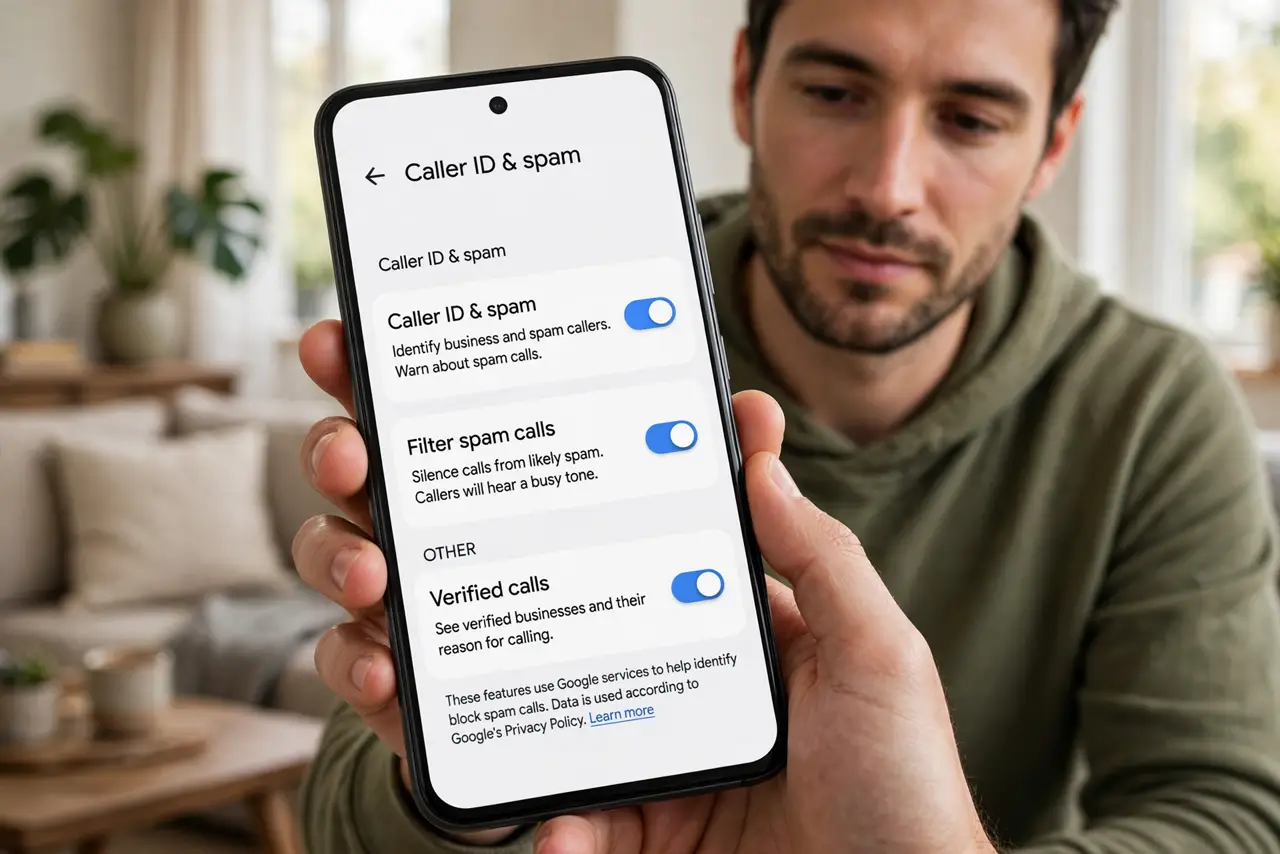
- Turn on caller ID and spam protection. In the Phone app: Settings, then Caller ID and spam -- enable both options. Google's database flags known spammers on the incoming call screen, which is half the battle.
- Enable automatic spam blocking. The same settings screen often offers blocking suspected spam calls outright. Start with flagging for a week; if the flags prove accurate, switch to auto-block.
- Silence unknown callers. Most Android phones can send calls from numbers not in your contacts straight to voicemail -- legitimate callers leave messages, spammers rarely do. This one setting eliminates most interruptions.
- Never engage with spam calls. Do not answer, do not press 1 to 'opt out,' do not call back. Any interaction confirms your number is live and invites more calls -- silence is the strategy.
- Report spam in the Phone app. After a spam call, open the call log, tap the number, and report it as spam. Reports feed the shared database that protects everyone -- it takes five seconds.
- Consider your carrier's tools too. Carriers offer their own spam-blocking apps and network-level filtering -- the spam calls guide covers the carrier layer. Stack carrier filtering on top of the phone's for the best result.
What NOT to do
- Do not answer unknown numbers out of curiosity. Answering marks your number as active -- the single worst thing you can do.
- Do not press any key during a robocall. 'Press 2 to unsubscribe' is often a trick to confirm a live human -- just hang up.
- Do not call back unknown numbers. Premium-rate callbacks and Wangiri scams profit from your curiosity -- let voicemail decide.
- Do not pay for a blocking app before trying free tools. Built-in protection plus carrier filtering handles most spam -- paid apps are the last resort.
Frequently asked questions
Will blocking stop all spam calls?
No -- spammers rotate numbers constantly. Good settings cut the volume dramatically, from dozens a week to a trickle.
Is it safe to block all unknown callers?
Mostly -- real callers leave voicemail. The risk is missing an urgent call from an unknown number, like a hospital or a new contact.
Why do I get more spam after answering once?
Answering tells the spammer's system your number is live, and it gets shared or sold to other operations. One answer can multiply the calls.