Pair an Apple Pencil
An Apple Pencil that will not pair is a special frustration — a premium accessory reduced to a stick. The fix is usually simple: wrong pairing method for your model, Bluetooth off, or a dead battery. Match the method to your Pencil generation and it connects in seconds.
TL;DR / Quick Fix
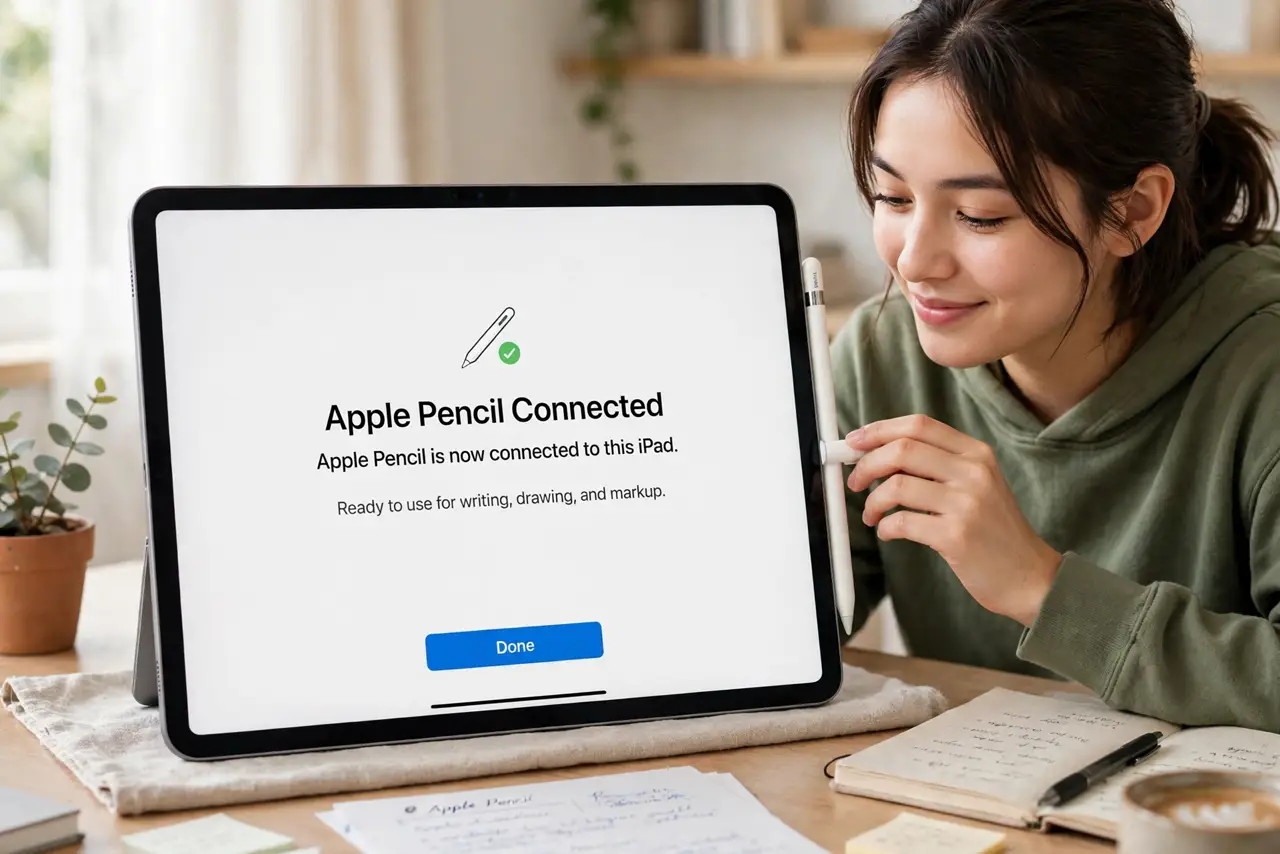
Quick fix: for Apple Pencil 2, attach it magnetically to the iPad’s side edge — it pairs and charges automatically. For Pencil 1, plug it into the iPad’s Lightning port, tap Pair, then unplug. If it won’t connect, check Bluetooth is on and the tip is screwed on tightly.
Follow these steps
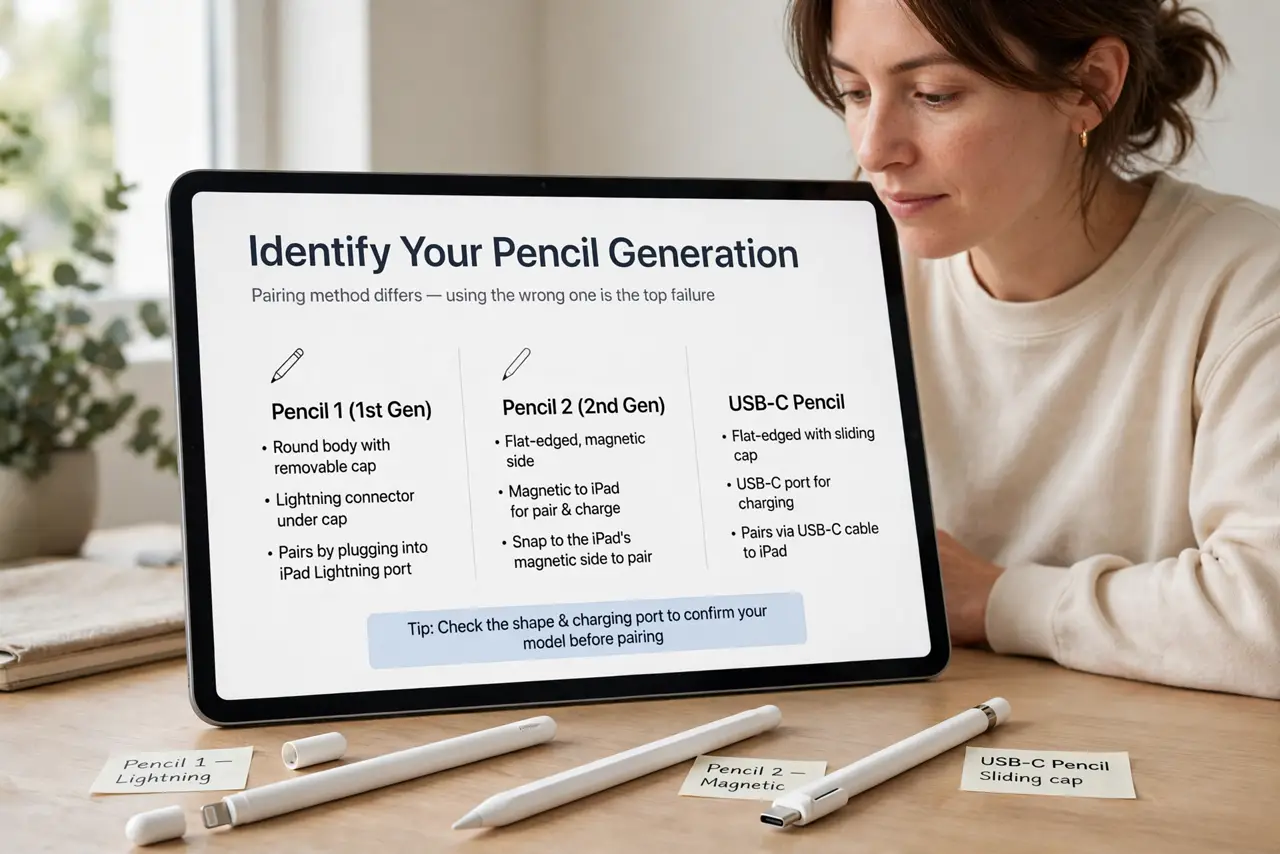
- Identify your Pencil generation. Pencil 1 is round with a removable cap and Lightning connector; Pencil 2 is flat-edged and magnetic; USB-C Pencil has a sliding cap. The pairing method differs — using the wrong one is the top failure.
- Pair Pencil 2 magnetically. Attach it to the magnetic edge of a compatible iPad — a pairing prompt appears; tap Pair. It also charges while attached, so a ‘dead’ Pencil 2 often just needs a minute on the edge.
- Pair Pencil 1 via Lightning. Remove the cap and plug it into the iPad’s Lightning port, tap Pair when prompted, then unplug. If nothing happens, the Pencil’s battery may be fully dead — charge it via the port for a few minutes first.
- Check the basics when it fails. Bluetooth on, iPad updated, Pencil charged, tip screwed on firmly. A loose tip breaks the connection invisibly — unscrew and reseat it as the first troubleshooting step.
- Forget and re-pair stubborn cases. In Settings > Bluetooth, forget the Pencil and pair fresh. This clears corrupted pairings that survive restarts — the classic fix for ‘was working yesterday’ cases.
- Confirm iPad compatibility. Not every Pencil works with every iPad — check Apple’s compatibility list for your exact models. A perfectly good Pencil that ‘won’t pair’ is sometimes just the wrong generation for the iPad. Stylus users on Windows tablets want Surface Pen setup instead.
What NOT to do
- Do not force the Pencil 1 into a USB-C port. It is Lightning-only — forcing it damages both; the USB-C Pencil is a different product.
- Do not assume a dead Pencil is broken. Pencils left uncharged for months can take a long charge to wake — give it an hour before declaring it dead.
- Do not ignore a loose tip. Wobbling or intermittent strokes almost always trace to the tip — tighten or replace it before anything drastic.
- Do not pair two Pencils to one iPad expecting both to work. Only one stays active; the iPad gets confused switching between them. One Pencil per iPad is the supported setup.
Frequently asked questions
Why does my Pencil keep disconnecting?
Usually low battery or Bluetooth interference. Charge it fully, move away from crowded 2.4 GHz environments, and reseat the tip.
Can I use Apple Pencil with iPhone?
No — Apple Pencil works with iPads only. iPhones do not support it, and no setting changes that.
How long does the battery last?
Around 12 hours of use for Pencil 2, charged in minutes on the magnetic edge. A 15-second attach gives roughly 30 minutes — charge anxiety is unnecessary.