Read Apple's Privacy Report
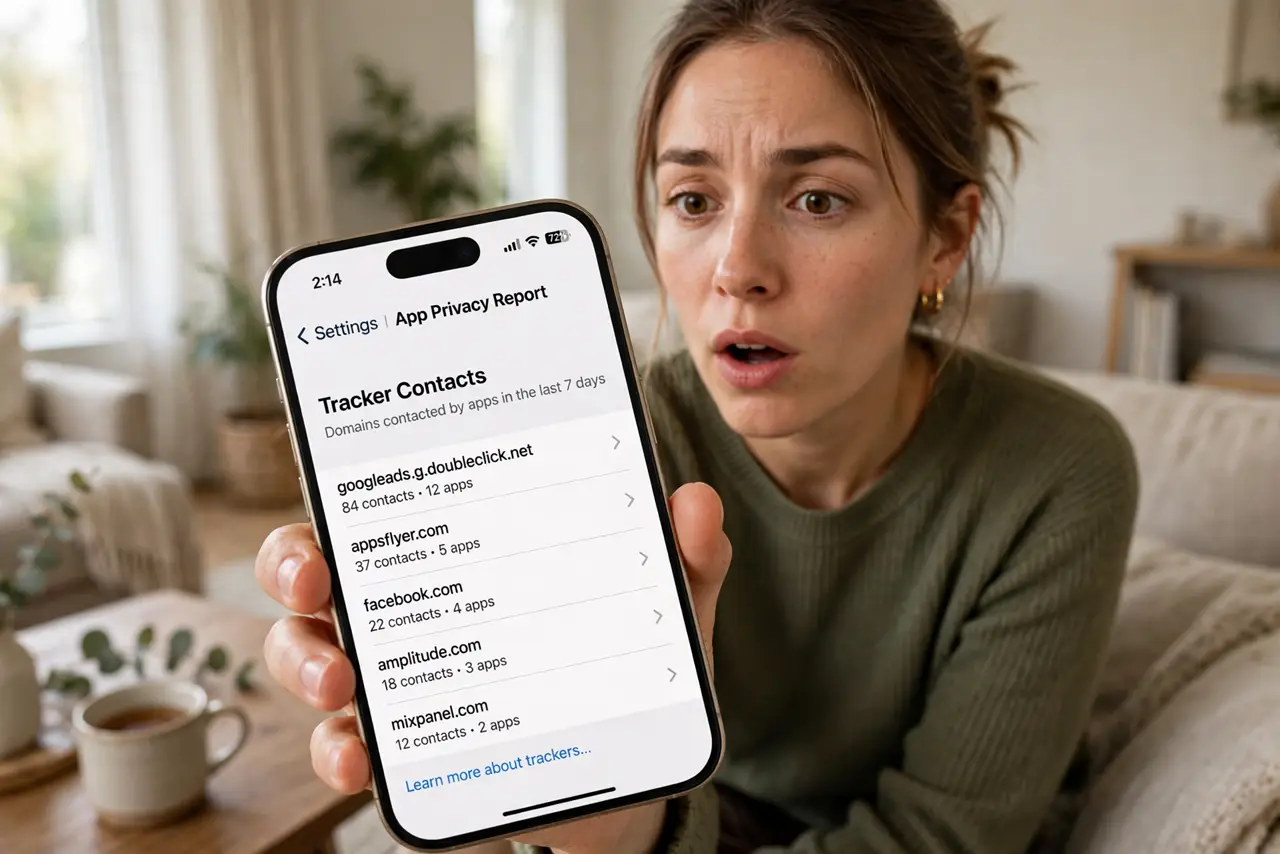
Which apps are secretly contacting trackers? Which ones grabbed your location at 3 AM? Apple's App Privacy Report answers with a seven-day log of every app's network contacts and sensor access. Most people never turn it on — and the results surprise everyone who does. See the report details and learn to read privacy labels before installing.
TL;DR / Quick Fix
Quick fix: Apple's App Privacy Report shows which apps contacted trackers and accessed your location, photos, or microphone in the last seven days. Turn it on in Settings, check it weekly, and delete apps that phone home excessively. Sunlight is the best disinfectant for sneaky apps.
Follow these steps
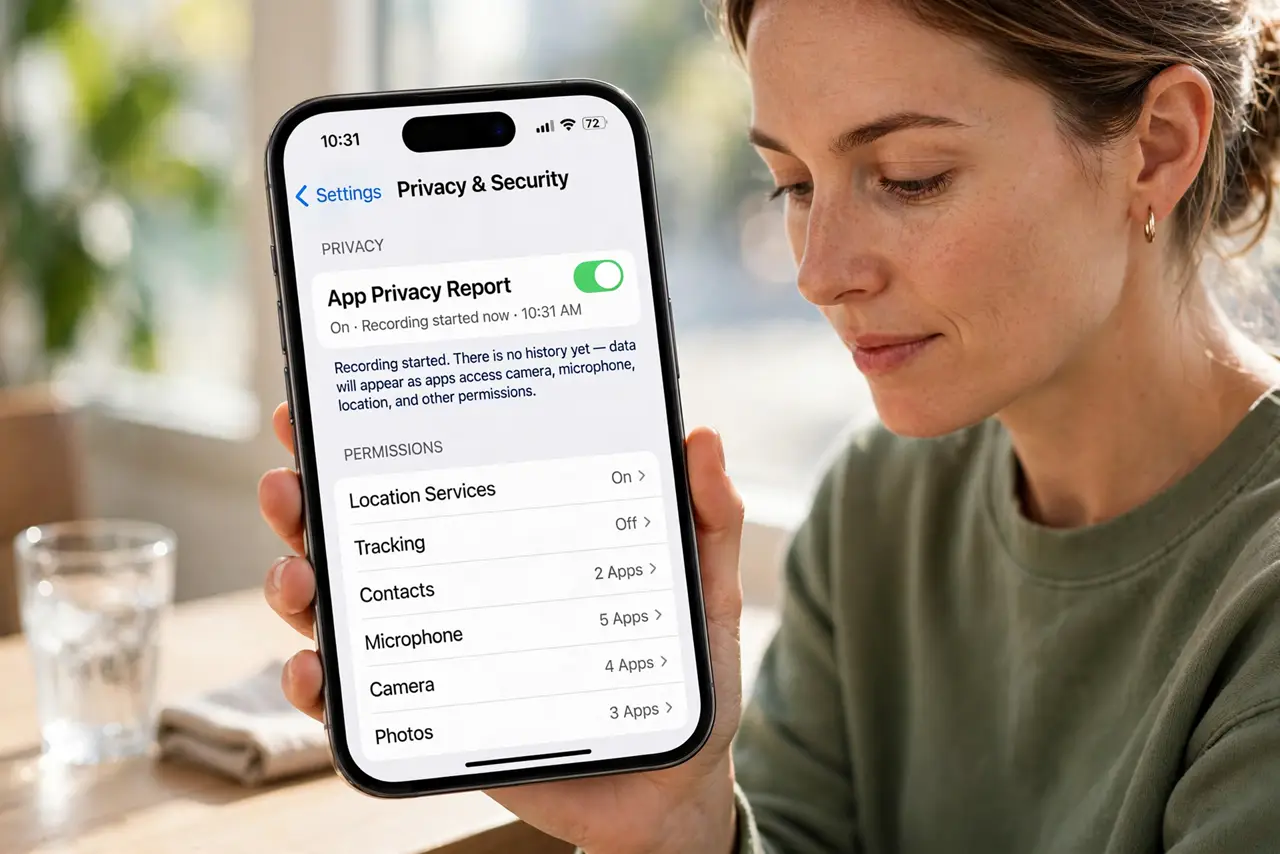
- Turn it on. Go to Settings, Privacy and Security, and enable App Privacy Report. It starts logging immediately — there is no history before enablement.
- Wait a few days. The report needs a few days of normal phone use to paint a real picture. Check back after a week of typical usage.
- Review network activity. See which domains your apps contacted. Tracker and analytics domains you have never heard of, contacted hundreds of times, deserve suspicion.
- Review sensor access. Check which apps used your location, camera, microphone, and photos — and when. A flashlight app accessing location at midnight is a red flag.
- Act on the worst offenders. Delete apps that phone home excessively, or revoke their permissions. The report is only useful if it changes what stays on your phone.
- Recheck monthly. New apps, new behaviors. A monthly glance keeps the sneaky ones from settling in unnoticed.
What NOT to do
- Do not panic at the first report. Some tracker contacts are benign analytics — look for volume and sneakiness, not mere existence.
- Do not ignore system apps. They appear in the report too; focus your judgment on third-party apps you chose to install.
- Do not enable it and never look. A logging feature you never read is just battery usage with extra steps.
- Do not assume paid apps are clean. Price is no guarantee — check every app, free or paid.
Frequently asked questions
Does it slow down my phone?
No noticeable impact. Logging is lightweight and designed to run silently in the background.
Can I see more than seven days?
The report keeps a rolling seven-day window. For longer history, check consistently and note trends yourself.
What should I do about a suspicious app?
Revoke its permissions first, then delete it if the behavior looks unjustifiable. Report egregious cases in a review.