Set Up an Authenticator App
That six-digit code your bank or email asks for after your password comes from an authenticator app — and setting it up wrong can lock you out of your own accounts. The setup takes about two minutes per account: scan a QR code, save the backup codes, and you are far safer than with text-message codes. Do it right once and it protects you for years.
TL;DR / Quick Fix
Quick fix: install an authenticator app, then on each account go to security settings, choose authenticator app for two-factor, and scan the QR code. Immediately save the backup codes somewhere safe — they are your lifeline if you lose your phone. Start with email, then bank, then everything else.
Follow these steps
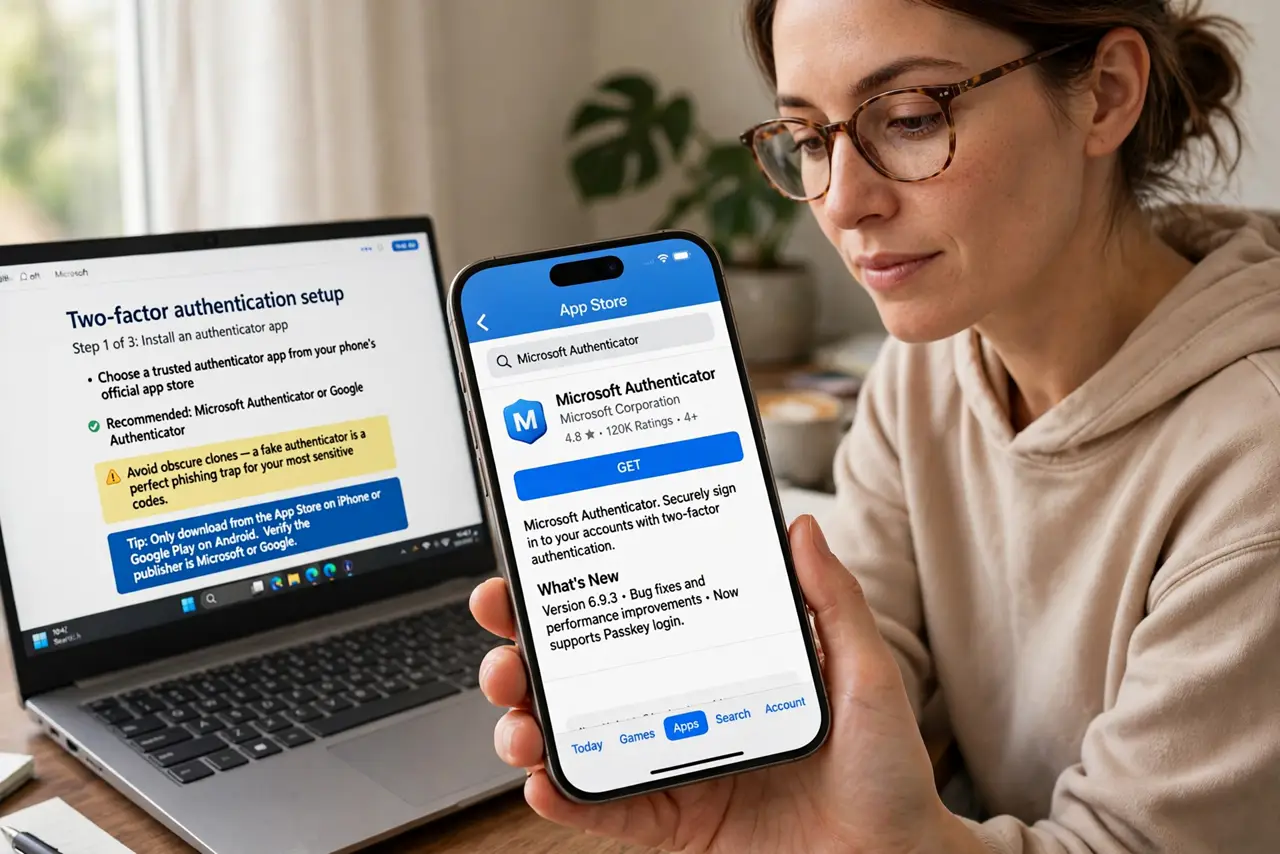
- Install a reputable authenticator app. Pick a well-known one from your phone's official app store. Avoid obscure clones — a fake authenticator is a perfect phishing trap for your most sensitive codes.
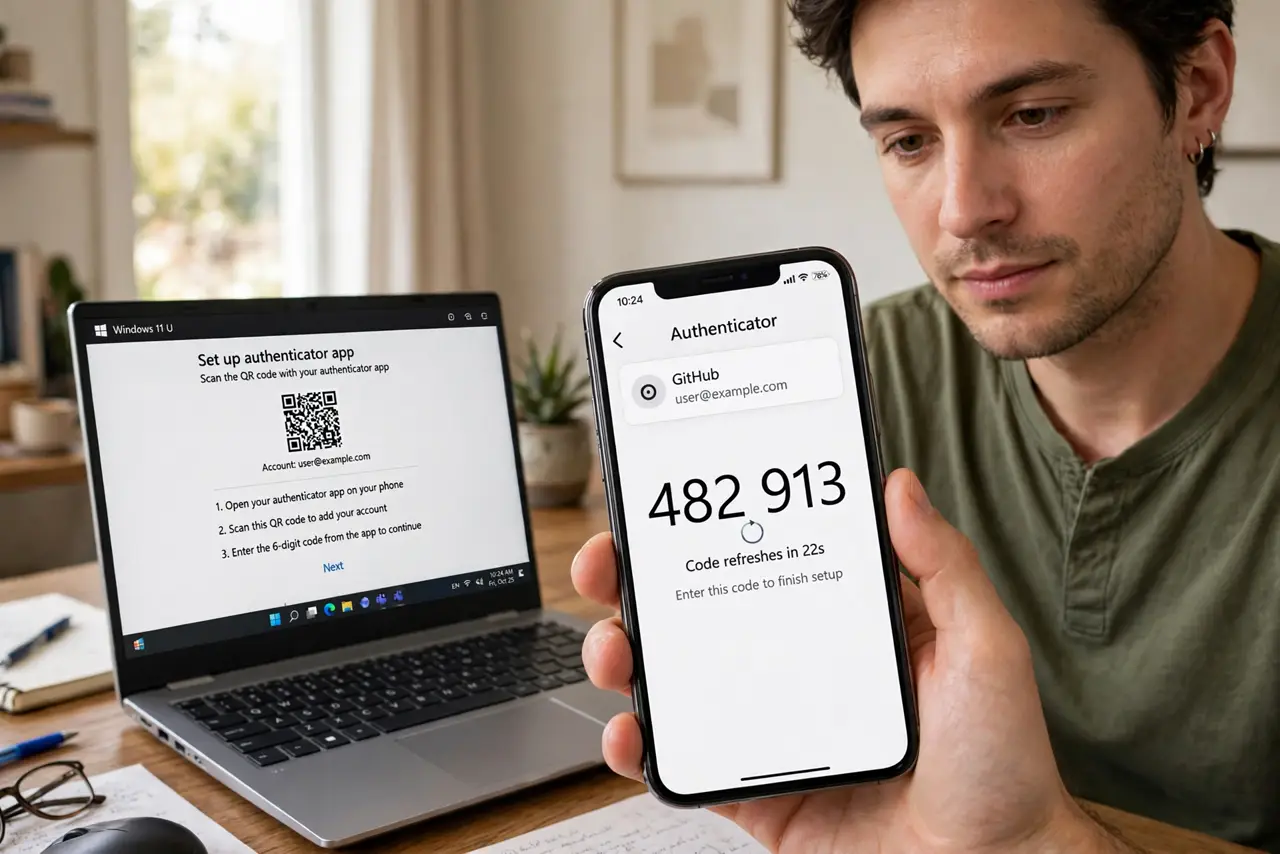
- Turn on two-factor in the account's security settings. On each account, open security or sign-in settings and choose authenticator app as the two-factor method. The site will show a QR code — that code is the secret being shared.
- Scan the QR code with the app. Point the authenticator app at the QR code. A new entry appears with a six-digit code that changes every 30 seconds — enter the current code on the site to confirm pairing.
- Save the backup codes immediately. The site will show one-time backup codes — screenshot or print them and store them somewhere safe, like with your other 2FA backups. Skip this and a lost phone means a painful account recovery.
- Test a full logout and login. Sign out and sign back in using the authenticator code. Confirming the loop works now beats discovering a broken setup when you are traveling and locked out.
- Set up your most important accounts first. Prioritize in this order: email (it resets everything else), bank and money apps, then social and work accounts. Also back up the authenticator itself so a new phone does not strand you.
What NOT to do
- Do not screenshot the QR code and leave it in your photos. Anyone with that image can clone your codes — treat it like a password.
- Do not skip saving backup codes. 'I'll do it later' is how people end up locked out of their email for weeks.
- Do not use SMS codes where an authenticator is offered. Text messages can be intercepted through SIM swapping; authenticator codes cannot.
- Do not install authenticator apps from ads or links. Only from the official app store — fake versions exist and they steal everything.
Frequently asked questions
What happens if I lose my phone?
Use the backup codes you saved to sign in, then set up the authenticator on your new phone. Without backup codes, you face each service's account recovery process.
Can I use the same authenticator on two phones?
Some apps offer encrypted cloud sync across devices; others need manual setup per device. Check your app's backup options before you need them.
Is an authenticator better than a hardware security key?
Security keys are stronger, but authenticator apps are far more convenient and still vastly better than SMS. Most people should start with the app.